
Build a Customer Demo in Minutes
Use the Demo Builder in your partner portal to show a prospect an assistant for their own business in a few minutes – and what to do once the demo has convinced them.
The Demo Builder lives in your partner portal and is made for the quick demo: you enter your prospect's website, fonio builds an assistant that knows their business, and you call it together. It takes a few minutes and needs no setup. For a more detailed demo – with your own forwarding rules, knowledge base and voice – you then build the assistant in your account under Assistants and configure it together with the customer.
Quick demo with the Demo Builder
Website in, assistant out, call it. Ideal for the first meeting or to send to a prospect before the appointment.
Detailed demo in your account
A new assistant under Assistants, configured live with the customer. For the customer who is convinced and wants to see how it would work for them.
Log in
Log in with your partner account at app.fonio.ai. No account yet? Start here: Test fonio with your partner account.
Open the Demo Builder
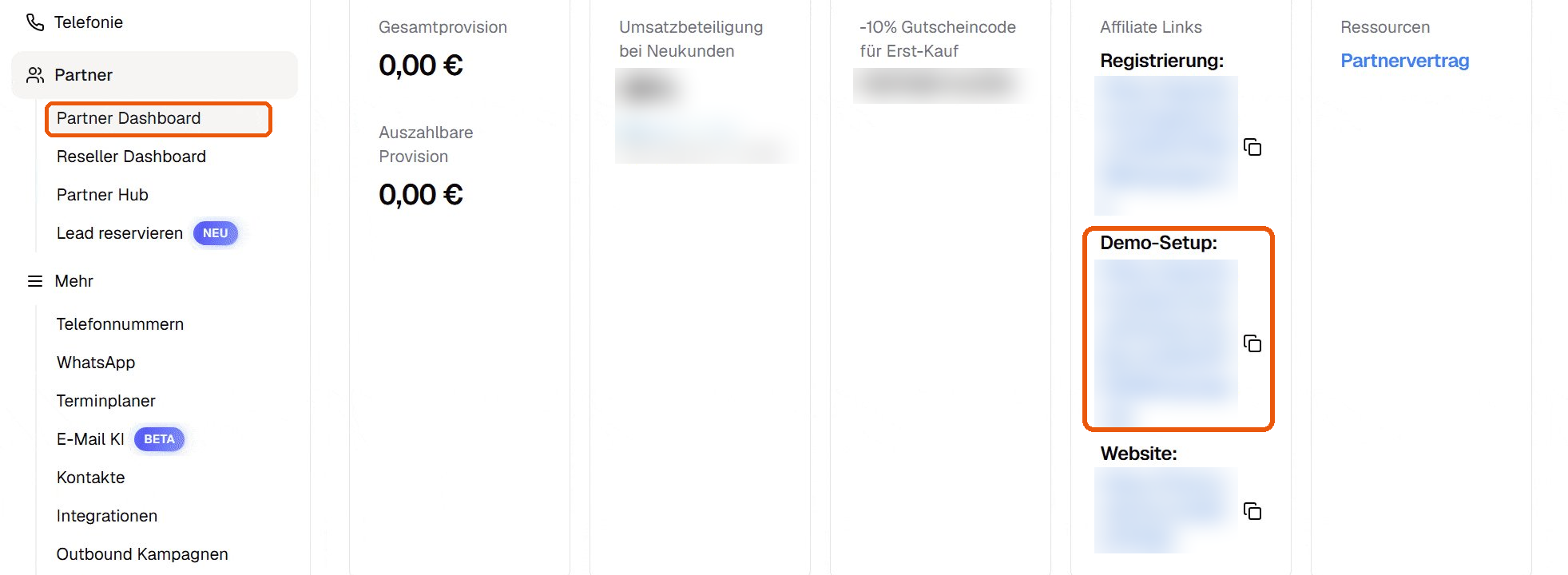
Go to the partner portal at app.fonio.ai/partner-portal. In the menu under Partner → Partner Dashboard, the Affiliate Links tile contains the Demo-Setup link – that is your Demo Builder. Open it, or copy it with the icon next to it.
Enter the customer's website
Paste the link to your prospect's website. fonio reads the website and creates an assistant with the information it finds there. Keep talking while it loads – the waiting time is part of the moment: "It is now reading your website, give it a few seconds."
Show the demo and talk it through
Call the assistant together. Best: the customer calls themselves and asks the question their callers usually ask – opening hours, prices, an appointment, an emergency. Afterwards, talk about everything: what fit, what was missing, what they would want differently. Write it down – that is your brief for step 5.
If the assistant gets something wrong, that is normal: it only knows what is on the website. Say so and move on to step 5, where you fix exactly that.
Set up the assistant together
If the demo has convinced the customer, go into your own account, open Assistants and create a new assistant. Configure it together with the customer: scan the website, correct the knowledge base, greet callers with the company name, add forwarding rules and opening hours, then make another test call. The prompt guide with the AI Prompt Builder helps you write the prompt.
After the demo: an account for the customer
Your partner account is for demos and tests. For real customer calls, the customer needs their own fonio account – as a referral through your affiliate link or as a resell customer you create in the partner portal (see Refer or resell?). Ideally you create it in the same meeting, as described in The demo that closes. Copying a finished assistant from your account into a customer account is not a standard feature yet; if you need it, ask your partner manager.
Send the demo link before the meeting
You can also send your demo link to a prospect before the meeting, so they and their decision maker can try it themselves. You may share the demo link publicly, for example on your website. More on this in Qualifying before the demo.
If it doesn't work
- The customer has no website: build the assistant manually in your account (step 5) and fill the knowledge base from a PDF or a list of questions and answers.
- The assistant gives wrong answers: correct them in step 5 in the knowledge base and call again. Two calls in a row show the customer they are in control.
- Your test minutes run out: your partner account includes 25 demo minutes per month. For more, contact your partner manager or partner@fonio.ai.