
Analytics
Analyze your conversations, filter your call history and keep an eye on your workspace usage.
In Analytics you'll find all conversations in your workspace. You can filter calls and chats, review individual conversations in detail and analyze your current usage.
Filter conversations
In the left sidebar, open Conversations. Click the funnel icon next to the search bar to open the available filters.
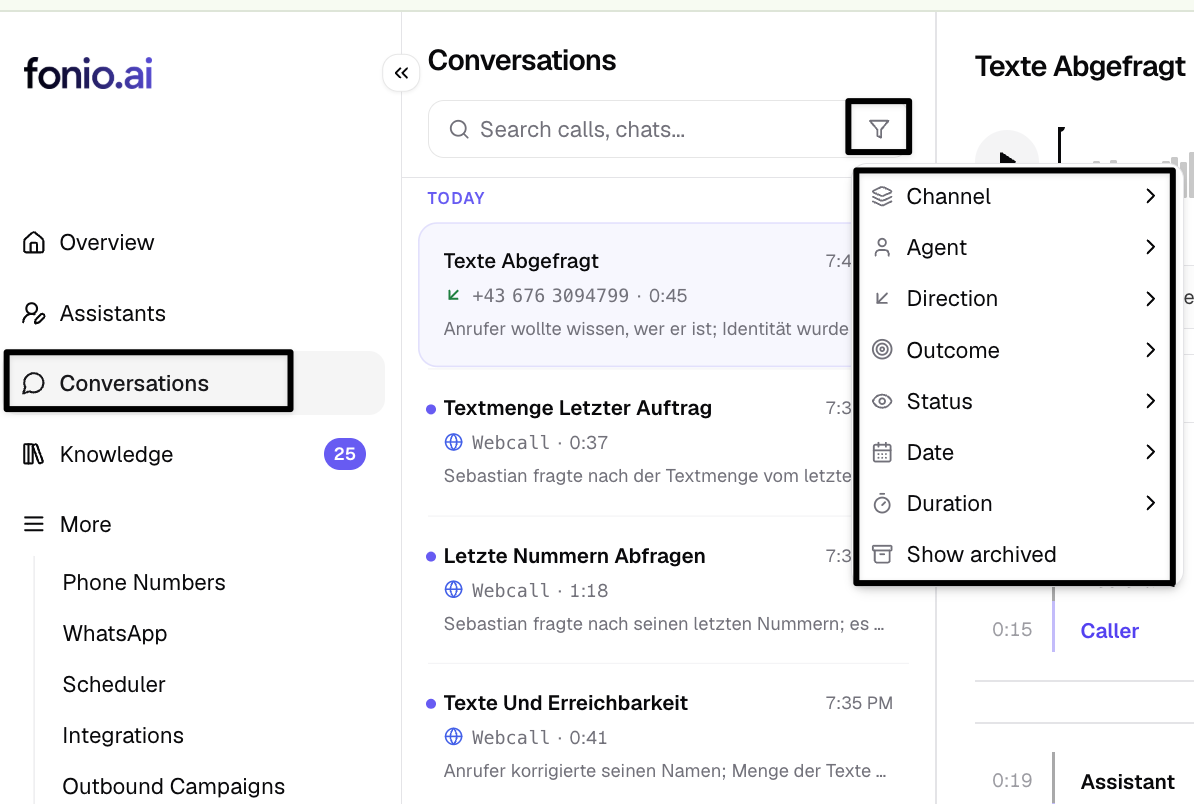
| Filter | Options | What it does |
|---|---|---|
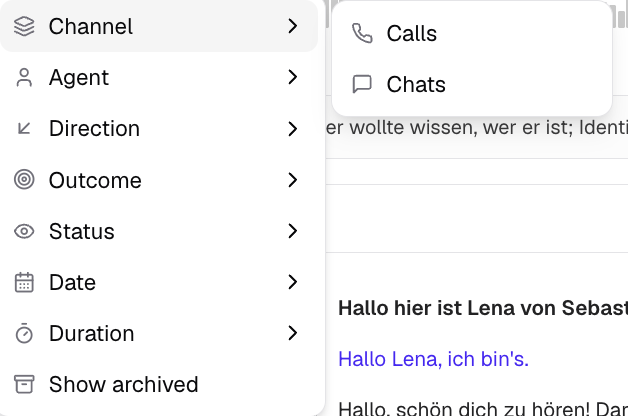
| Channel | Calls, Chats | Choose which type of conversation to show. |
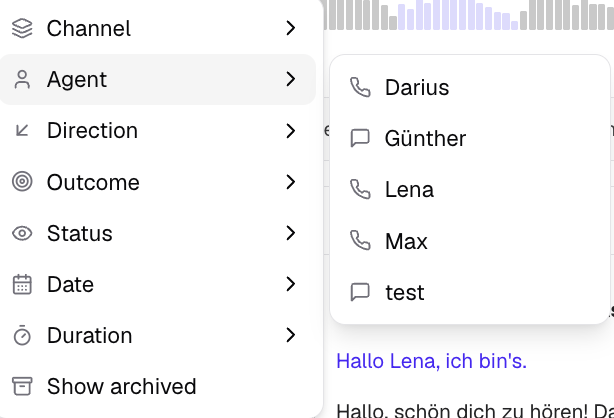
| Agent | All assistants in your workspace | Show only conversations handled by a specific assistant — helpful if you use several assistants for different locations, departments or tasks. |
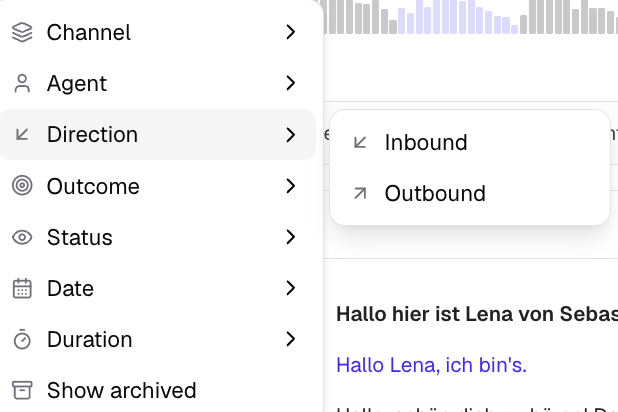
| Direction | Inbound, Outbound | Filter calls by their direction. |
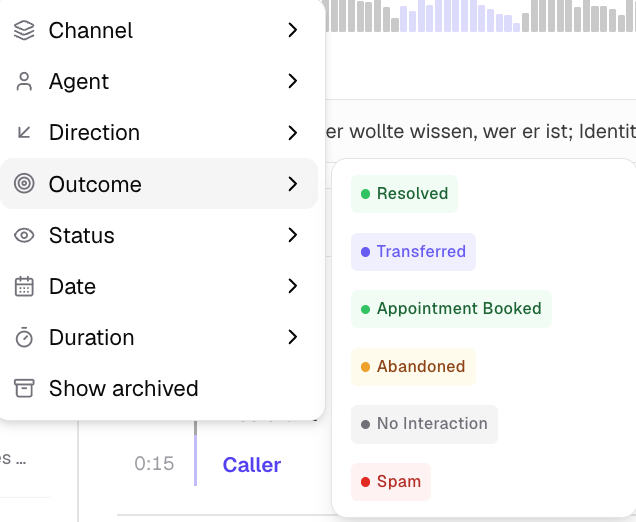
| Outcome | Resolved, Transferred, Appointment Booked, Abandoned, No Interaction, Spam | Find, for example, all conversations where an appointment was booked or a call was transferred. |
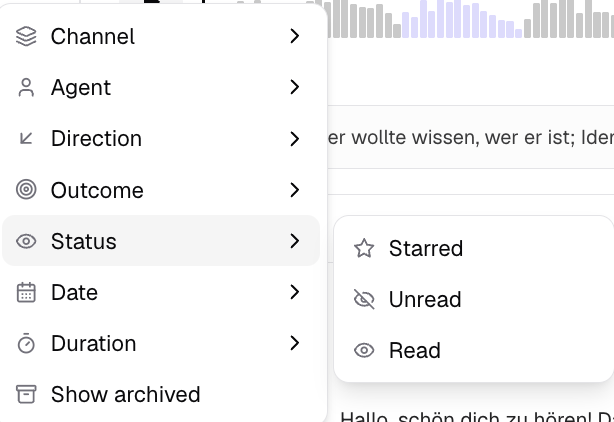
| Status | Starred, Unread, Read | Filter by whether conversations have been read or starred. Star important conversations to review them again later. |
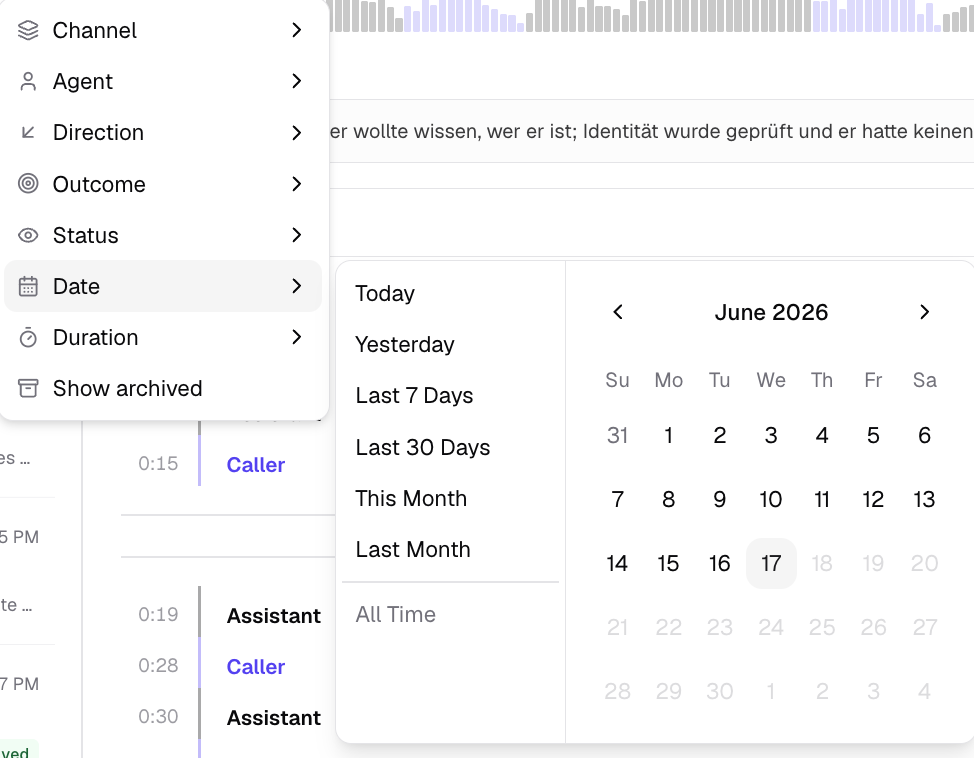
| Date | Today, Yesterday, Last 7 Days, Last 30 Days, This Month, Last Month, All Time, Custom date | Choose a preset period or set a custom date. |
| Duration | Conversation length | Find very short calls with no interaction or particularly long consultations. |
| Show archived | On, Off | Also include archived conversations in the list. |
Useful filter combinations
You can use several filters at the same time:
| Goal | Channel / Agent / Direction | Outcome | Date |
|---|---|---|---|
| Review unanswered conversations | Calls | Abandoned or No Interaction | Last 7 Days |
| See last week's transferred calls | Calls | Transferred | Last 7 Days |
| Analyze appointment bookings | Calls | Appointment Booked | This Month |
| Check transfers by a specific assistant | The assistant you want | Transferred | Last 30 Days |
| Monitor outbound campaigns | Outbound | — | Your campaign period |
Conversation details
Click a conversation to open the detail view. There you'll find the recording, the summary, the transcript and further technical information.
Recording
If audio recording was enabled for the assistant, you'll find an audio player with a waveform in the conversation. With it you can:
- Listen to the entire conversation
- Jump to a specific point
- Skip forward and back
- Change the playback speed
- Compare the transcript with the audio
No recording available
The audio player only appears for conversations that were recorded. If audio recording was turned off at the time of the call, it cannot be created afterwards.
Summary
Below the audio player you'll find an automatically generated summary of the conversation. It helps you understand the caller's request quickly without having to listen to the whole conversation.
For important details such as phone numbers, email addresses or customer numbers, you should also check the transcript, the extracted variables or the system data.
Right panel
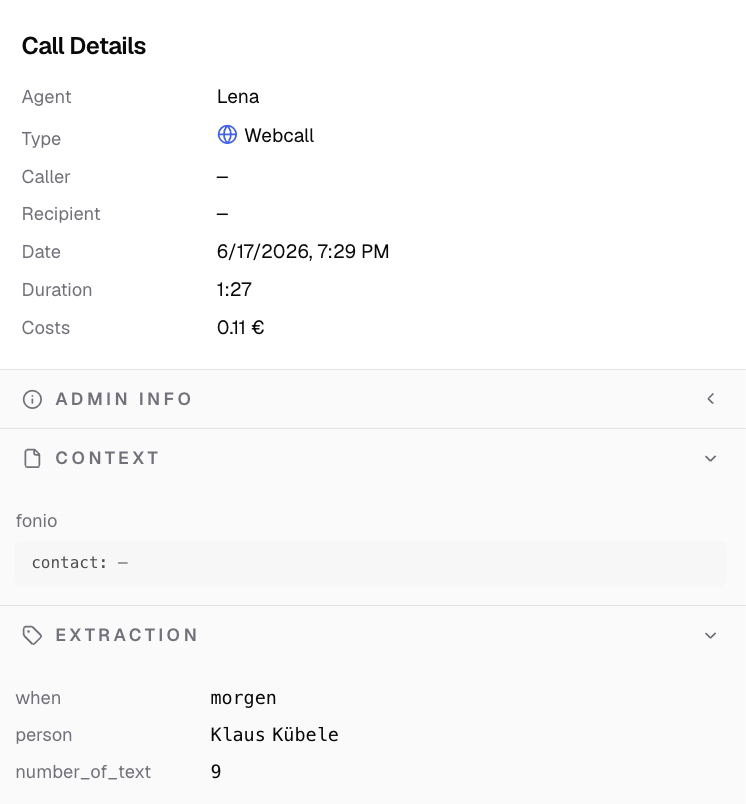
- Call Details — assistant used, conversation channel, caller, recipient, date and time, conversation duration and cost. Lets you quickly see when and through which phone number a conversation took place.
- Admin Info — internal IDs and technical metadata, such as the Conversation ID and details about how the call was processed. Especially helpful when you report a technical issue.
- Context — values that were passed to fonio before the conversation.
- Extraction — information the assistant took from the conversation.
Right panel not visible?
The panel may be collapsed. Click the panel icon at the top right of the conversation to open it again. On smaller screens and in the focused conversation view, it is hidden by default.

Context vs. Extraction
| Context | Extraction | |
|---|---|---|
| Where the data comes from | Passed in by an external system before the conversation, so the assistant has it from the start | Captured during the conversation from what the caller says |
| Sources | Inbound Webhook, Outbound API, Test Context, External CRM, your own automation | Custom variables, created directly in the respective integration (e.g. an email, SMS or HTTP Request) |
| Examples | Customer number from your CRM | Caller's name, reason for the callback, order number, requested appointment, email address, number of products needed, preferred callback time |
Example of Context passed in before a conversation:
{
  "name": "John Doe",
  "customerId": "K-1042",
  "contractStatus": "Active"
}
Exact values
For known IDs, phone numbers or contract data, use Context or existing system variables wherever possible. Extracted values are based on the conversation and may differ if something was not pronounced clearly.
Overview
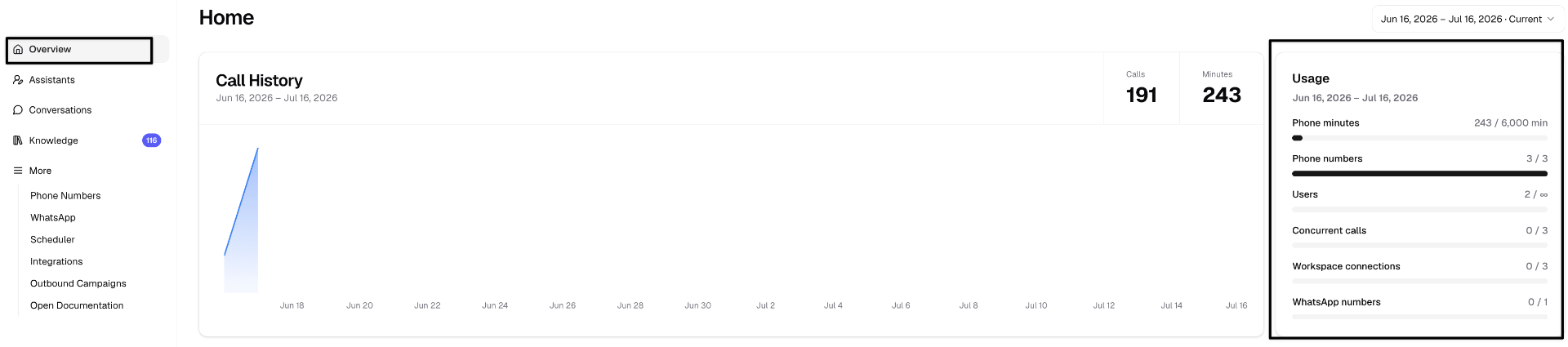
The Overview page is your workspace's home page. At the top you can choose the reporting period you want.
Call history
The Call History section shows for the selected period:
- Number of calls
- Minutes used
- Trend by day
- Noticeable spikes or drops
This lets you quickly see on which days a particularly high number of conversations took place.
Usage
Under Usage you can see your current consumption compared with the limits of your plan:
- Phone minutes used
- Included phone minutes
- Phone numbers in the workspace
- Users in the workspace
- Concurrent calls
- Workspace connections
- WhatsApp numbers
Check this section regularly if you handle a lot of calls or use several assistants.
Quota almost used up
If you are approaching one of your plan limits, check under Subscription & Billing whether you want to adjust your plan or enable overage.
Information for support
If you contact us about a specific conversation, open the call and send us:
- Conversation link
- Conversation ID
- Name of the assistant
- Date and exact time
- Caller number and called number
- Short description of the expected result
Send this to support@fonio.ai. With the conversation link we can find and check the affected call faster.
Analytics keeps growing
We are working on additional charts, more detailed reports and more ways to analyze your conversations.