
Technical settings
Advanced settings for your assistant and your calls
1. Call settings
In the call settings, you define how long a call may last and how long your assistant waits for a response.
- Maximum call duration
- Maximum wait time
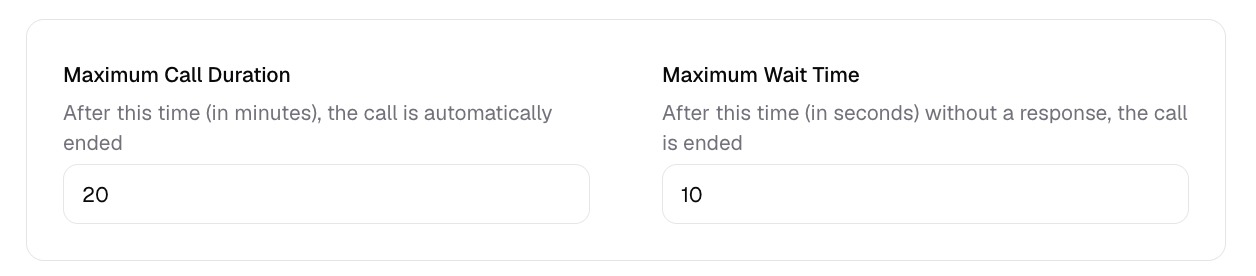
Maximum call duration
Here you define the maximum length of a call with your assistant.
Base this on the typical call length for your use case and add a small buffer. This prevents unnecessarily long calls and keeps your costs under control.
Maximum wait time
Here you define how long your assistant waits when the caller stops responding.
If it stays silent for the set time, your assistant ends the call automatically. This keeps calls from running on unnecessarily when a caller has forgotten to hang up.
2. Recordings
In the Recordings section, you have two options:
- Record audio
- Automatic deletion
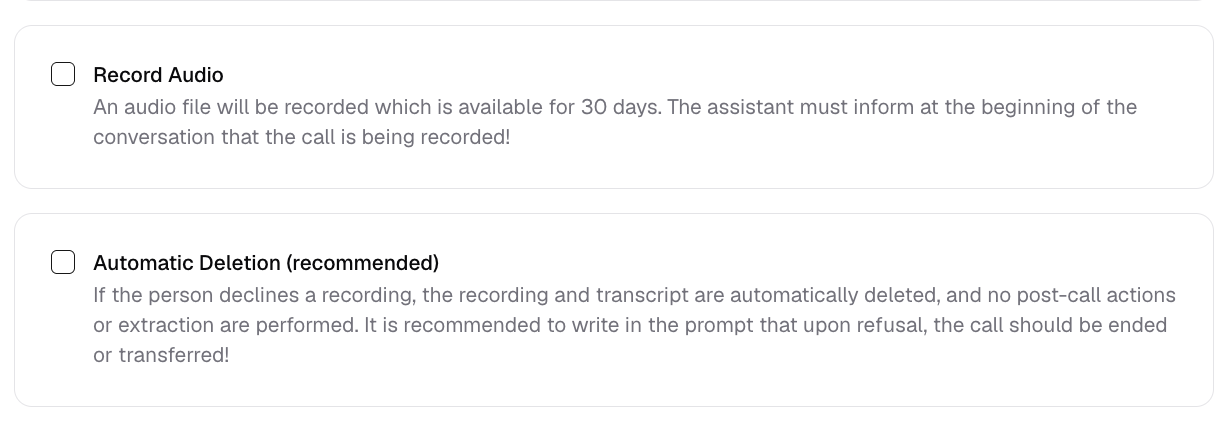
Record audio
When you enable this feature, every call is saved as an audio file. The recording is available for 30 days. During this time, you can listen to it or download it.
Let your callers know that the call is being recorded.
Automatic deletion
If a caller declines the recording, the recording and the transcript are deleted automatically and immediately.
In this case, no data can be extracted from the call or processed afterwards.
So define in the prompt what your assistant should do when a caller declines the recording. You can end the call or have it transferred to a real person.
3. Audio
In the audio settings, you can adjust the following:
- Speech processing model
- Speech speed
- Sensitivity
Speech speed
The speech speed determines how fast your assistant speaks. Which setting fits best depends on your use case and your callers.
To start, we recommend a setting roughly in the middle of the available range.

Please note
The speech speed only changes how fast your assistant speaks. It has no effect on how fast a response is processed.
Sensitivity
The sensitivity determines how easily your assistant can be interrupted and how strongly it reacts to speech or other sounds.

If many calls take place in a noisy environment, you can reduce the sensitivity. This helps on construction sites, for example. Your assistant then reacts less to background noise.
If your callers tend to speak quietly and are in a quiet environment, you can increase the sensitivity. Your assistant then notices faster when someone starts speaking.
Ambient sounds
Here you can define whether ambient sounds should play in the background and how loud they should be.
4. Information processing
Creativity
With the Creativity setting, often also called temperature, you define how freely your assistant responds.

Low creativity
Your assistant follows the prompt very closely and responds more predictably. This setting is suited to facts, clear processes and fixed instructions.
Medium creativity
Your assistant can respond more individually but stays structured. This works well for friendly conversations, follow-up questions, explanations and a little small talk.
High creativity
Responses become more varied and spontaneous. This setting is suited to open conversations, creative tasks or brainstorming. Keep in mind that responses can be less predictable.
Which setting fits your assistant?
- Choose low creativity if your assistant should respond as reliably, consistently and precisely as possible. We especially recommend this for support requests, appointment booking, standard processes and sensitive information such as prices or opening hours.
- Medium creativity fits most assistants well. Conversations feel more natural without your assistant straying too far from your instructions.
- High creativity is mainly suited to casual conversations, marketing or tasks where spontaneous and unusual responses are wanted.
Keywords
Keywords are a very good way to categorize known names, places, numbers and things. If you enter a location here, e.g. Dresden, the assistant will automatically map similar-sounding terms to that term.
Example without keywords: A caller speaks with a strong dialect, the assistant hears "Beesden" and turns it into the word "Besen" (broom).
With the keyword "Dresden": The AI still "hears" "Beesden", but turns it straight into "Dresden", because the word is stored here.
This also works very well for surnames that are difficult to pronounce.
Accurate information processing
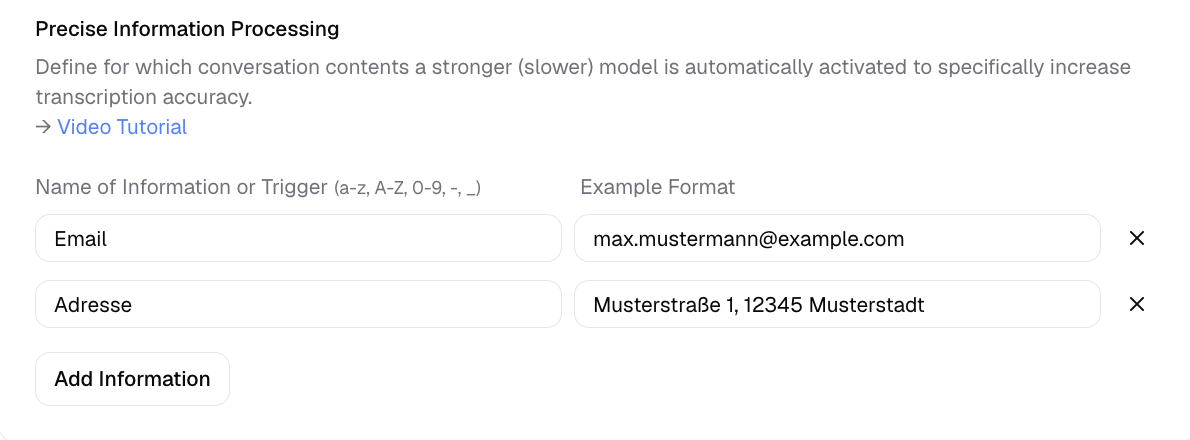
With accurate information processing, your assistant can capture important details such as email addresses, phone numbers or customer numbers more reliably.
For this information, it briefly uses a more accurate model. Processing may take a little longer as a result.
Benefits of accurate information processing
- Critical data is recognized more accurately.
- You have less manual follow-up work.
- Captured information can be passed on to a CRM or another integration more reliably.
How to set up accurate information processing
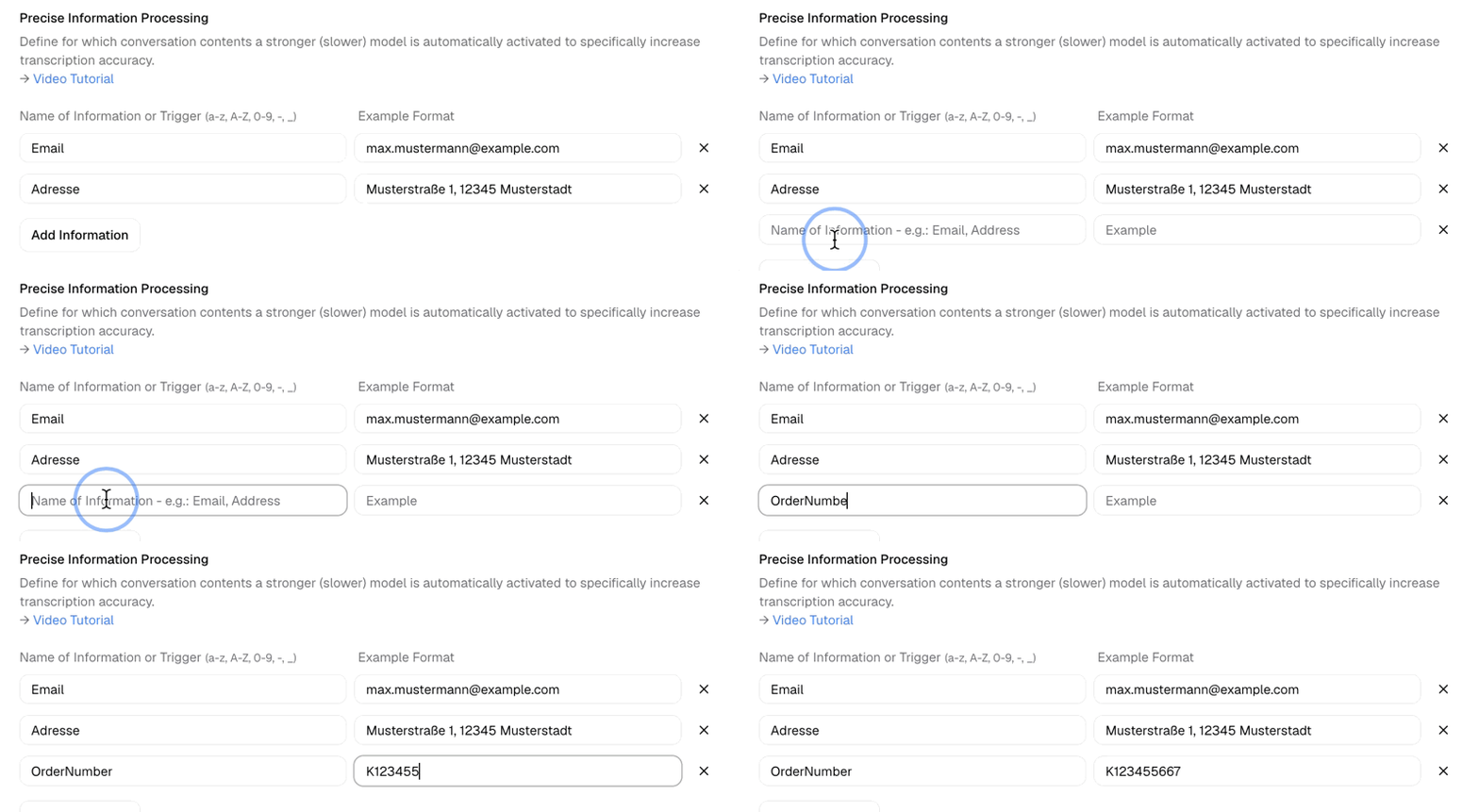
- In your fonio account, open the assistant you want to edit.
- Go to the Technical section.
- Open the Accurate information processing setting.
- Add the information for which your assistant should use the more accurate model. Add a matching example for each one.
- Save your changes.
Email address: john.smith@company.com
Phone number: +49 176 12345678
Customer number: 1234
Response pace
At the very bottom, you can also set the response pace to either normal or patient. Patient can be an advantage in certain industries, such as care.