
User provisioning with SCIM
Let your identity provider create, update and remove Fonio users automatically.
With SCIM, your identity provider manages your team in Fonio for you. When you assign someone to the Fonio app in your identity provider, they get a Fonio account. When you deactivate or remove them there, they lose access to your company in Fonio. You no longer invite or remove people by hand.
SCIM works together with SAML SSO: SCIM decides who belongs to your company, SAML SSO is how they log in.
Before you start
- SAML SSO is set up and switched on for your company. See SSO with SAML.
- You're an admin in Fonio and can manage enterprise apps in your identity provider.
- Your identity provider can send SCIM 2.0 to a custom app. Microsoft Entra ID, Okta, JumpCloud and OneLogin can. Google Workspace supports this only in a limited beta (see below).
One ID for SAML and SCIM
Fonio recognizes a person by the ID your identity provider sends. The user ID in SCIM (externalId) must be exactly the value your SAML setup sends as NameID. If the two don't match, nobody can log in with SSO once the first user is provisioned. Each identity provider below shows how to line them up.
Start the setup in Fonio
- Open Company Settings → Login Methods.
- Under Automatic user provisioning (SCIM), select Set up SCIM.
- Copy the Token from the dialog. It's shown only once; if you lose it, create a new one (see Tokens).
- Copy the SCIM URL from the SCIM section.
Configure your identity provider
Use the same enterprise app you created for SAML SSO.
- In the Microsoft Entra admin center, open Enterprise applications and select your Fonio app.
- Open Provisioning and select Get started (or + New configuration).
- Set Provisioning Mode to Automatic.
- Under Admin Credentials, paste the SCIM URL into Tenant URL and the token into Secret Token.
- Select Test Connection, then Save.
- Open Mappings → Provision Microsoft Entra ID Users. Select the externalId row and change its Source attribute from mailNickname to objectId. This matches the NameID user.objectid from the SAML setup.
- Under Settings, set Scope to Sync only assigned users and groups.
Groups are accepted, but they don't change roles in Fonio. Roles still come from your SAML role mapping.
Google Workspace sends SCIM only to apps from its own catalog. For custom SAML apps like Fonio, Google offers it only in a limited beta ("custom SCIM profiles"). If your Google Admin console shows Autoprovisioning on your Fonio app, you can use it with the SCIM URL and the token, and the same user ID as the SAML NameID.
Without SCIM, nothing changes for you: SAML SSO keeps creating accounts at the first login, and you remove people in Fonio under Users.
Okta, JumpCloud, OneLogin and other identity providers with SCIM 2.0 work the same way. Add SCIM to the custom SAML app you created for Fonio and enter:
| Setting in your identity provider | Value |
|---|---|
| Base URL / connector URL | The SCIM URL from Fonio |
| Authentication | Bearer token (HTTP header Authorization: Bearer <token>) |
| Token | The token from Fonio |
| Provisioning actions | Create users, update users, deactivate users |
Then make sure the user's externalId in SCIM is the same value your SAML app sends as NameID. Many providers send their own internal user ID as externalId. In that case, set the SAML NameID to that same ID.
If you get stuck, contact our support and tell us which identity provider you use.
Test with one user
- Provision a single user first. In Microsoft Entra ID, use Provision on demand; other providers have a similar test or let you assign just one user.
- In Fonio, the SCIM section now shows Connected and 1 user provisioned via SCIM.
- Have that person log in with SSO. If it works, the IDs line up.
No lockout during setup
Until your identity provider has provisioned the first user, SSO login works as before. If the test fails, fix the mapping or turn SCIM off before you provision more people.
Start provisioning
Assign the people and groups who should use Fonio to the app in your identity provider, then start provisioning (in Microsoft Entra ID: Provisioning Status On). Microsoft Entra ID syncs about every 40 minutes, so changes can take that long to arrive.
How SCIM changes user management
New users
When your identity provider provisions someone, Fonio creates their account with the default role from your SAML setup. Each new user takes a seat on your plan. If your plan has no seat left, the identity provider reports an error for that user.
Existing users
People who already have a Fonio account in your company are linked by their email address. Their role stays as it is.
Names and email addresses
First and last names come from your identity provider and are updated in Fonio when you change them there. The email address is the login and stays as it is in Fonio.
Roles
Roles still come from your SAML role mapping and are applied at each SSO login. SCIM groups don't change roles.
Who can log in with SSO
Once SCIM has provisioned the first user, only provisioned users can log in with SSO. Fonio no longer creates accounts at the first SSO login. Someone who isn't provisioned sees a message asking them to contact their administrator.
Removing users
Members your identity provider manages show a SCIM badge under Users. You can't remove them in Fonio; you deactivate them in your identity provider instead.
When you deactivate or delete someone in your identity provider, Fonio removes them from your company right away:
- Their phone seat and personal connections are released, and their open tasks are unassigned.
- Transfer targets that pointed to them are cleared.
- Their Fonio account itself isn't deleted.
The last admin of your company is never removed this way. Make someone else admin first.
Reactivating someone in your identity provider adds them back with the default role, if your plan has a seat left.
Immediate, even when logged in
Fonio checks membership on every request, so removing someone ends their access to your company right away, also on devices where they're still logged in.
To make sure your identity provider alone decides who gets in, also require SSO. Members then can't log in with a Fonio password either.
Tokens
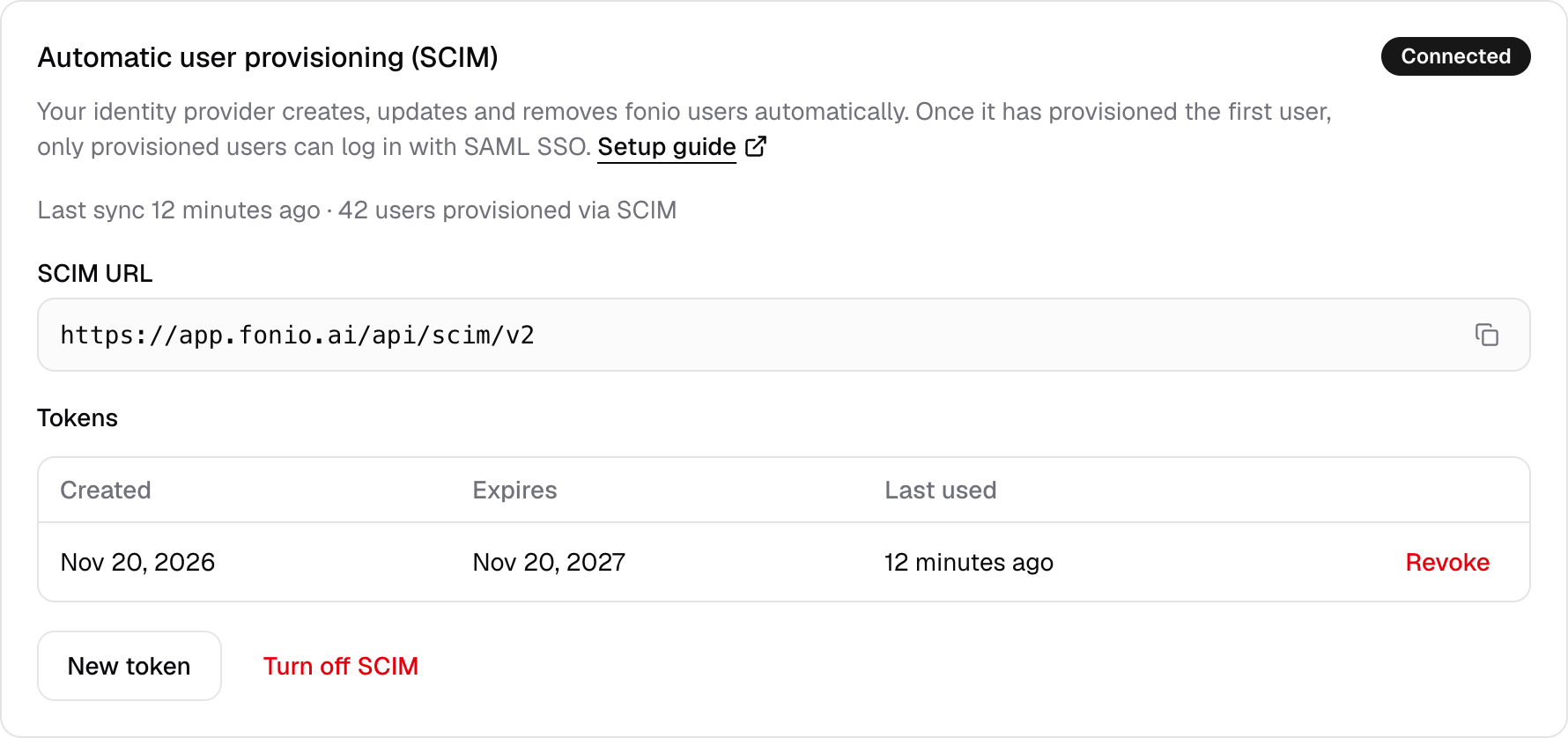
A token is valid for one year. Under Tokens, the SCIM section lists each token with when it was created, when it expires and when it was last used.
To replace a token:
- Select New token and copy it.
- Paste it as the secret token in your identity provider and test the connection.
- Select Revoke next to the old token and confirm.
Revoked tokens stay in the list under Show revoked tokens, with when and by whom they were revoked. You can have up to five active tokens at a time. Fonio shows the token only when it's created and never stores it in readable form.
Switch SCIM off
Select Turn off SCIM and confirm. Your identity provider can no longer create or remove users, and all tokens stop working. Everyone stays in your company, and SSO creates accounts at the first login again. You can set SCIM up again later, with a new token.
Troubleshooting
| What you see | What to check |
|---|---|
| Your identity provider reports "The fonio company's plan has no free user left." | Your plan has no seat left. Upgrade the plan or remove users you don't need. |
| "The email address belongs to a fonio account outside this company." | This person already uses Fonio in another company. Contact our support. |
| "Single sign-on is not set up for this fonio company." | SAML SSO is off or not set up. Switch it on under Login Methods. |
| "The last admin of the fonio company cannot be removed by provisioning." | Make someone else admin in Fonio first. |
| A user sees "Your fonio access isn't active in your company's directory." | They aren't provisioned, or their externalId doesn't match their SAML NameID. Check the assignment and the mapping in step 2. |
| Test Connection fails with 401 | The token is wrong, expired or revoked. Create a new token. |
| The SCIM section still shows Waiting for identity provider | Your identity provider hasn't sent anything yet. Start provisioning, or use Provision on demand. |
| Your identity provider logs 429 Too Many Requests | Fonio handles a limited number of SCIM requests at once. Your identity provider retries these requests automatically; nothing is lost. |