
Send a WhatsApp message after a call
Automatically send a summary via WhatsApp to yourself or your team after a conversation.
With the Send WhatsApp action, you can automatically send a summary via WhatsApp after a call.
This is especially useful if you use WhatsApp for internal notifications and want to receive important requests directly on your smartphone.
Connect your WhatsApp account
Before you can send messages, you need to connect your WhatsApp account to fonio.
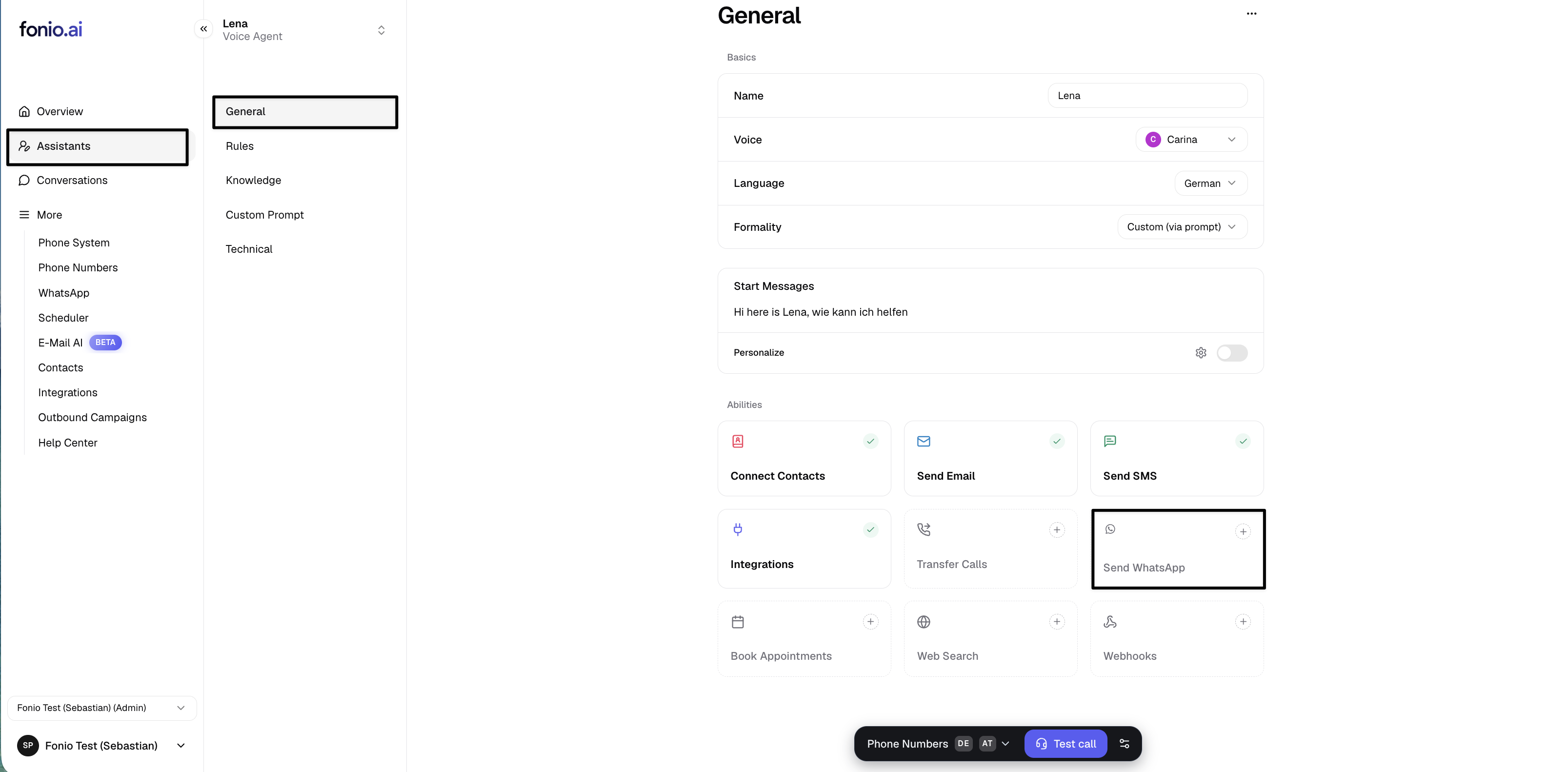
Then open your assistant and add the Send WhatsApp action.
Set availability
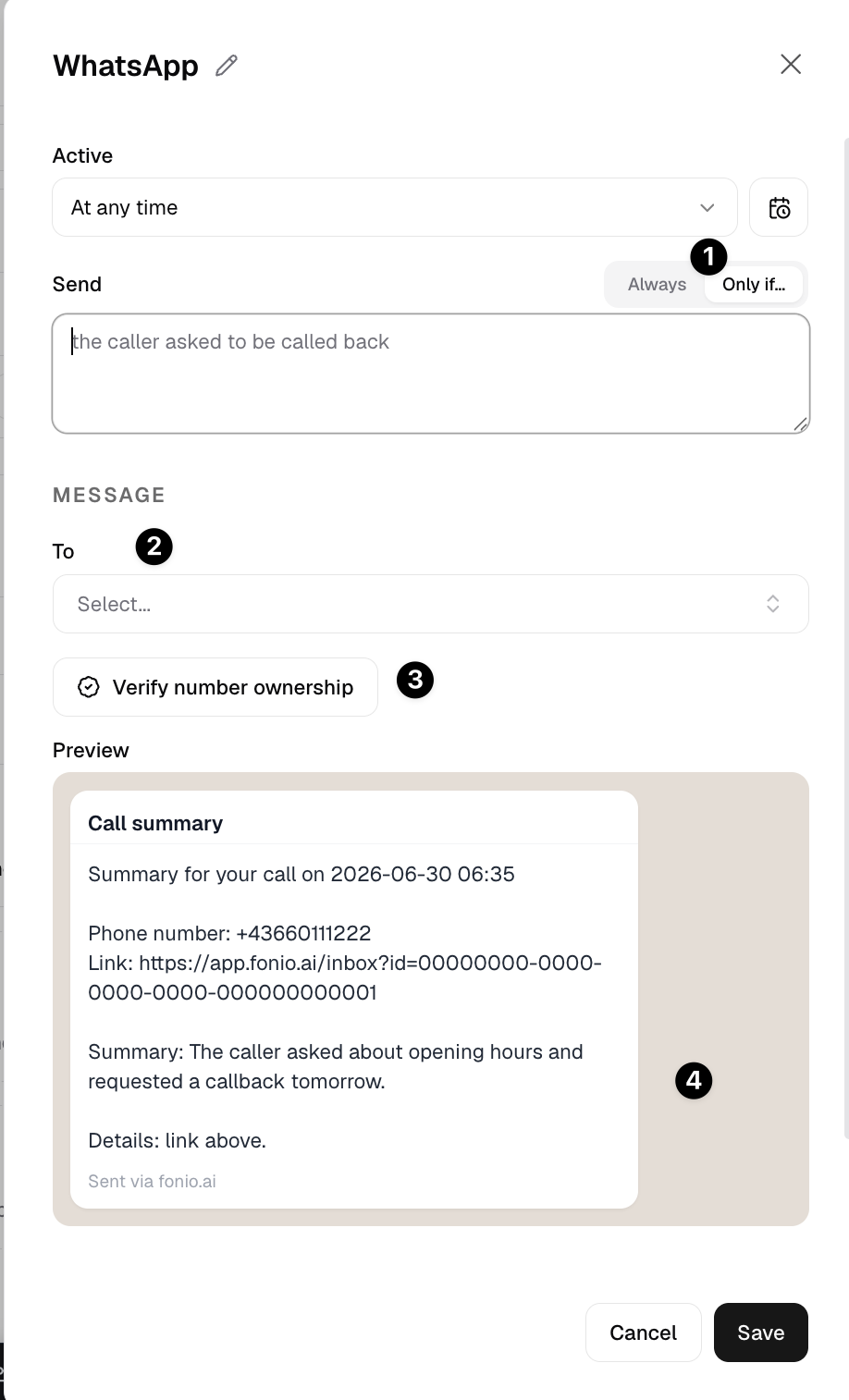
Define when the WhatsApp message may be sent:
- Always
- During opening hours
- Outside opening hours
If you select Outside opening hours, only conversations that take place outside your saved opening hours are taken into account.
Define when to send
You can choose between Always and Only If.
Always
If you choose Always, a WhatsApp message is sent after every matching conversation.
For example, if you have selected Outside opening hours and Always, you receive a message after every call outside your opening hours.
Only If
If you choose Only If, the message is only sent when a specific condition is met.
Describe the condition in a complete sentence.
Examples:
Send the WhatsApp message if the caller was promised a callback.
Send the WhatsApp message if the caller has a question about their delivery.
Send the WhatsApp message if it is an urgent request.
Select recipients
Choose who should receive the summary via WhatsApp.
The recipient must be reachable via the WhatsApp account you connected earlier.
Message content
The content of the WhatsApp message is predefined and cannot be edited freely.
The message contains:
- The time of the call
- The caller's phone number
- A link to the conversation
- A short summary
For example, a message can look like this:
Summary of the call at 14:30

Caller: +43 123 456789

The caller asked about the opening hours and requested a callback the next day.

View conversation:
[Link to conversation]
Please note
The WhatsApp message is intended as an internal notification. You cannot create your own message text or send a freely worded message to the caller.
Good use cases
Receive callback requests
Get a message whenever your assistant has promised a caller a callback.
See requests outside opening hours
Receive a summary via WhatsApp after every conversation outside your opening hours.
Identify urgent matters
Set a condition so that you are only notified about urgent or particularly important conversations.
Pass on delivery requests
Send a summary to the responsible person when a caller asks about a delivery or an order.