
Import a phone number
Import your existing phone number so your assistant can use it for outbound calls.
With number import, you can use your existing business number as the caller ID for outbound calls. Your number stays with your current phone provider.
Prerequisites
Number import is only available on the Team plan. For outbound calls, identity verification under Subscription & Billing must also be completed.
What happens when you import a number?
By importing, you confirm that you have access to the number and are allowed to use it for outbound calls.
The import does not change your existing phone line:
- Your number stays with your current provider.
- Incoming calls continue to work as usual.
- fonio only uses the number as the caller ID for outbound calls.
- You do not need to port the number or cancel your contract with your current provider.
Outbound calls only
Number import only affects outbound calls. If your assistant should also answer incoming calls, you can forward your existing number to a fonio number.
Check the prerequisites
Before you start, please check:
- Your account is on the Team plan.
- Identity verification is completed.
- You have access to the phone number.
- The phone number can receive the automated verification call.
- You can enter digits on the phone keypad during the call.
- You have the phone number in international format.
Example for Austria:
+436641234567
Example for Germany:
+4930123456
Open Phone Numbers and start the import
Open the Phone Numbers section in your fonio account.
Click on the top right:
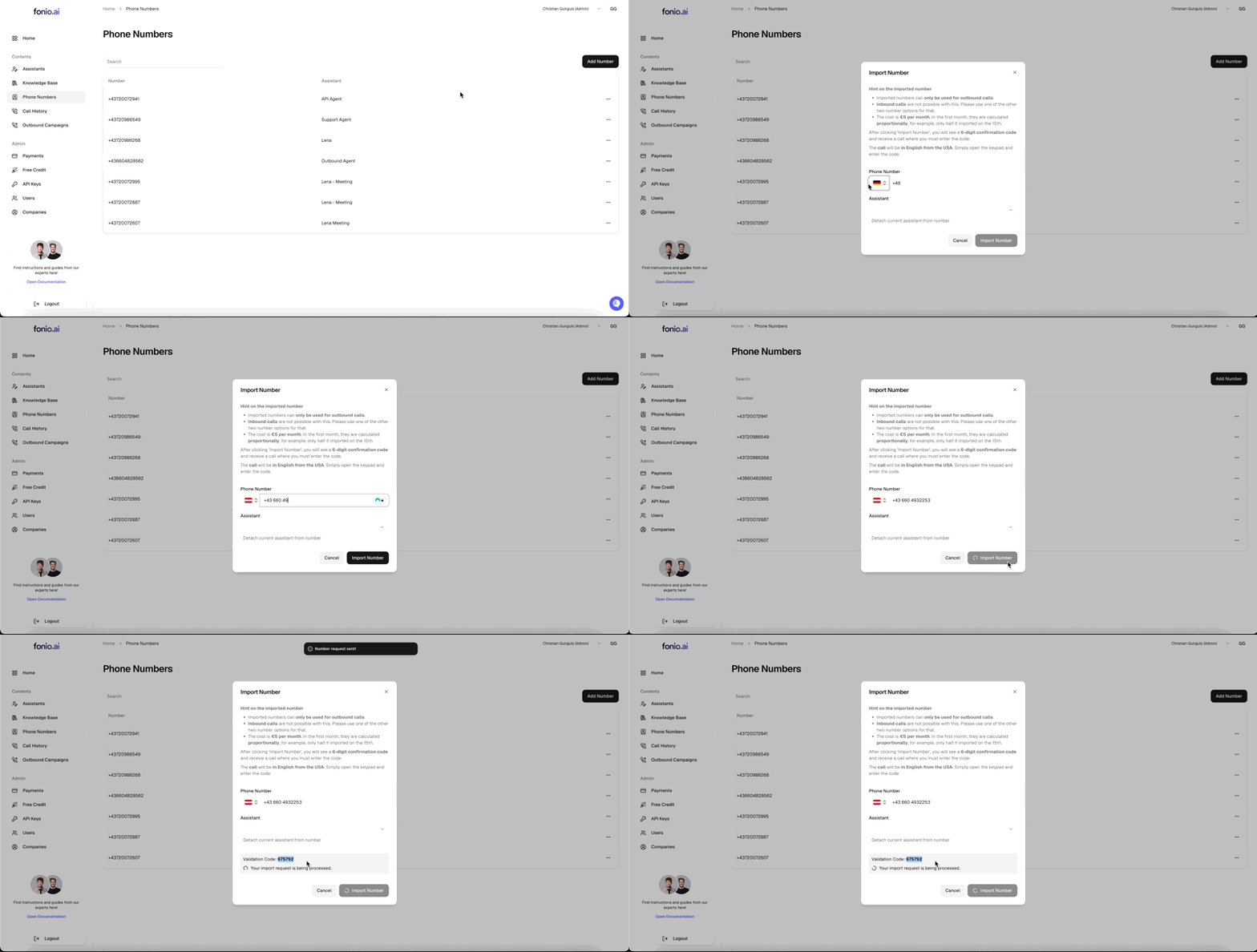
Add Numbers → Import Number
Enter the phone number
Enter the phone number your assistant should use for outbound calls.
Use the international E.164 format:
+ country code + area code without leading 0 + number
Correct
+436641234567
Incorrect
0664 1234567
+4306641234567
+43 (664) 123-4567
After you start the verification, fonio shows a verification code. Keep this window open so you can see the code during the call.
Verify the phone number
You will receive an automated call from a US phone number. Answer the call and enter the displayed verification code using the phone keypad.
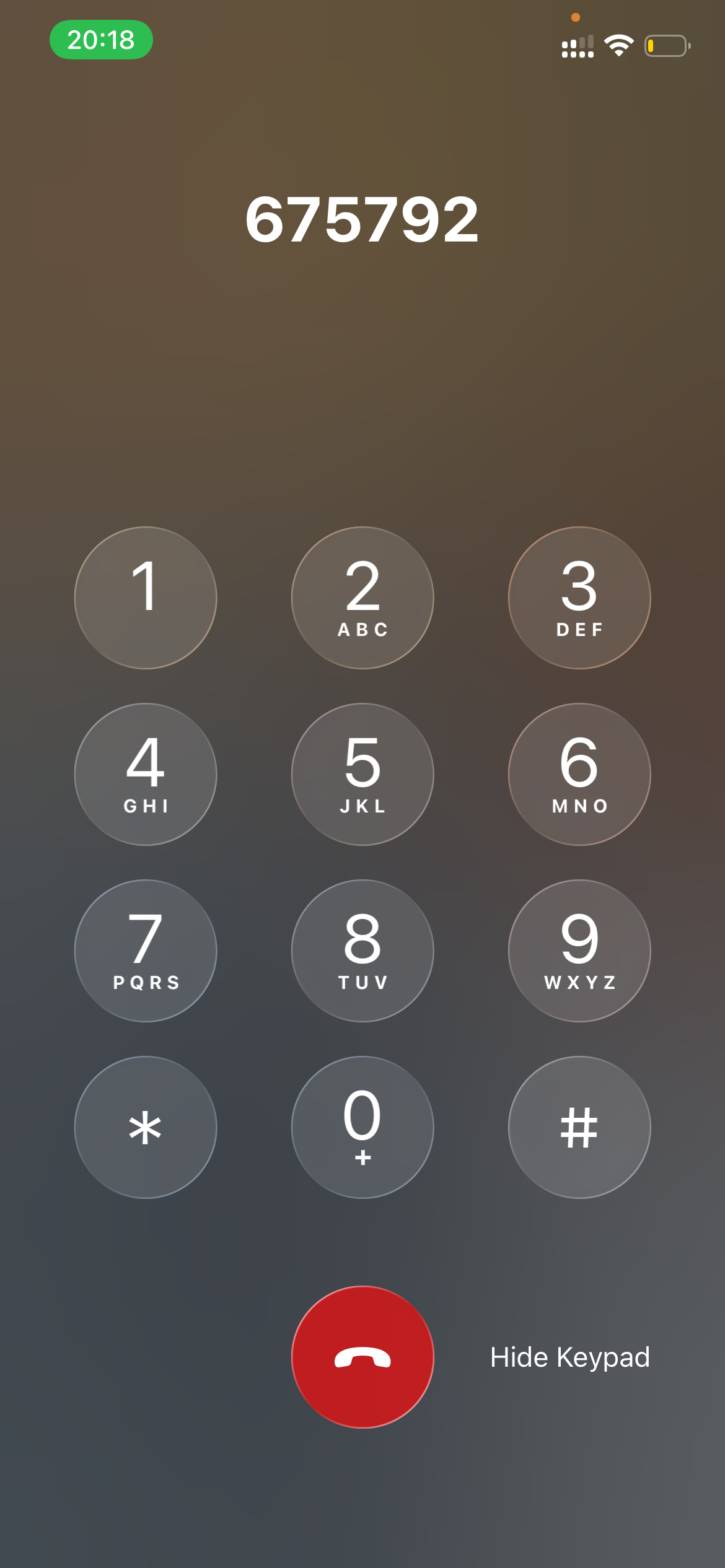
Once the code has been entered successfully, the phone number is shown as verified in fonio.
The call comes from the US
Make sure international calls are not blocked. For a company number, let your team know if necessary so the automated call gets answered.
Connect the number to an assistant
After a successful import, you can assign the phone number to an assistant.
Open the assistant you want and select the imported number as the outbound number.
Only one outbound number can be set per assistant. If you want to use several caller IDs, duplicate the assistant and assign each copy its own number.
Test an outbound call
Start with a single test call.
Check:
- Does the call start successfully?
- Does the recipient see the correct phone number?
- Is the right assistant connected?
- Do the start message and conversation flow work?
- Does the call appear in the call history?
For individual tests and demos, you can start the call directly with your assistant. For a larger number of contacts, use the Outbound Campaigns feature.
The verification call does not arrive
Check:
- Is the phone number entered in international format?
- Can the number receive calls from the US?
- Does your provider block international or unknown numbers?
- Is a phone system (PBX) connected in between?
- Is the call being forwarded to a voicemail?
- Is the phone number reachable at the time of verification?
Then start the verification again.
The verification code is not recognized
Enter the code slowly and completely using the phone keypad.
If the input is not recognized, check:
- Does your phone transmit DTMF tones?
- Did you enter the correct code?
- Is the connection stable?
- Is the call routed through a phone system that alters keypad tones?
- Is the displayed code still valid?
Close the process and start a new verification if the code has expired.
Error message: "This phone number has no outbound config set up"
This message means that there is no complete outbound configuration for the phone number.
Check:
- Was the phone number added via Import Number?
- Was the verification code entered successfully?
- Is the number shown as verified?
- Is it assigned to the right assistant as the outbound number?
- Is identity verification completed?
- Are you on the Team plan?
A phone number that only exists for incoming calls is not automatically available for outbound calls. Complete the import and the verification fully.
The imported number is not shown to the recipient
First check whether it is assigned to the right assistant as the outbound number.
Then make a new test call. If a different number or no number is still shown, send us the following details:
- Imported phone number
- Name of the assistant
- Test number you called
- Date and exact time of the call
- Conversation link or conversation ID
- Screenshot of the phone number settings
Send them to support@fonio.ai. We will check the outbound configuration for you.