
Configure a chat assistant
Set up languages, conversation handling, abilities, rules, knowledge, and instructions for your chat assistant.
Open your chat assistant from Assistants. These settings shape how it responds on WhatsApp.
General
Check the assistant’s name and choose its reply language. Select Multi (All languages) if it should reply in the visitor’s language, or select a specific language if you want it to always reply in that language.
Use Conversation timeout to choose how long a chat can stay inactive before it ends. A shorter timeout suits quick questions. A longer one gives visitors more time to reply.
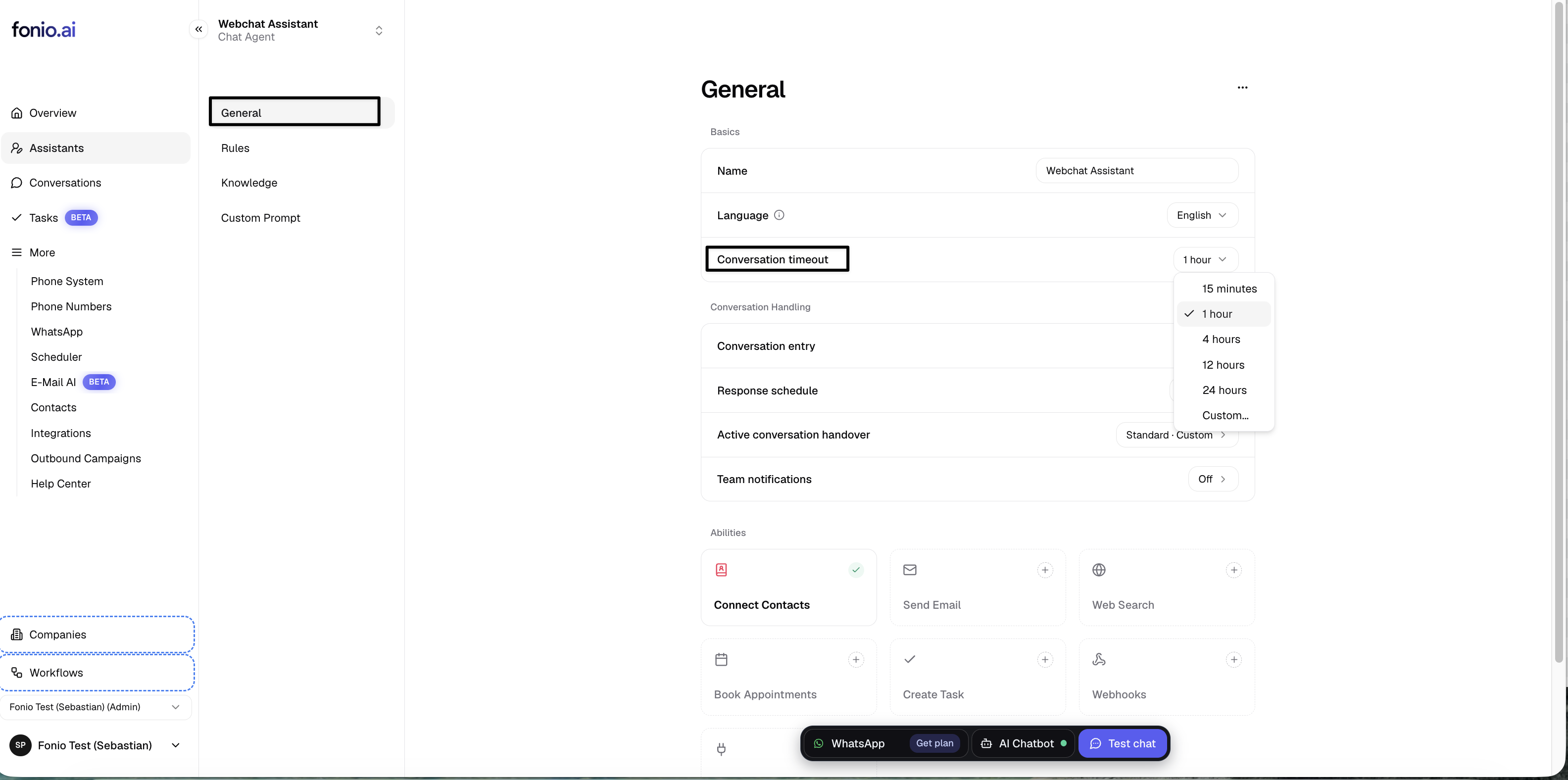
Conversation Handling
In General → Conversation Handling → Conversation entry, choose AI handles all conversations, Team handles all conversations, or Decide using a condition. For example, route refund requests to the team and let the assistant handle other new conversations.
Use Response schedule to set when the AI can reply, Active conversation handover to define when it should pass an ongoing chat to your team, and Team notifications to choose who gets notified. See Take over a conversation yourself for more.
Abilities
Under General → Abilities, add the actions you want your assistant to take. Start with the ones you need and set the conditions in each ability’s own settings.
- Book Appointments checks availability and books appointments.
- Web Search finds current information online.
- Send Email can email a conversation summary or pass on a request.
- Tasks can record a follow-up for your team.
Rules
Use Rules for specific situations and what the assistant should do in each one. For example, if a visitor asks for a quote, ask which service they need before collecting contact details. Keep rules consistent with your prompt and handover settings.
Knowledge
In Knowledge, enable the sources the assistant can use to answer questions. Include current facts about your business, such as opening hours, services, prices, policies, and frequently asked questions. Update those facts at the source when they change.
Learn how to set up your knowledge base.
Custom Prompt
Use Custom Prompt to describe the assistant’s role, tone, and typical conversation flow. Start with a few clear instructions and expand them as you test.
You are Lea, the chat assistant for Example Company. Reply in short, friendly messages.
Use the knowledge base for company facts. If the answer is missing, say so.
If a visitor asks for a person, follow the team handover rules.
See how to write a great prompt.
Check your setup
Open Test chat and try a question from your knowledge base, a situation covered by a rule, and any ability or handover you configured. Then test again through WhatsApp to check what visitors experience.