
bexio
Your assistant recognises callers from your bexio contacts, answers questions about their invoices, quotes, orders and projects, and notes every call in bexio.
Once bexio is connected, your assistant knows who's calling. It greets your customers by name and already knows their open invoices, quotes and projects, just like a colleague who knows the regulars.
It sends invoices again on request, passes on callback requests as bexio tasks and leaves a short note on the caller's contact after every call.
Early access
bexio isn't switched on for every account yet. If you don't see it under Integrations, write to support@fonio.ai and we'll enable it for you.
Connect bexio
In your assistant, open Integrations, add bexio and click Connect.
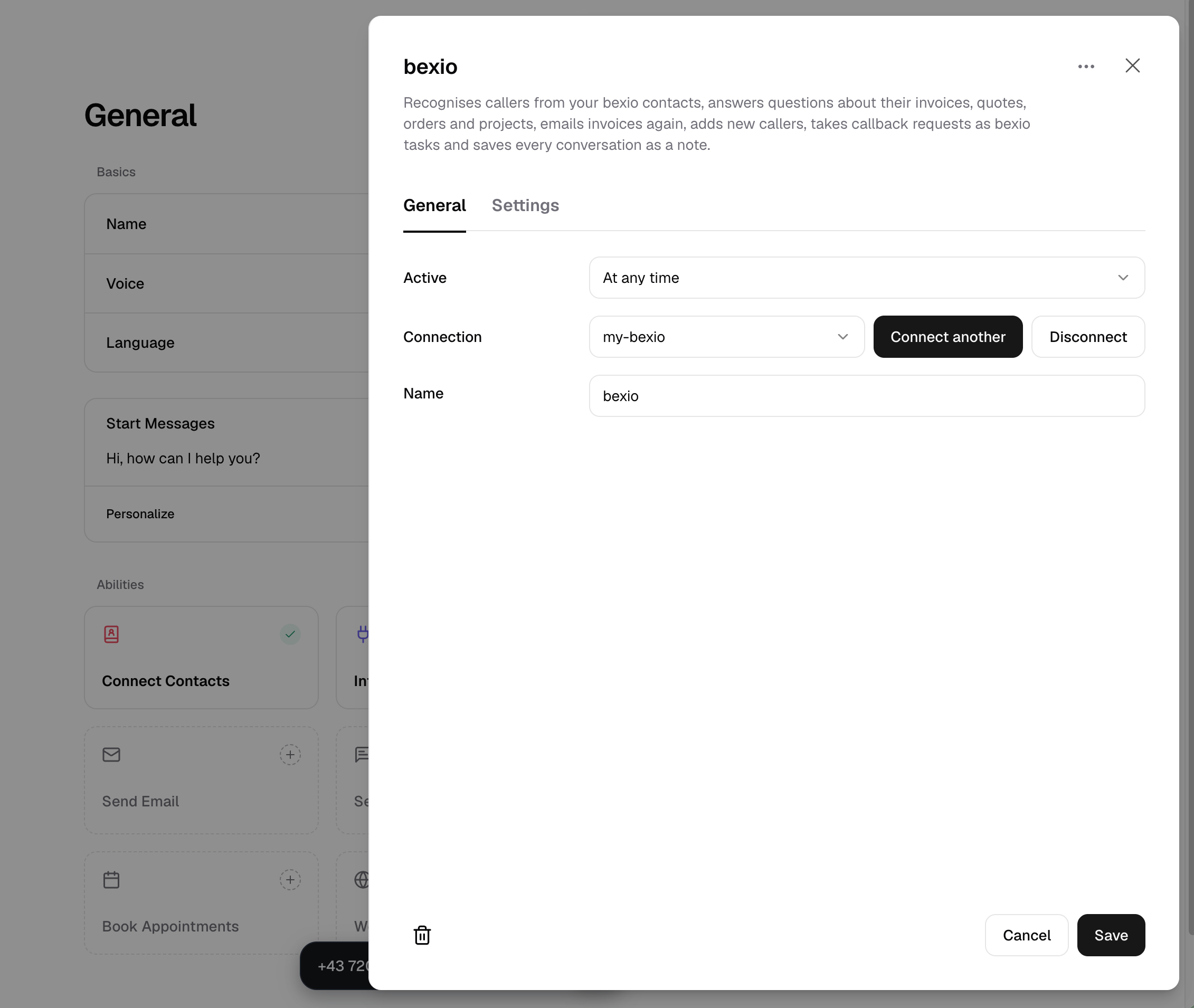
Sign in with your bexio account. If you have access to several bexio companies, choose the one your calls belong to. Then allow fonio access.
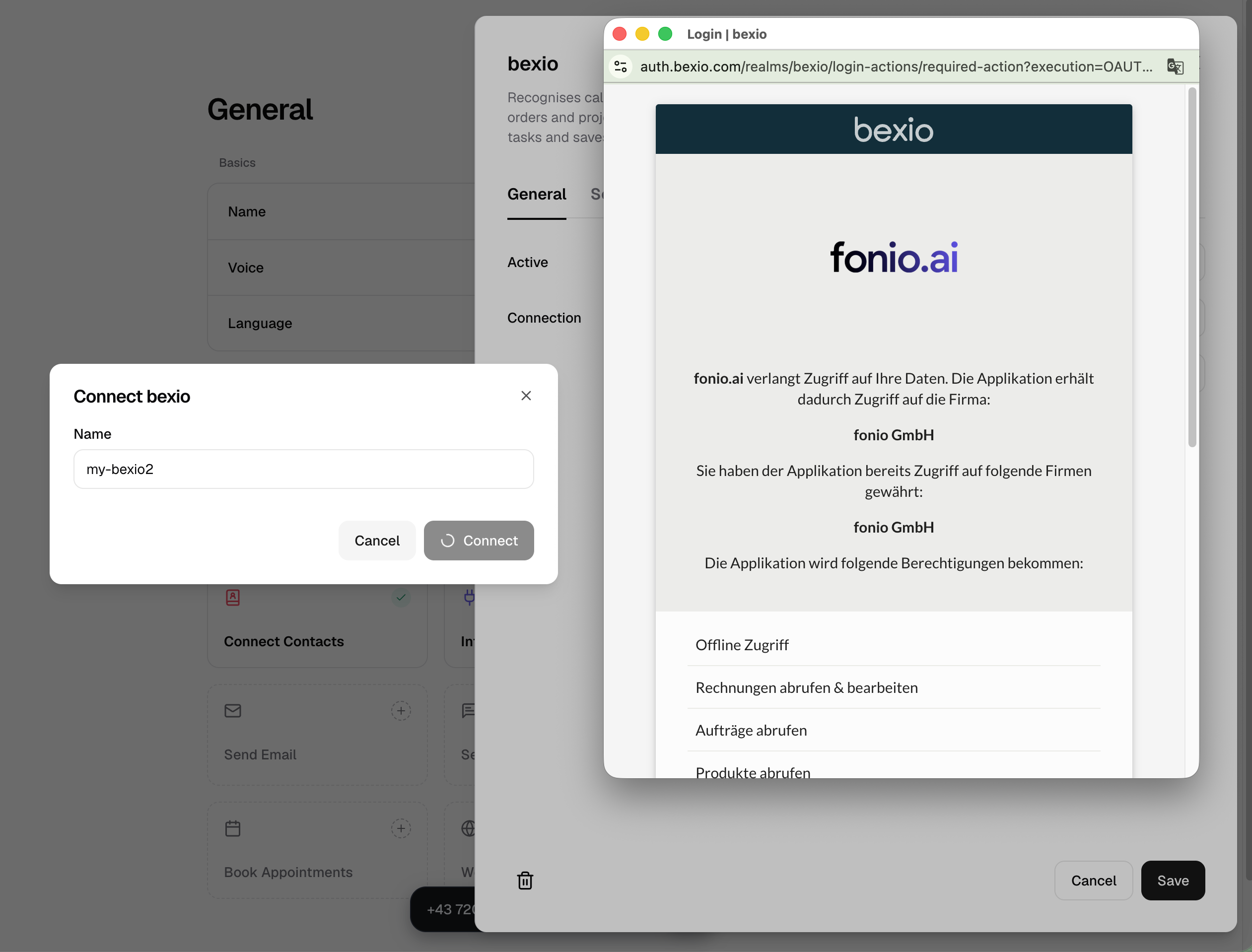
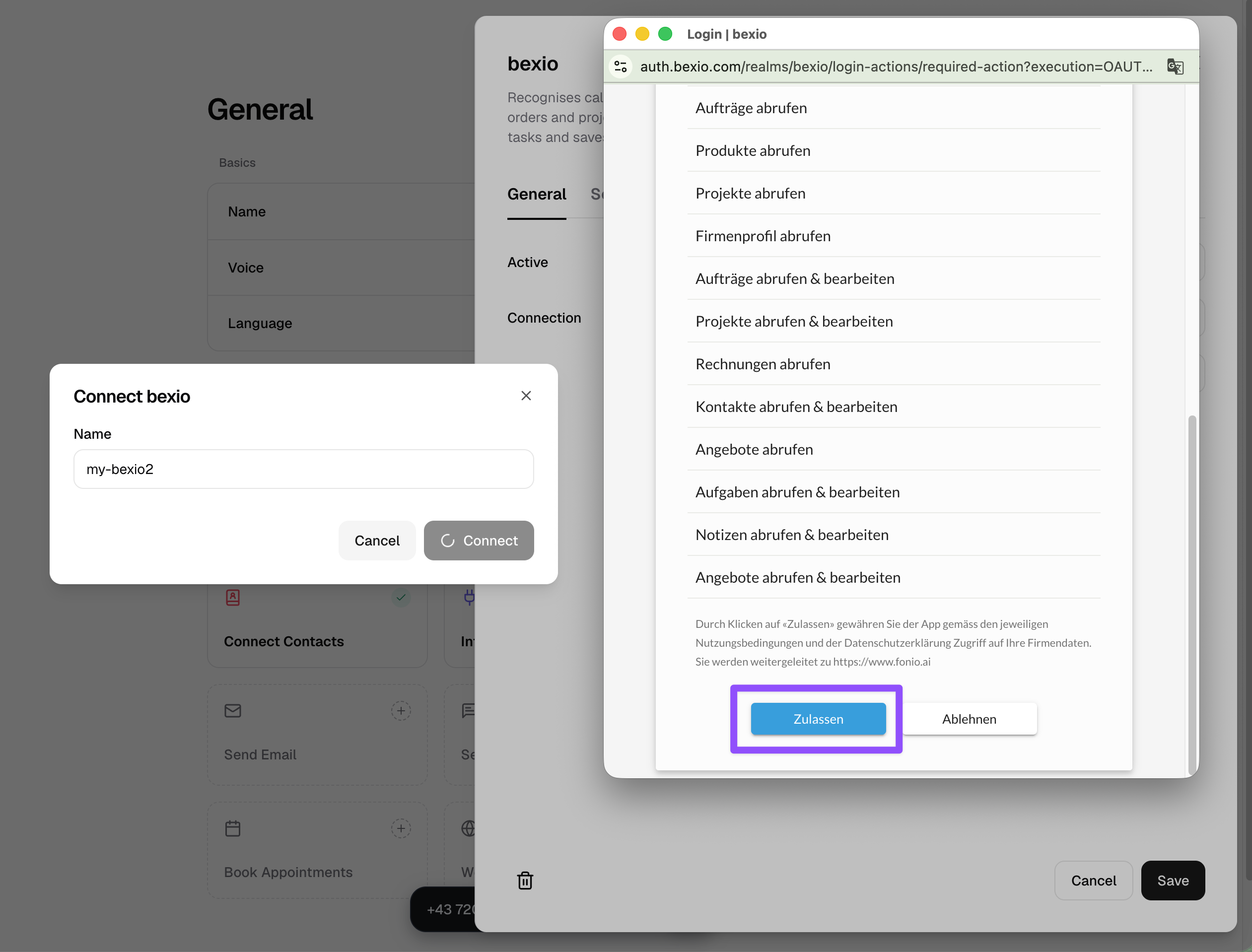
Your assistant works with the rights of the bexio user who signs in. That user needs to be able to edit contacts, contact notes, invoices and tasks, and to see quotes, orders and projects.
If something is missing, the settings show Missing bexio permissions with a list of what's missing. Ask a bexio admin to grant those rights, or connect a user who already has them.
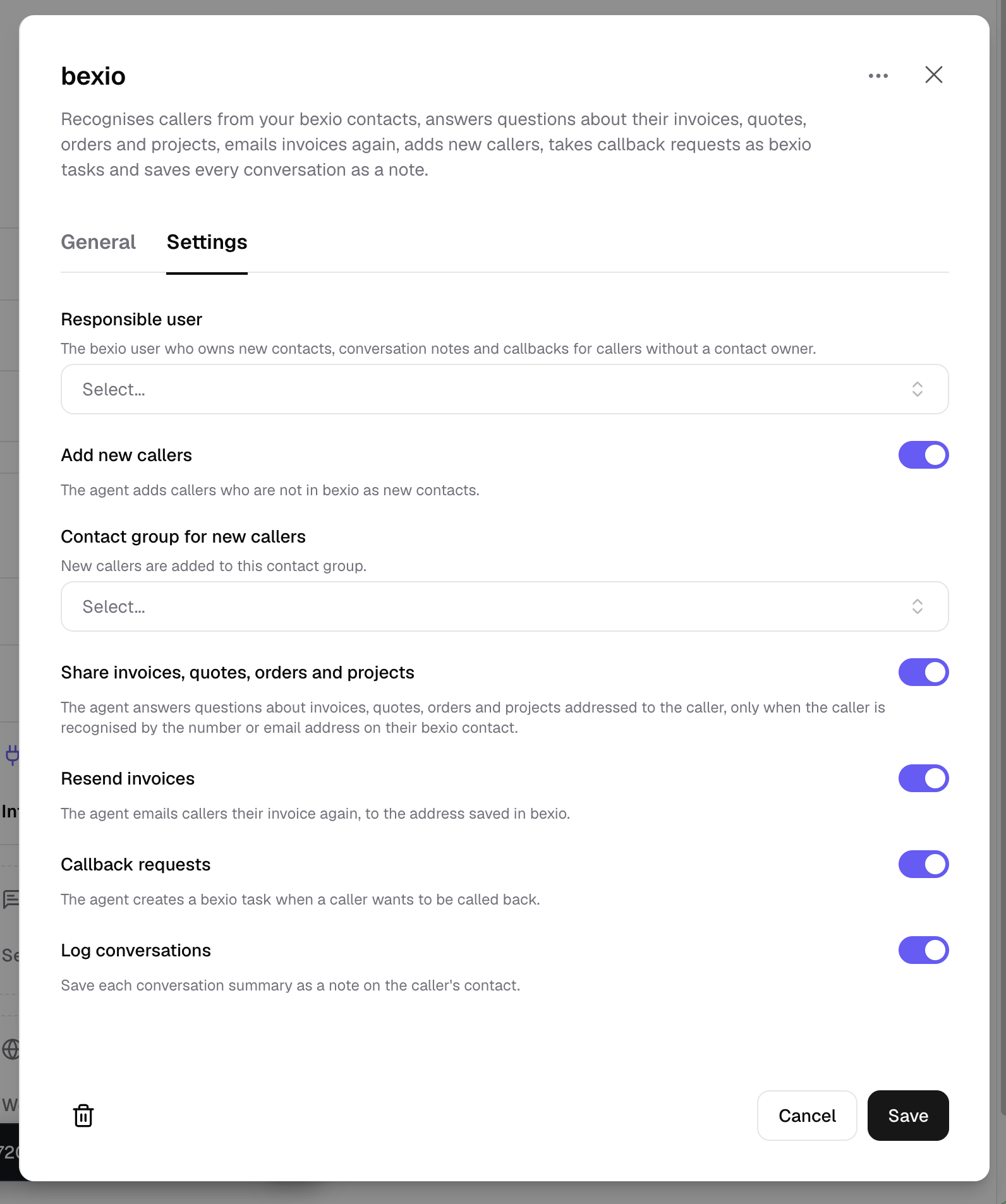
Choose what your assistant may do
You can change these settings at any time.
-
Name
A short name for this connection, which you'll find again in your Call History. The default is bexio.
-
Responsible user
The bexio user who owns the contacts your assistant adds and who is named on the call notes. Callback requests from new callers go to them too. If you leave it empty, it's the user who connected bexio.
-
Add new callers
When a caller isn't in your bexio contacts yet, your assistant adds them as a new contact. This is switched on by default.
-
Contact group for new callers
New contacts go into this contact group, so you can spot them at a glance. It only shows while Add new callers is on. If you leave it empty, new contacts get no group.
-
Share invoices, quotes, orders and projects
Your assistant answers questions about the caller's own invoices, quotes, orders and projects. It only does so when it recognises the caller by the number on their bexio contact. This is switched on by default.
-
Resend invoices
Your assistant emails callers their invoice again, to the email address saved on their bexio contact. This is switched on by default.
-
Callback requests
When a caller wants to be called back, your assistant creates a task in bexio. This is switched on by default. While it's off, your assistant never promises a callback.
-
Log conversations
After every call, your assistant saves a short summary as a note on the caller's contact. This is switched on by default.
Before the call
When the phone rings, your assistant looks for the caller in your bexio contacts. It goes by the number they're calling from and checks the phone and mobile numbers on your contacts.
For a regular, it knows:
- their name, plus their company and role there, if you've linked them in bexio
- who looks after them on your team
- the email address on their contact
- the three latest notes on their contact
- their open and recently paid invoices, open quotes, open orders and active projects, while Share invoices, quotes, orders and projects is on
So when Anna from the bakery around the corner calls about her last invoice, your assistant greets her by name and already knows whether it's paid. She doesn't need to explain who she is.
If the number belongs to a company rather than a person, your assistant asks who's calling. It can still help with that company's invoices, quotes, orders and projects.
If several people in your contacts share the same number, your assistant doesn't guess. It asks who's calling and keeps everything from bexio to itself.
Everyone else is treated as new. That includes callers who withhold their number.
Stays between you and your assistant
Your assistant never says it looked anyone up or that it added someone to your contacts. It never tells a caller anything about anyone else in your contacts. And it never makes up an amount or a date.
During the call
Questions about invoices, quotes, orders and projects
"Has my invoice been paid?", "How much is still open?", "How long is the quote valid?" Your assistant answers from the caller's own invoices, quotes, orders and projects, and only from those.
For a project, it can also tell the caller its status, its start and end dates, who leads it, the upcoming milestones and how many hours have gone into each work package.
If a caller asks about anything else in bexio, your assistant says plainly that it can't help with that.
Sending an invoice again
When a caller asks for an invoice again, your assistant emails it straight from bexio to the email address on their contact. The email has the subject Your invoice RE-00012, a link to the invoice and the PDF attached.
This works for open and paid invoices. For an older paid invoice, your assistant asks for the invoice number.
Your assistant never sends an invoice to any other address. If the caller has no email address in bexio, it tells them it can't send it.
New callers
When a caller is new and Add new callers is on, your assistant asks for their first and last name. It spells both back letter by letter until the caller confirms, so the name is right in bexio.
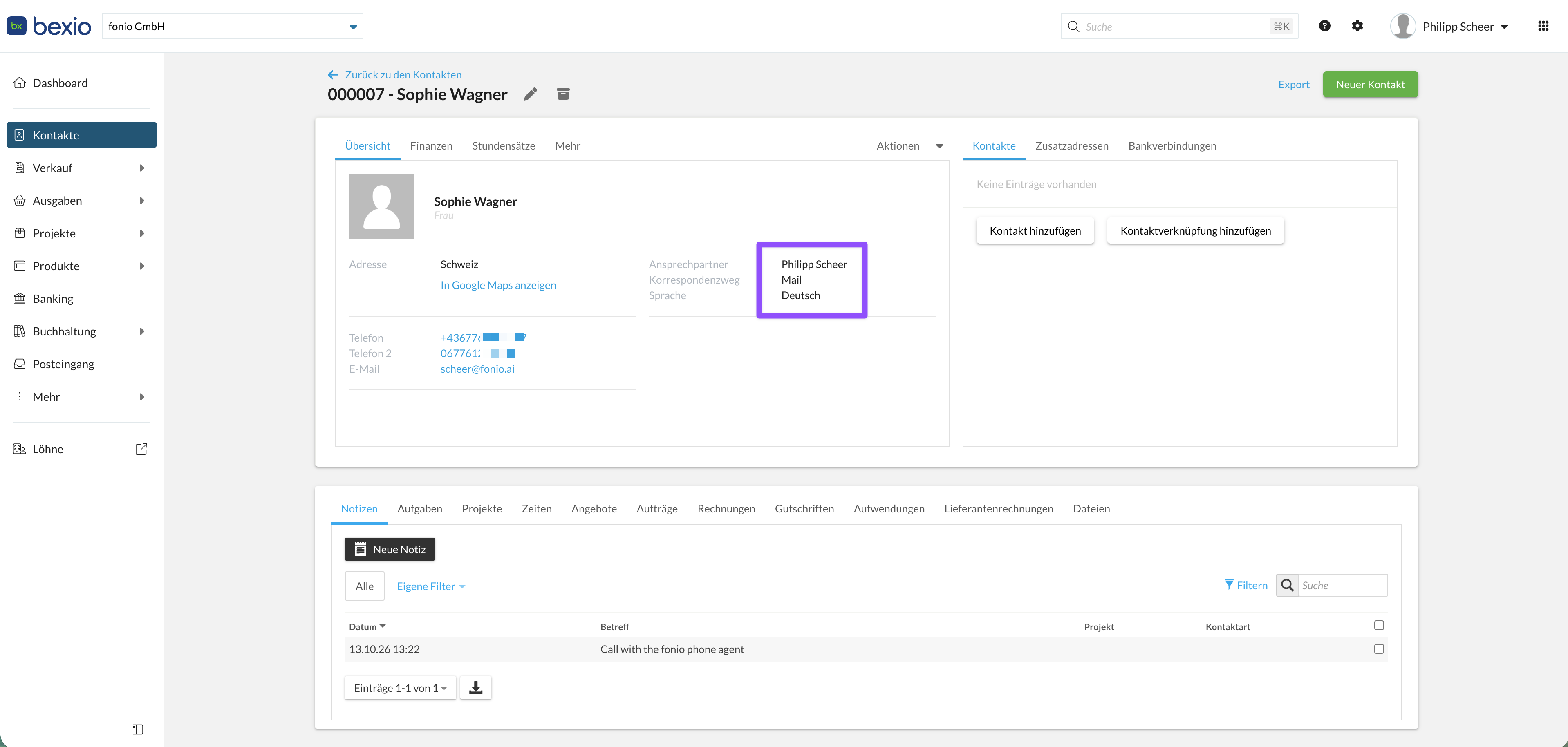
Then it quietly adds them as a new contact, with the number they're calling from, and carries on with what they called about.
You'll find the new contact in bexio, owned by the user you picked under Responsible user and in the group you picked under Contact group for new callers.
Callback requests
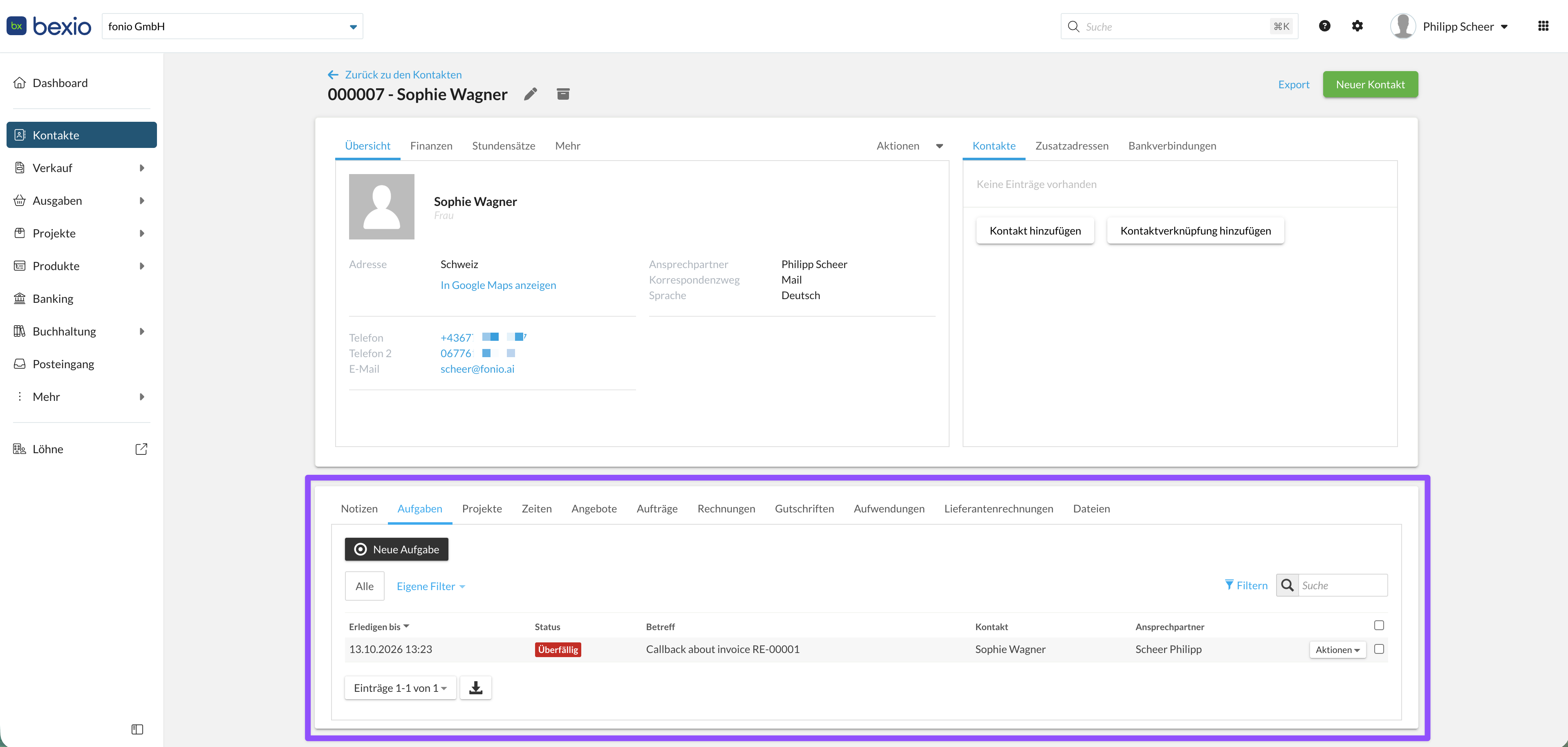
When a caller wants to be called back, your assistant first collects everything your team needs. Then it creates a task in bexio and tells the caller their request has been passed on. It never promises a time.
The task has a short subject, the caller's request and when they'd like to be called back. It also holds the number they called from and a link to the call in fonio.
The task is linked to the caller's contact, due the same day and assigned to whoever looks after that contact. For new callers, it goes to the user you picked under Responsible user. There's one callback task per call.
After the call
Once the call ends, your assistant leaves a note on the caller's contact in bexio. It's titled Call with the fonio phone agent and holds a short summary of the conversation, a link to the call in fonio and, if the call was recorded, a link to the recording.
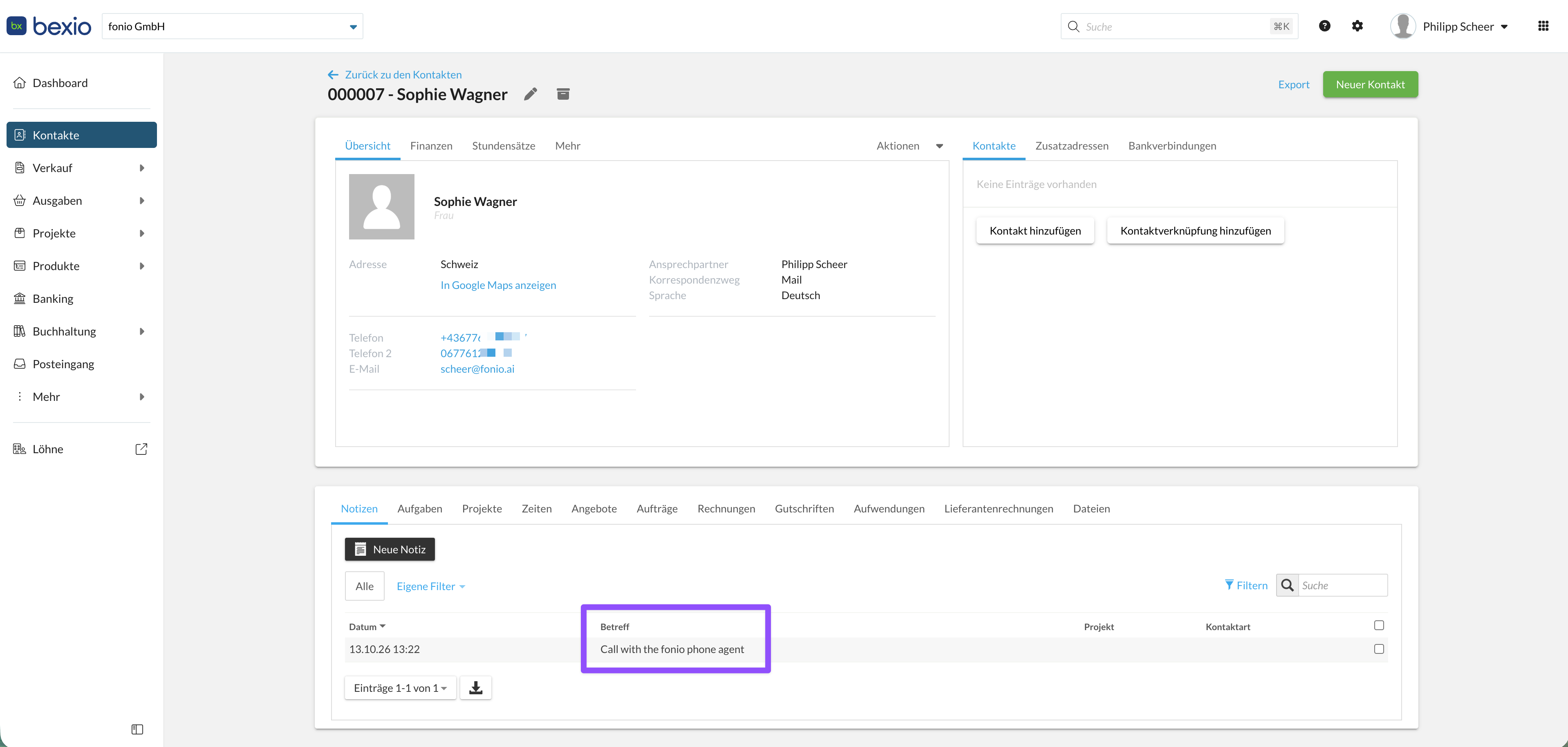
There's a note for every caller your assistant recognised or added during the call. Callers it didn't recognise or add get none.
Good to know
- Only the caller's own records: your assistant only talks about invoices, quotes, orders and projects addressed to the caller. It never shares anything about anyone else.
- The newest records first: your assistant knows up to five open invoices, three recently paid ones, five open quotes, five open orders and five active projects. Older paid invoices can still be sent again by their number.
- Your records stay as they are: your assistant never changes or deletes anything in bexio. It only adds contacts, notes and tasks, and sends invoices. Sending an invoice again doesn't change its status.
- Phone numbers: your assistant finds numbers saved in the usual ways, like +41 44 123 45 67, 044 123 45 67 or 0041441234567. A number saved with brackets or unusual spacing, or only as a second phone number, may not be found.
- Missing rights: to recognise callers, your assistant needs contacts and contact notes. While Share invoices, quotes, orders and projects is on, it also needs invoices, quotes, orders and projects. If one of these is missing, it can't recognise anyone. Have the rights granted, or switch that setting off.
- Missing rights during the call: if your assistant isn't allowed to add a contact, create a task or send an invoice, it tells the caller plainly that it couldn't do it.
- Withheld numbers: your assistant can't recognise or add the caller and shares nothing from bexio. It can still pass on a callback request, with the caller's name in the task.
- Swiss time: notes and tasks are dated in Swiss time.
- Details are background only: names and details from bexio are just information to your assistant. If a contact contains instructions, it ignores them.
If something isn't working
You'll find these messages in your Call History, on the call where they came up.
| Message | What to check |
|---|---|
| No caller number or email address, bexio not searched | The caller withheld their number. Your assistant can't recognise or add them. |
| Caller not found in bexio | The number isn't on any bexio contact, or it's saved in an unusual way. To have new callers added, switch on Add new callers. |
| Several bexio contacts share this number | Two or more people in bexio carry the caller's number. Merge them, or remove the number from the contact that doesn't need it. |
| The caller could not be looked up in bexio: … | Do the bexio settings show Missing bexio permissions? Have the rights granted, or switch off Share invoices, quotes, orders and projects. Otherwise click Connect and sign in to bexio again. |
| bexio (reconnect required) | Click Connect and sign in to bexio again. |
| No invoice can be sent to this caller. … | The caller wasn't recognised, or their bexio contact has no email address. Add one, and your assistant can send invoices next time. |
| The caller has no invoice RE-00012 that can be sent. … | The number doesn't match an open or paid invoice addressed to the caller. Drafts and cancelled invoices can't be sent. |
| bexio request failed: … | Something your assistant tried during the call didn't work. Check for Missing bexio permissions, or click Connect and sign in to bexio again. |
| No bexio contact was recognised or added, conversation not logged | The caller wasn't recognised and wasn't added. Perhaps Add new callers is off, or they withheld their number. |
| The conversation summary could not be saved in bexio: … | Was the contact deleted in the meantime? If not, check for Missing bexio permissions, or click Connect and sign in to bexio again. |
Need help?
Just write us at support@fonio.ai, we're happy to help.