
Magicline
Your assistant recognises your members by their number, answers their contract and payment questions and books classes and trial sessions straight into Magicline.
Once Magicline is connected, your assistant knows your members like a colleague at the front desk who's been there for years. It recognises them by their number, knows their contract and can tell them when their next payment is due.
It books classes and trial sessions straight into Magicline. And people who'd like to join end up there as leads, so nobody slips through.
Early access
Magicline isn't switched on for every account yet. If you don't see it under Integrations, write to support@fonio.ai and we'll enable it for you.
Add Magicline to your assistant
In your assistant, open Integrations and add Magicline.
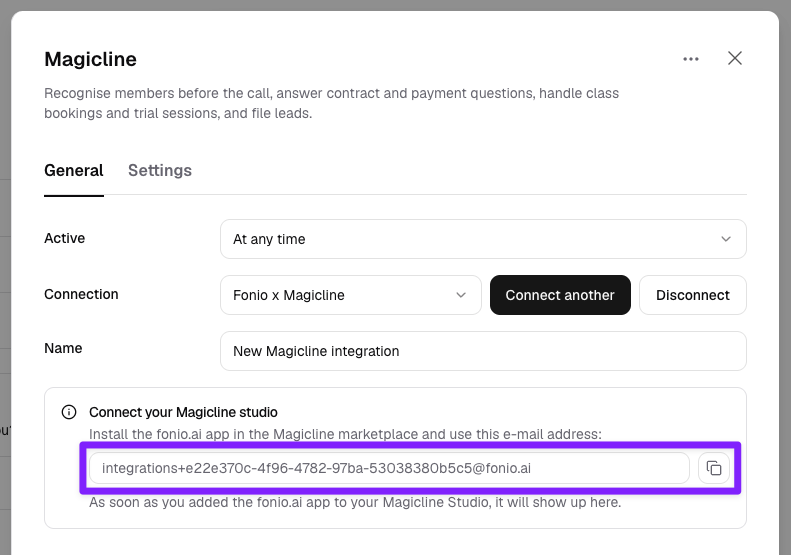
Under Connect your Magicline studio you'll find an e-mail address. Copy it with the button next to it, you'll need it in a moment. The address belongs to your fonio account, so it's the same for all of your studios.
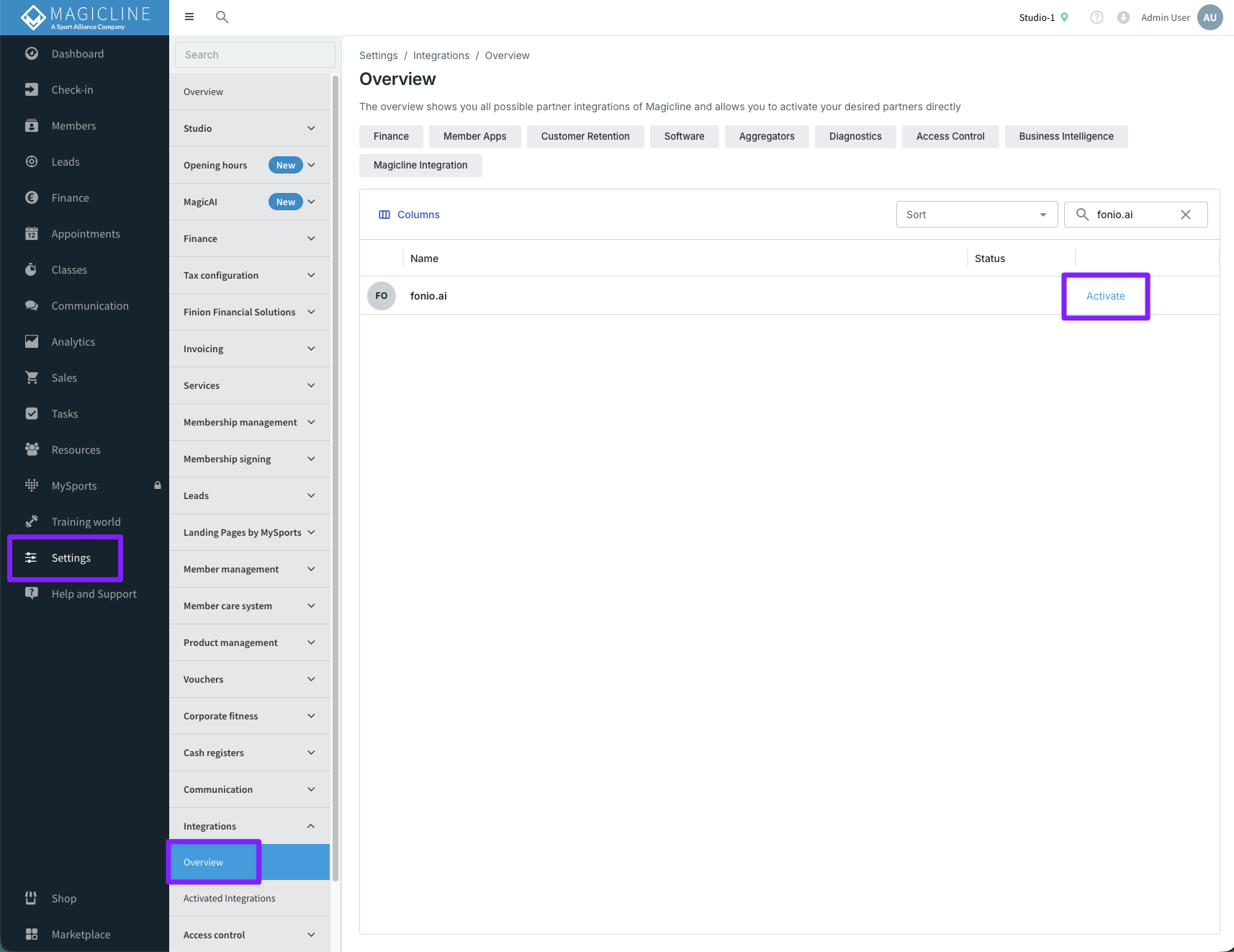
Install the fonio.ai app in Magicline
Sign in to Magicline and open the marketplace. Find the fonio.ai app and install it for your studio.
Magicline will ask you for an e-mail address. It's important to use the one from step 1:
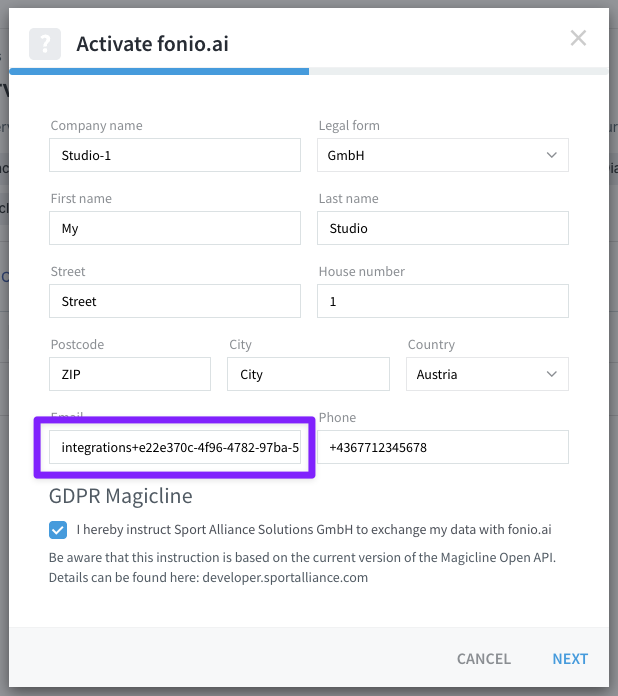
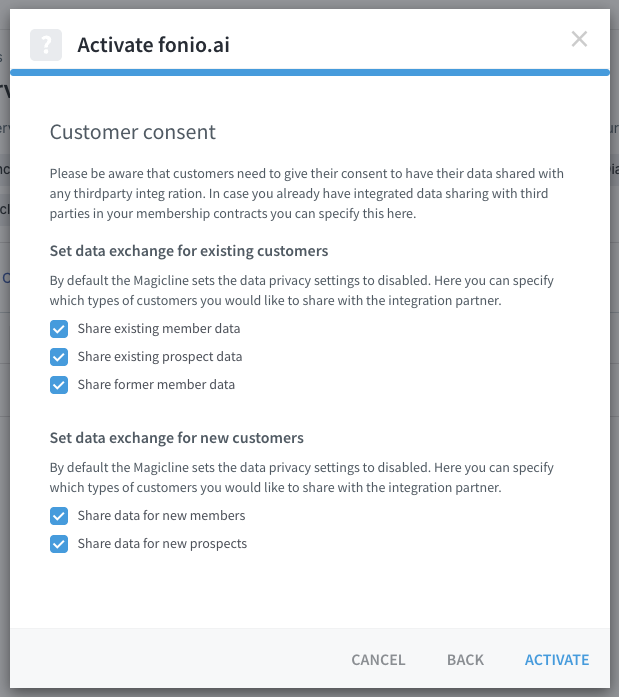
That's all. Magicline then sends us your studio's access, so you never have to type in a key.
As soon as it arrives (usually less than 1 minute), your studio shows up in fonio under Connection, with the same name as in Magicline. You don't need to reload the page.
Do you run several studios? Install the app for each of them with the same e-mail address. Every studio becomes its own connection, and you pick the right one under Connection.
Choose what your assistant may do
You can change all of this at any time.
Name
A short name for this connection, which you'll find again in your Call History. The default is New Magicline integration.
Create leads after the call
Off by default. Switched on, your assistant asks callers who are new to your studio and interested in a membership for their first name, last name and e-mail address. After the call, it files them in Magicline as a lead.
Allow trial session bookings
Off by default. Switched on, your assistant offers a trial session from your Magicline trial offers to everyone without an active membership, and books it. New callers are filed as a lead right away. It can also cancel a trial session that was booked earlier.
Allow class bookings
Off by default. Switched on, your assistant books members it recognises into a class and can cancel their class bookings.
Switched off, it still tells callers what's on the schedule and what they've already booked. It just doesn't change anything.
Before the call
When the phone rings, your assistant looks up the caller's number in Magicline. It finds members as well as leads.
For a member, it knows their name and their contract: the rate, the price, when it started, the minimum term, when it ends, how long it extends by and the notice period. It also knows if the contract has already been cancelled.
So when Lisa calls to ask when she can cancel, your assistant already has her contract in front of it. She doesn't need her customer number.
Someone whose membership has ended is treated as a prospect. Your assistant can still answer questions about their old contract and its payments, though.
A lead who's already on file is greeted by name, and your assistant doesn't ask for their details again.
If several members share the same number, your assistant can't tell who's calling. It happily talks about your classes and your studio, and refers everything personal to your front desk.
Callers it doesn't find, or who withhold their number, are treated as new.
Stays between you and your assistant
Your assistant uses what it knows from Magicline only to answer the caller's own questions. Past contracts stay out of the conversation unless the caller brings them up. And when a number belongs to several members, contract and payment details stay private.
During the call
Asking about classes
Anyone can ask what's on. Your assistant checks your Magicline class schedule, up to four weeks ahead, and tells them the time, the instructor, where it takes place and how many spots are still free.
It only mentions classes that really take place, and it never promises a spot that isn't free.
Booking and cancelling a class
A member your assistant recognises can ask what they've booked or when their next class is.
With Allow class bookings on, your assistant also books them into a class or cancels one for them. It always repeats the class and the exact time first. If the class is full, the member goes on the waiting list, and your assistant tells them so.
Contract and payments
A member can ask how long they're bound to their contract and when they can cancel. Your assistant works it out from the contract end and the notice period. It says which dates it went by and adds that your studio still has to confirm it.
They can also ask what they still owe, when the next payment is due, what a recent charge was for and which payment method was used. Your assistant only quotes amounts and dates straight from Magicline.
Trying out the studio
With Allow trial session bookings on, anyone without an active membership can book a trial session. Your assistant checks which times are free in your Magicline trial offers.
Before booking, it needs a first name, last name and date of birth. It only asks for what it doesn't know yet. It never asks for gender, but takes it from the first name. It asks for an address only if your studio needs one.
Then your assistant repeats the date and time and books the session. Someone who isn't in Magicline yet is filed as a lead along with the booking, together with the number they called from.
If your trial offer needs a confirmation, your assistant confirms the booking right away. Should Magicline not accept the confirmation, the caller hears that the booking isn't final yet and that they should have it confirmed at your front desk.
A caller can also ask about a trial session they booked earlier, or cancel it. Your assistant checks the date and time with them first.
After the call
With Create leads after the call on, your assistant files new prospects in Magicline once the call ends. That's anyone whose number wasn't in Magicline yet and who gave their first name, last name and e-mail address.
During the call, your assistant spells the e-mail address back, so it's right.
You'll find the lead in Magicline with their phone number, a sentence on what they were interested in and a short summary of the call.
If someone with the same e-mail address or phone number is already in Magicline, for example because they just booked a trial session, your assistant doesn't file them twice. If a detail is missing, nothing is filed.
Good to know
- Phone numbers in Magicline: your assistant can only recognise people whose number is stored in Magicline.
- Withheld numbers: your assistant can't recognise the caller. It can still talk about your classes, but it can't book a trial session for someone new or file them as a lead.
- Shared numbers: when several people in Magicline share one number, your assistant can't tell who's calling. It doesn't talk about contracts or payments, and it leaves bookings to your front desk.
- Cancelling a membership: your assistant explains the dates, but it can't cancel a membership itself. That stays with your studio.
- How far it looks: payments from the last 90 days, contracts that ended in the last six months and classes up to four weeks ahead.
- Trial offer rules: the rules you set in Magicline apply. If someone has used up their trial sessions, already has something booked at that time or doesn't meet the requirements, your assistant offers another time or refers them to your front desk.
- Stand-in e-mail addresses: your assistant doesn't ask for an e-mail address when booking a trial session. New trial leads get a stand-in address made from their phone number instead.
- Disconnecting a studio: uninstall the fonio.ai app in Magicline. The studio then disappears from fonio on its own.
If something isn't working
| Message | What to check |
|---|---|
| Your studio doesn't show up under Connection | Did you paste exactly the e-mail address from fonio when installing the app? Did you install it for the right studio? |
| Your studio has disappeared from fonio | Was the fonio.ai app uninstalled in Magicline? Install it again with the same e-mail address. |
| Your assistant doesn't recognise a member | Is the caller's number stored in Magicline? Did they withhold their number? |
| Your assistant won't talk about a contract or payments | Does someone else share the caller's number? Was the caller recognised at all? |
| Your assistant doesn't book or cancel classes | Is Allow class bookings on? Is the caller an active member with their own number in Magicline? |
| Your assistant doesn't offer a trial session | Is Allow trial session bookings on? Do your trial offers in Magicline have free times? Is the caller already an active member? |
| A trial session isn't confirmed | Magicline didn't accept the confirmation. Check the booking in Magicline and confirm it there. |
| No lead appears after a call | Is Create leads after the call on? Did the caller give first name, last name and e-mail address? Were they already in Magicline? |
Need help?
Just write us at support@fonio.ai, we're happy to help.