
Notion
Your assistant reads the Notion pages you pick before every call and answers callers straight from them.
Once Notion is connected, your assistant reads the pages and databases you pick before it answers the phone. Your price list, your services and who is on holiday this week are already in its head when the call starts.
It's like a colleague who has read your notes that morning. Change a price in Notion, and the very next caller hears the new one.
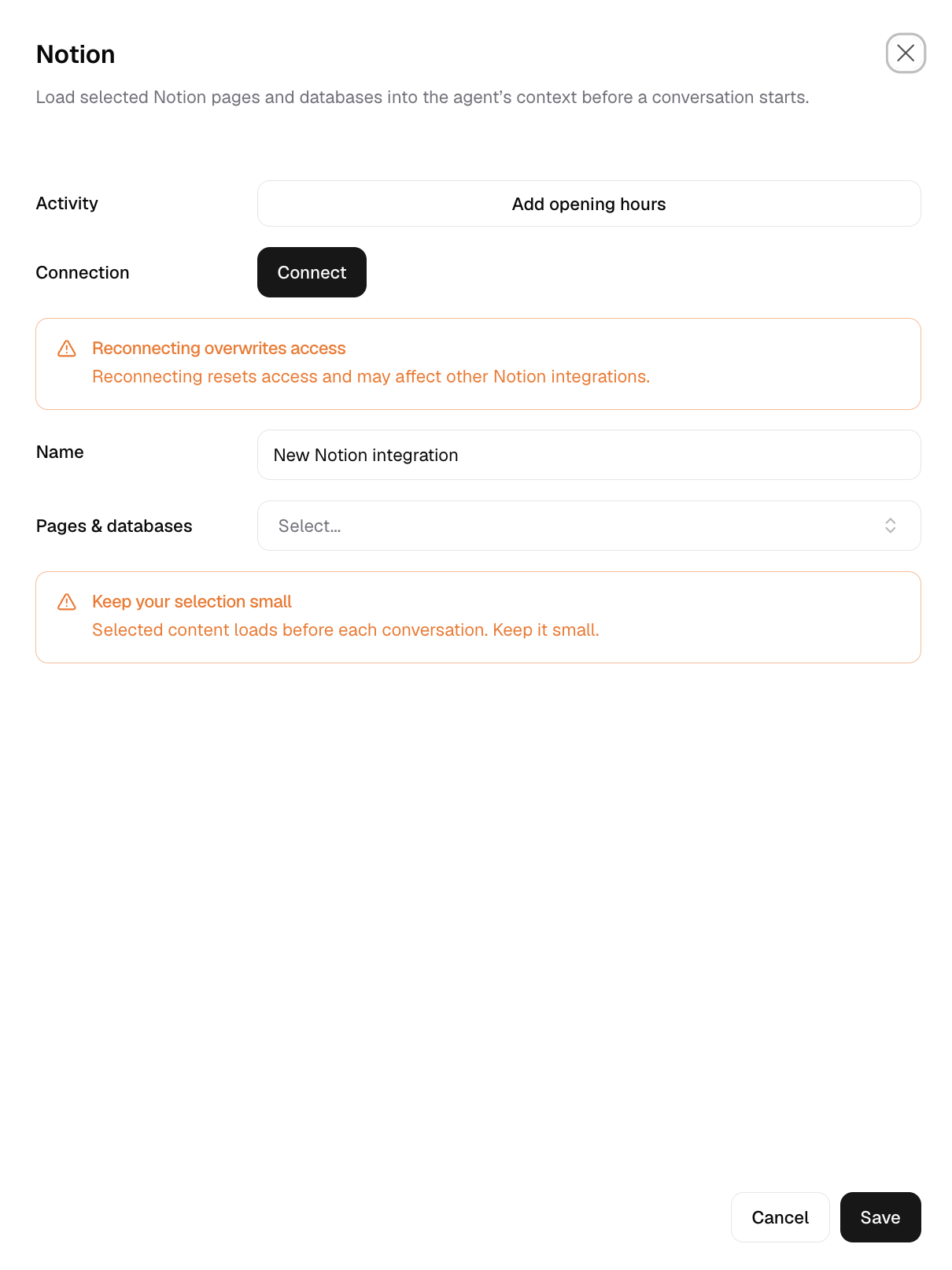
Connect Notion
In your assistant, open Integrations, add Notion and click Connect.
Sign in to Notion and choose your workspace. Notion then asks which pages fonio may see. Pick them and allow access.
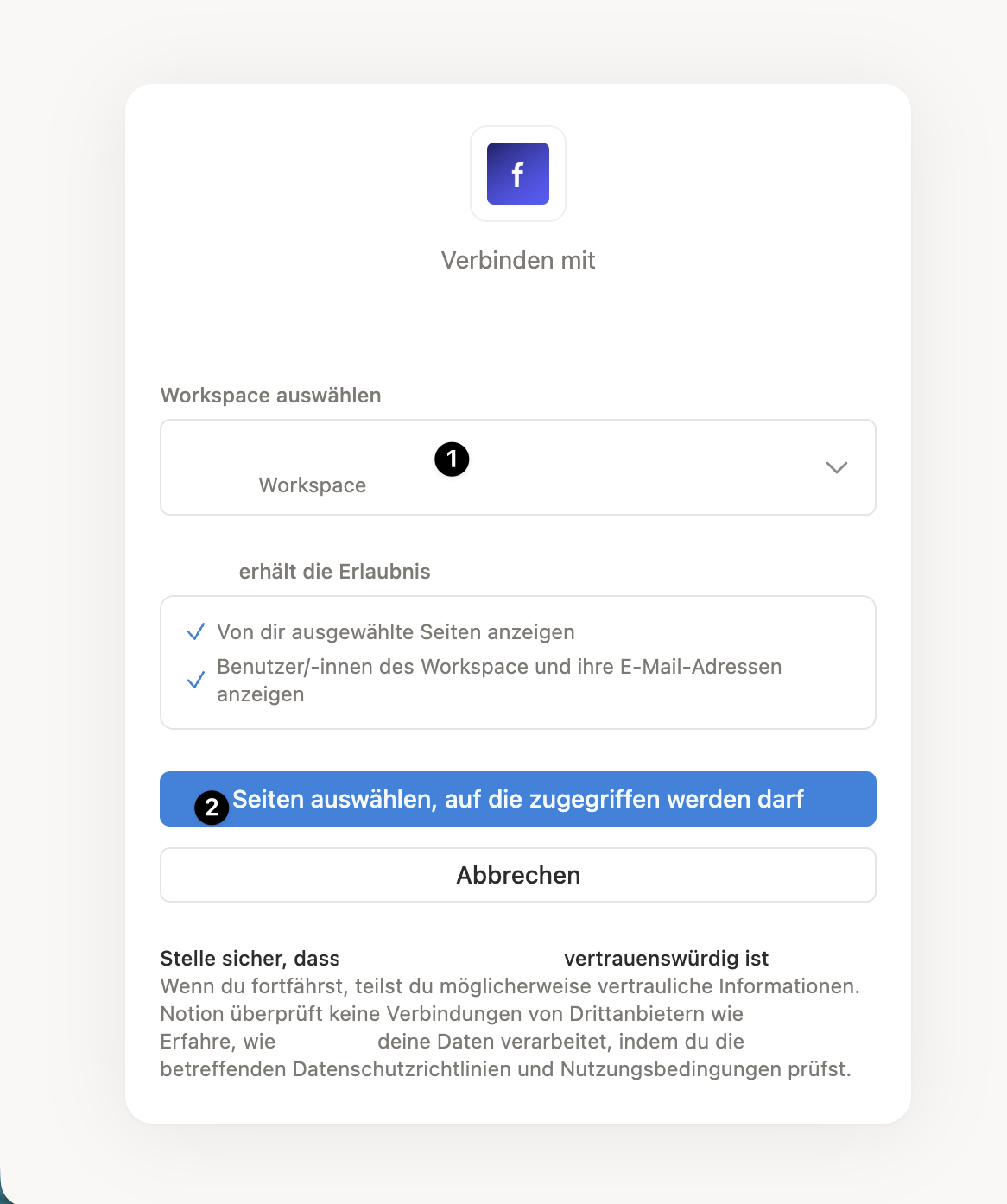
Share only what your assistant really needs, for example the one page with your price list. Pages you don't share here won't show up in fonio later.
Once connected, your workspace appears under Connection. Use Connect another for a second workspace, or Disconnect to remove it.
Reconnecting overwrites access
When you connect Notion again, the pages you pick then replace your earlier choice. A page you leave out also disappears from your other Notion integrations, so check them afterwards.
Choose what your assistant may do
You can change all of this at any time.
Name
A short name, so you can tell your Notion integrations apart, for example "Price list" or "Team list". The default is New Notion integration.
Pages & databases
The pages and databases your assistant reads before every call. You'll find everything here that you shared in the first step. Databases carry a 🗄 and pages a 📄. Nothing is selected by default.
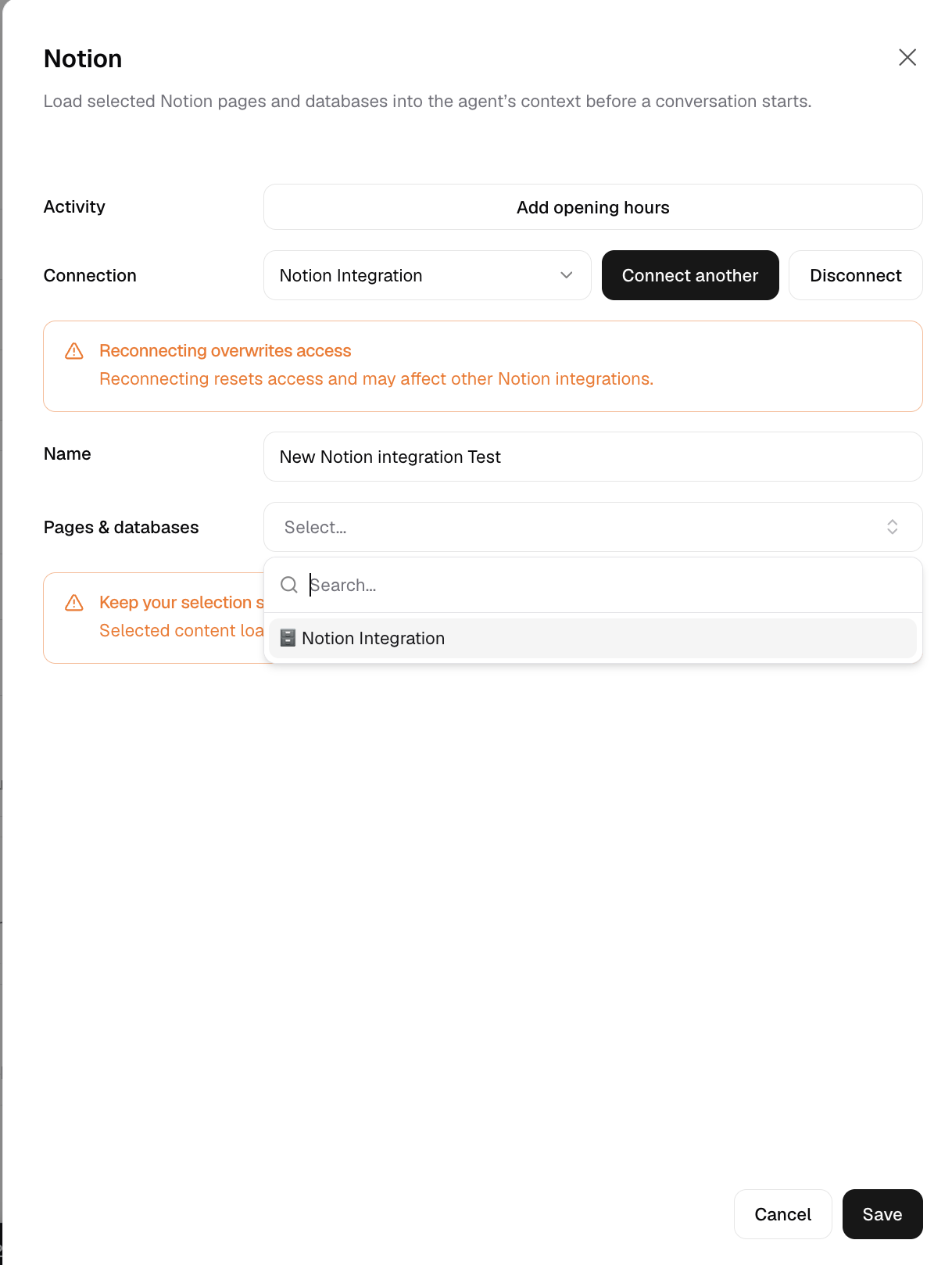
Looking for a database row or a page that only holds a database? Pick the database itself instead.
As the app reminds you under Keep your selection small, everything you pick is read before every call. A short list with twenty rows is no problem. Your whole company wiki is too much: it slows down the start of the call and crowds out what your assistant needs for the conversation.
Active
When your assistant reads your Notion content. The default, At any time, fits most businesses.
Choose During opening hours or Outside opening hours to use different content at different times. For example, one integration holds your full price list during the day, and a second one only your emergency number in the evening. Opening hours apply to your whole company.
Before the call
When the phone rings, your assistant has just read the pages you picked, fresh from Notion.
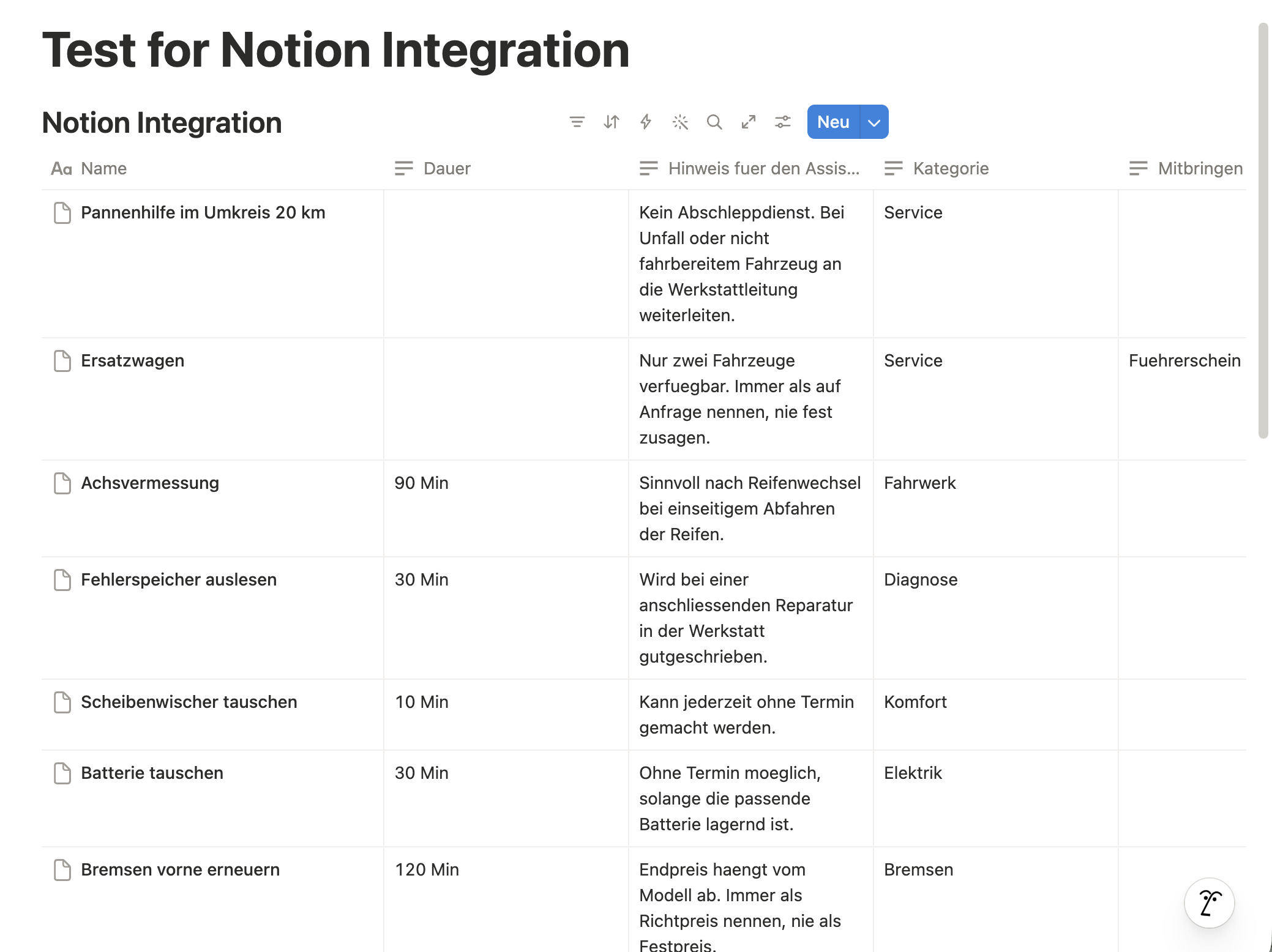
So when Tom calls and asks how long a full service takes, your assistant finds the right row and tells him straight away. He doesn't wait while someone looks it up.
Your assistant answers only what the caller asked. Tom hears about his service, not the whole list.
Is something not in your Notion pages? Tell your assistant in its instructions what to do then, for example to offer a callback rather than guess a price.
Stays between you and your assistant
Your assistant never reads out a whole page or list. Callers get a short answer to their question, and the rest of your notes stay with you.
Good to know
- Reading only: your assistant reads from Notion but never writes to it. It doesn't add rows or change anything. To keep details from a call, use Google Sheets.
- Facts, not instructions: your assistant uses your Notion content as facts to answer from. It won't take orders written there, such as "transfer every caller". How your assistant behaves belongs in its instructions in fonio.
- Tables work best: short rows with clear column names are easier to answer from than long blocks of text. In a database, your assistant reads the columns of each row, not the text inside a row's own page.
- Subpages: picking a page doesn't bring its subpages along. Pick each one you need under Pages & databases.
- Limits: your assistant reads the first 300 rows of a database and roughly the first 50,000 characters of a page. Filters and sorting from your Notion views aren't used.
- Changes count right away, unfinished ones too. Rework bigger pages in a copy and swap it in once it's ready.
- Clear page titles help: your assistant knows each page by its title in Notion, so "Prices 2026" works better than "Untitled".
- If Notion is slow or a page was deleted, the call still starts on time. Your assistant just doesn't have that page for this call.
- Privacy: fonio only sees the pages you share in Notion, and your assistant only reads the ones you pick. Leave out anything callers shouldn't hear about.
If something isn't working
| Problem | What to check |
|---|---|
| A page is missing under Pages & databases | Did you share it when connecting? Connect again and include it, then check your other Notion integrations. |
| A database row or the page around a database is missing | That's on purpose. Pick the database itself. |
| Another Notion integration suddenly comes up empty | Was Notion connected again and that page left out? |
| Your connection shows (reconnect required) | Click Connect and sign in to Notion again. |
| Your assistant doesn't know something that's in Notion | Is the page picked, and not just its subpage? Is the information in a column rather than inside a row's page? Is it beyond row 300? |
| Your assistant ignores a rule written in Notion | Rules belong in your assistant's instructions in fonio. Notion is for facts. |
| The content is missing on some calls only | Is Active set to During opening hours or Outside opening hours? |
| Calls take a moment longer to start | Have you picked too many or very long pages? |
| A change doesn't show up | Did you edit the page that's actually picked, and not a copy? |
Need help?
Just write us at support@fonio.ai, we're happy to help.