
Slack
Send information about a call straight into the Slack channel your team works in.
With the Slack integration, you automatically send a message to a Slack channel before, during or after a conversation.
If your team works in Slack every day, new requests land exactly where they belong. Everyone sees right away what happened and who is taking care of it.
Name the integration and choose when it runs
Add Slack in the integration list and give the integration a clear name.
Then use When to run to choose when the message should be sent.
-
Pre conversation: The message is sent before your assistant picks up the call. At this point only basic information is known. This includes, for example, the caller's phone number and the assistant being called.
-
During conversation: Your assistant can send the message during the conversation. In the field When should the AI use this? you describe when Slack should be used.
Example:
If the caller says their request is urgent, send a message in Slack.
This setting is a good fit if your team should react while the call is still running.
-
Post conversation: The message is sent after the conversation. At this point it can contain all the information your assistant collected during the call.
-
Activity: Under Activity you also decide which calls the integration is allowed to run on:
- Always
- During opening hours
- Outside opening hours
Connect your Slack workspace
Click Connect and select the Slack workspace you want.
Slack shows you which permissions the integration needs. This includes reading and sending messages in channels and conversations.
The connection applies to the entire workspace. So think in advance about which workspace you want to connect, especially if it contains sensitive channels.
Select the channel
Switch to the Settings tab and select the Slack channel the message should be sent to.
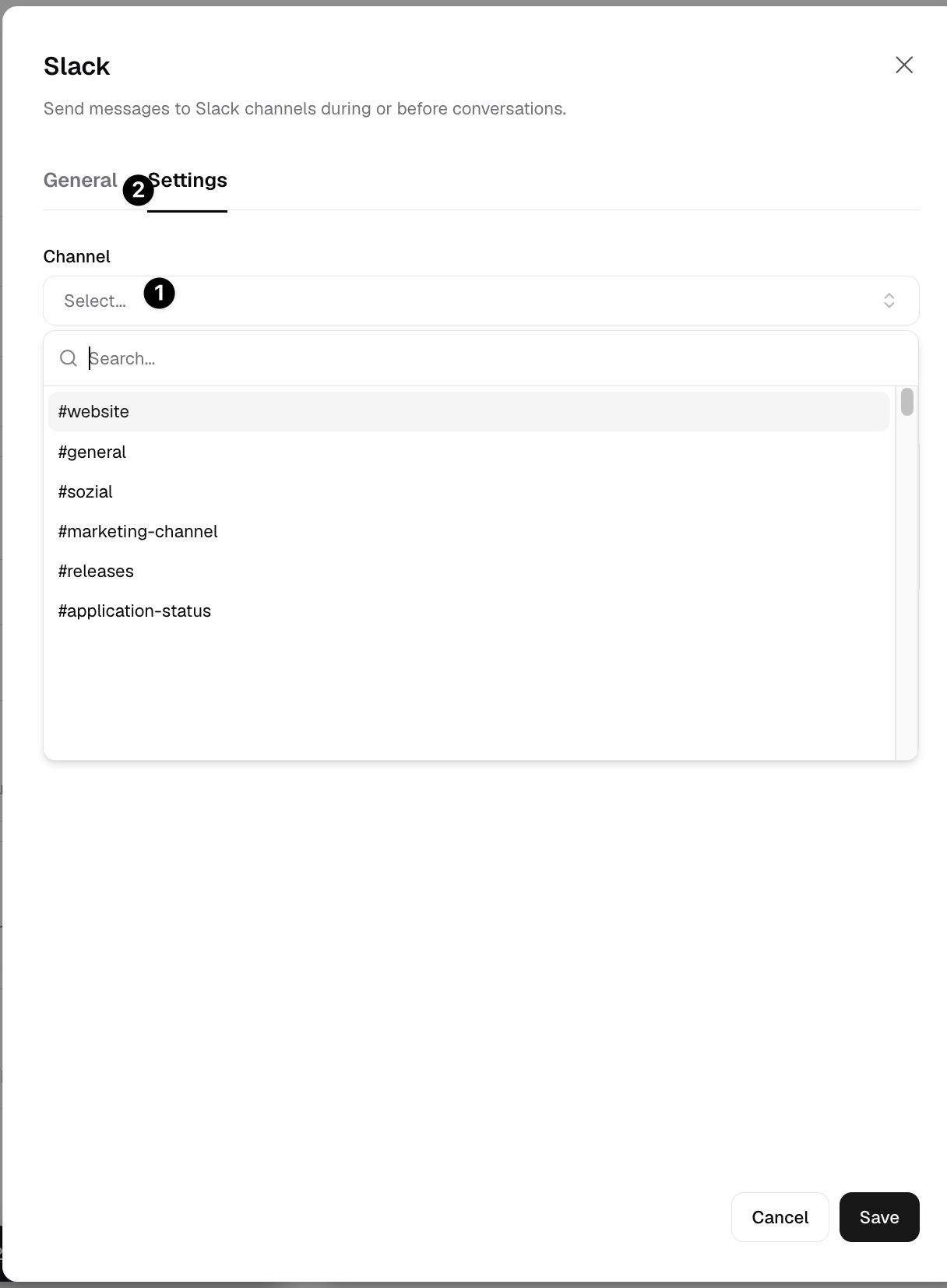
Private channels
For private channels, you first have to add the bot as a member. Until that happens, the channel may not appear in the list or the message cannot be delivered.
Pick a channel your team really checks regularly. Only then does a notification turn into a quick reaction.
Write the message
Under Message Template you define what gets sent to Slack.
With Add Variable you can insert known information from the conversation. This includes, among other things:
- Name and number of the assistant
- Caller's phone number
- Call direction
- Time of the call
- Reason the call ended
- Company name
- Conversation link
- Contact details
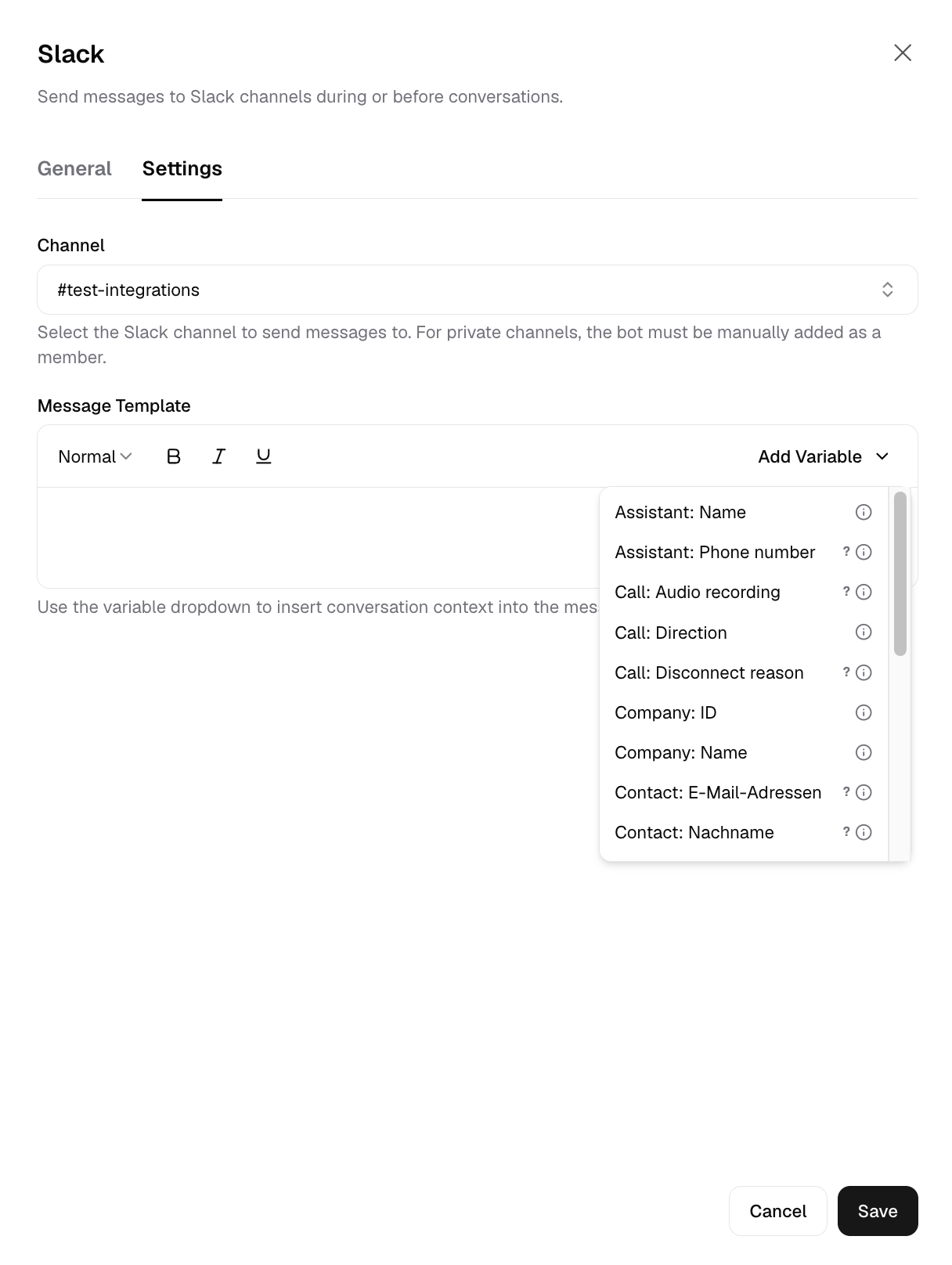
A question mark next to a variable means it is not available in every situation. The info icon shows you which value it holds.
Keep the message short and put the most important information first. Ideally, always include the conversation link.
Example:
New call from {{personNumber}}

Request: {{topic}}
Callback needed: {{needs_callback}}

{{conversationLink}}
Add your own variables
You add your own variables directly into the message in the format {{variableName}}.
The variable then appears under Custom Variables.
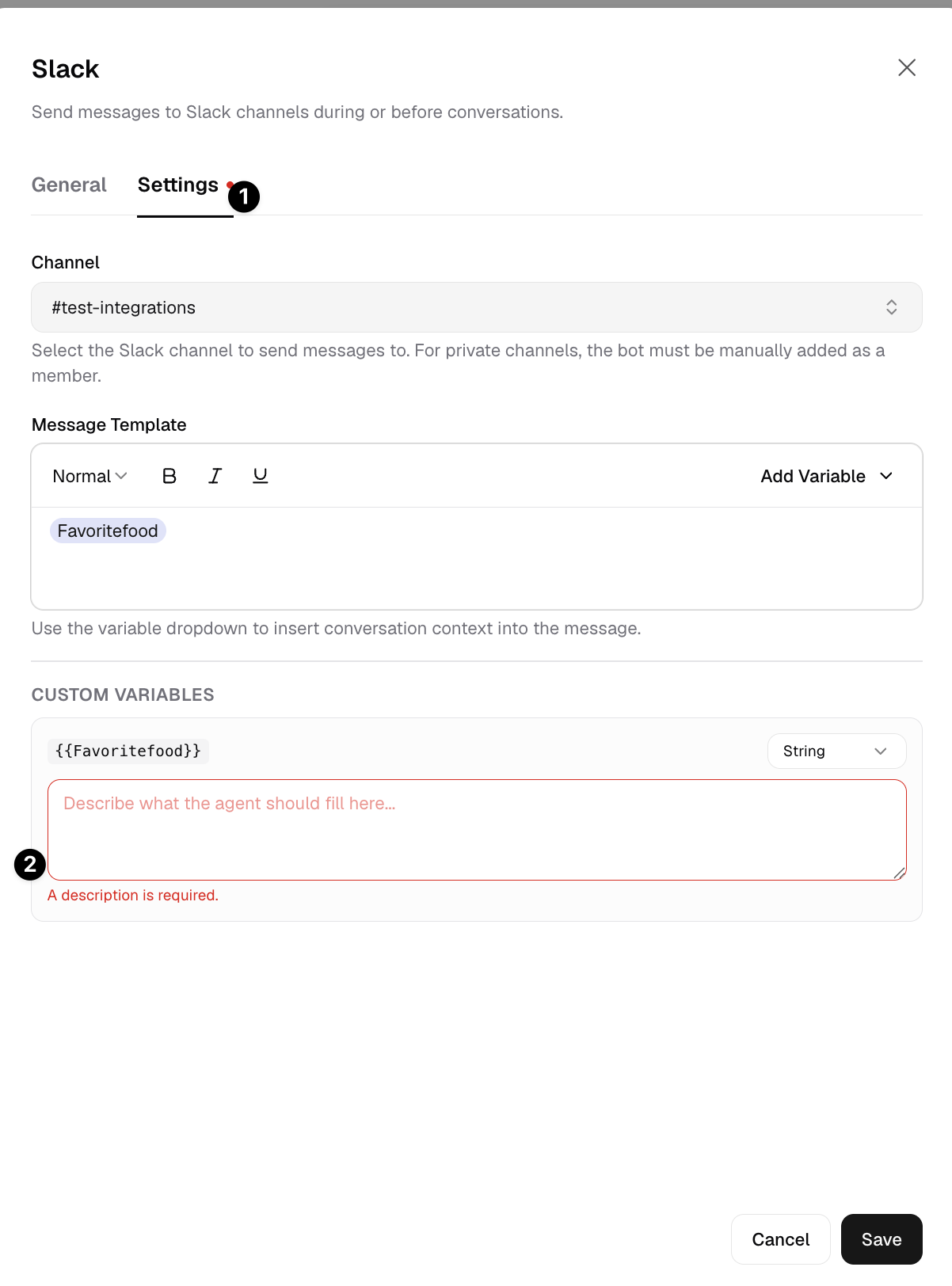
Set a type and a precise description for each variable.
You can choose from:
- String
- Number
- Boolean
Too vague:
Topic
Better:
The reason for the call, summarised in one short sentence.
As long as a custom variable is missing its description, the Save button stays disabled.
Pre conversation only supports built-in variables
Before the conversation starts, your assistant cannot capture any information from it yet. With Pre conversation you can therefore only use values that are already known. These include the phone number, the assistant, the company and the time.
Custom variables only work during or after a conversation. If a piece of information was not mentioned in the call, the variable stays empty.
Good use cases
Urgent request during the call
Use During conversation and set a condition for urgent requests. That way your team can react while the call is still running.
Send new leads to sales
Send a message to the sales channel after the call. Capture, for example, the company, the request and a first budget indication as custom variables.
Report requests outside opening hours
Set Activity to Only outside opening hours and select the channel of your on-call team.
Route requests by topic
You can add Slack several times and set a separate channel and condition for each integration.
This way technical questions can land in the support channel, billing questions with accounting and general requests in a shared channel.
Slack or email
Slack is a great fit when your team works there every day and needs to react quickly.
Email is better when the information goes to people outside your team or should be kept permanently in a mailbox.
You can also combine both actions. Slack informs your team right away and an email serves as additional documentation.
Common problems
| Problem | What to check |
|---|---|
| Variables stay empty | Does the integration run before the conversation? Custom variables do not work there. |
| A variable is empty only on some calls | Was the information actually mentioned in the conversation? |
| Nothing arrives in a private channel | Was the bot added as a member? |
| A channel is missing from the list | Is the channel private or does it belong to a different workspace? |
| The Save button stays disabled | Is a custom variable missing its description? |
| The integration does not run on every call | Is a restriction based on opening hours active under Activity? |
| Nobody reacts to the messages | Does the team check the selected channel regularly? |
Need help?
Just reach out to support@fonio.ai. We are happy to take a look with you.