
Test Context
Store test values for your webhook variables and check your assistant without a real request to your system.
With Test Context you can store sample values for variables that normally come from an Inbound Webhook.
This lets you check the prompt and the start message with Test Audio without triggering a real call or a request to your system every time.
Open Test Context
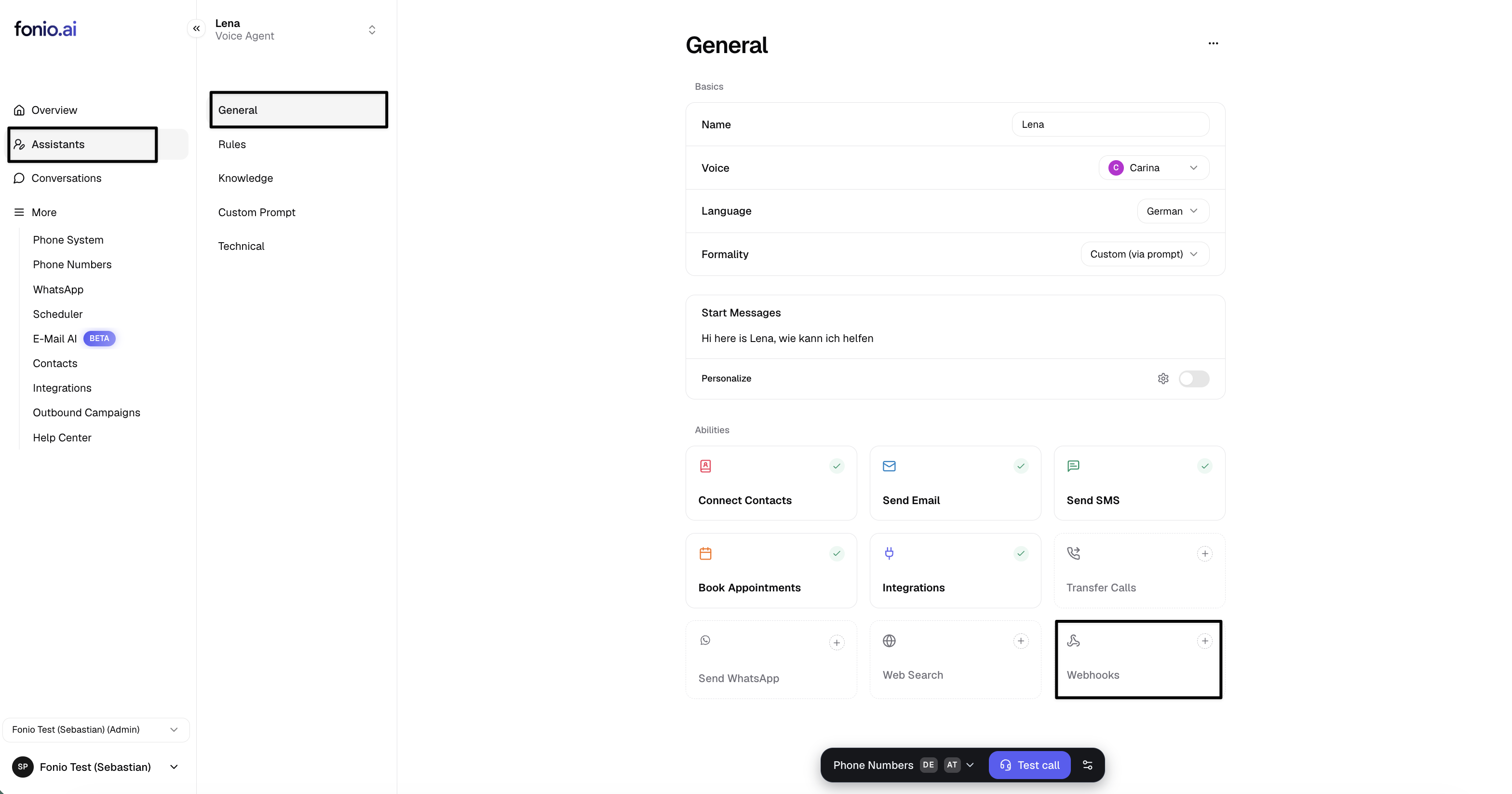
Open your assistant and go to Webhooks → Test Context.

Enter test values
Enter the values you want as valid JSON.
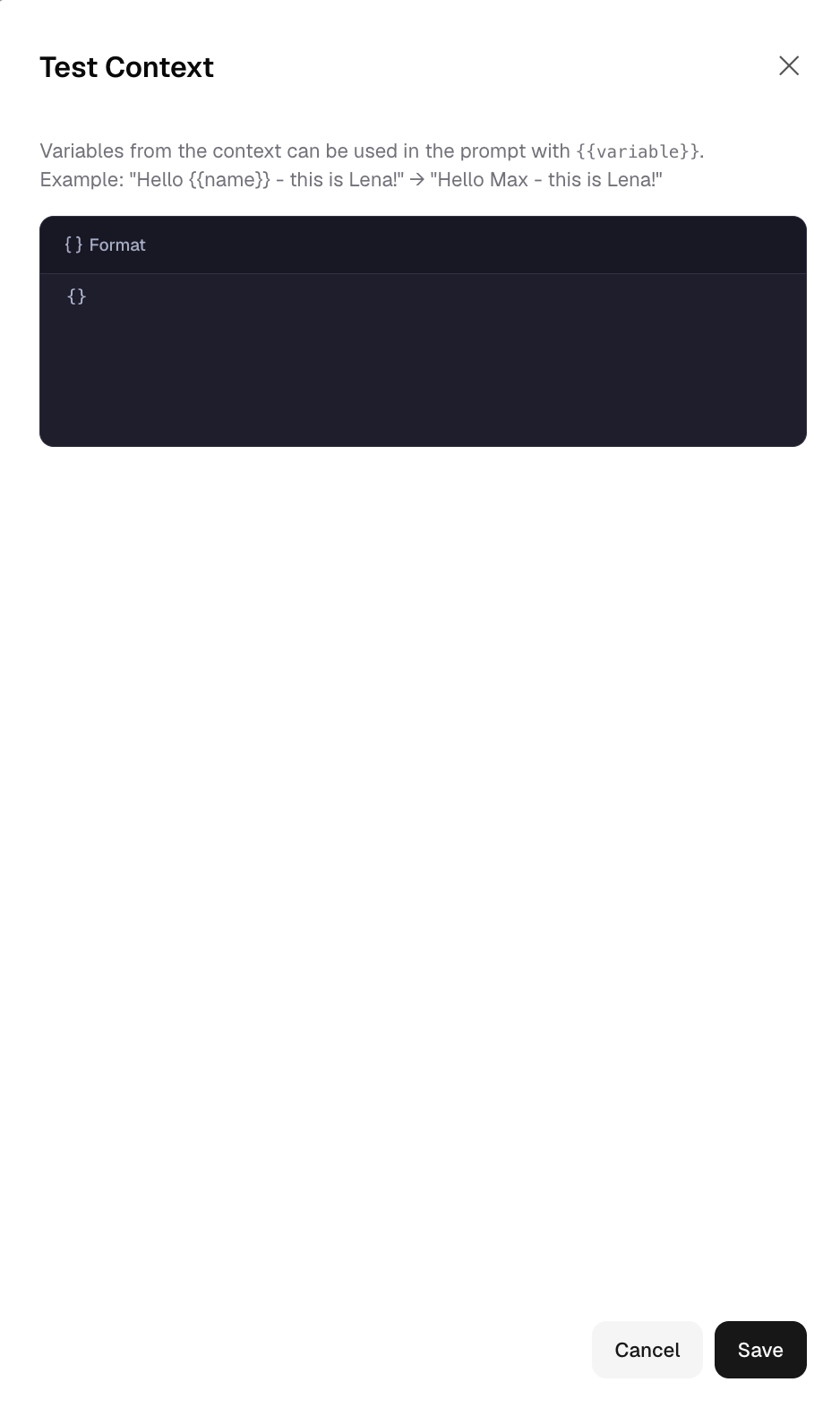
{
  "name": "Max",
  "customerId": "K-1042",
  "contractStatus": "Active"
}
Save your changes.
Use variables in the prompt
You use the values from Test Context like regular webhook variables.
Hello {{name}}, great that you're calling again.
With the Test Context stored above, this becomes:
Hello Max, great that you're calling again.
Check with Test Audio
Open Test Audio and start a test.
Check the following:
- Are all placeholders replaced?
- Does your assistant pronounce names and values correctly?
- Do rules based on the variables work?
- Does the prompt still make sense if a value is missing?
Please note
Test Context only provides sample values for your tests. On a real call, the values still come from your Inbound Webhook. Test Context does not send a request to your external system and does not change any data there.
When is Test Context useful?
Test Context is especially useful if you:
- Want to test a personalized start message
- Don't have a finished endpoint yet
- Want to try out different customer statuses
- Want to tell an error in the prompt apart from an error in the webhook
- Want to test variables without making real calls repeatedly