
HTTP Request
Call your own HTTP endpoint before, during or after a conversation and pass along data from the call.
Before the conversation
Notify an external system that a call is coming in, or load information that is already known from the phone number.
During the conversation
Look up current information such as an order status and pass the result directly to the caller.
After the conversation
Save orders, callback requests or conversation results in your CRM or a database.
How to set it up
Add an HTTP Request
Open your assistant and go to Webhooks.
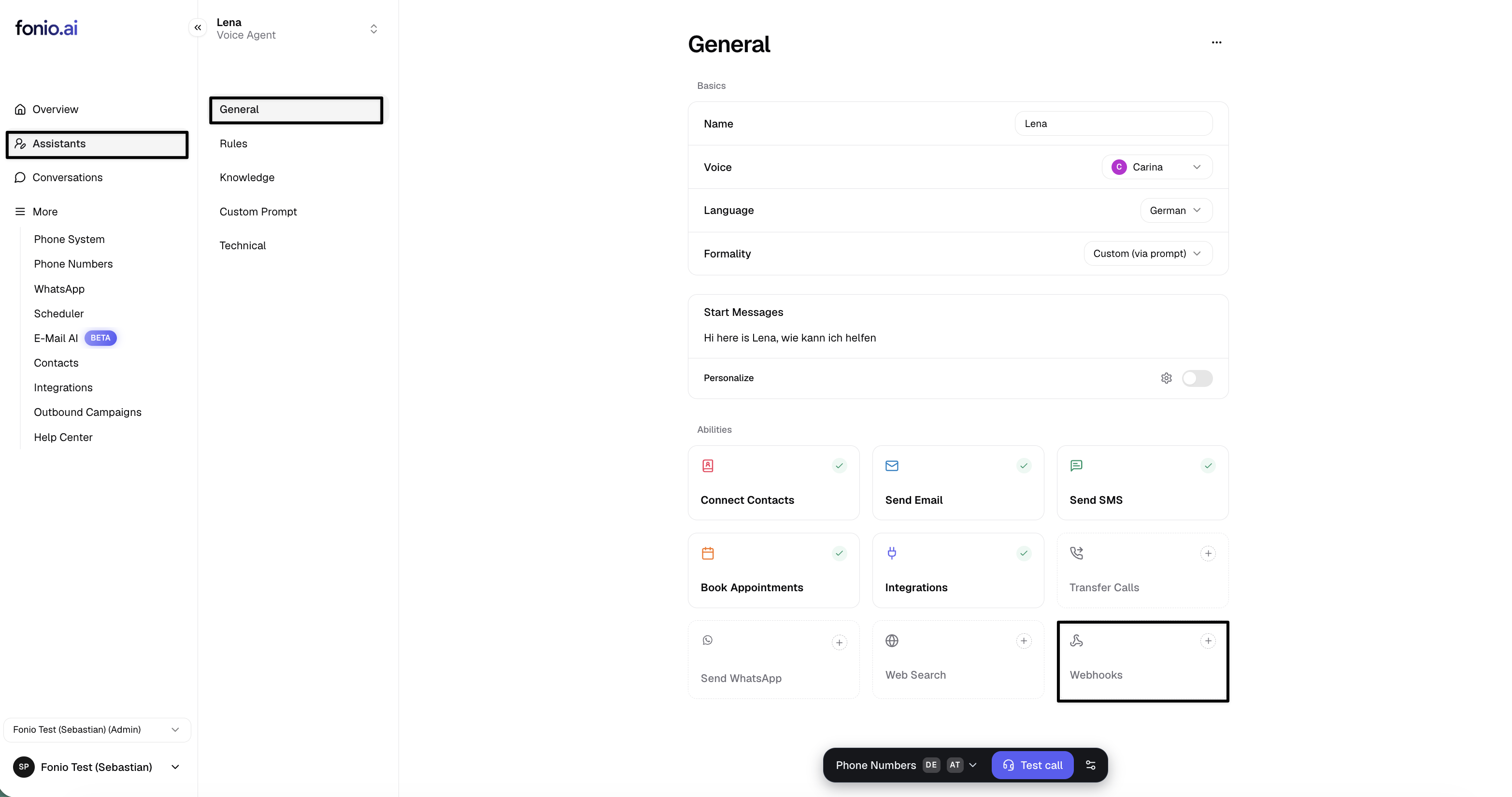
Click Add new webhook and choose Add HTTP request.
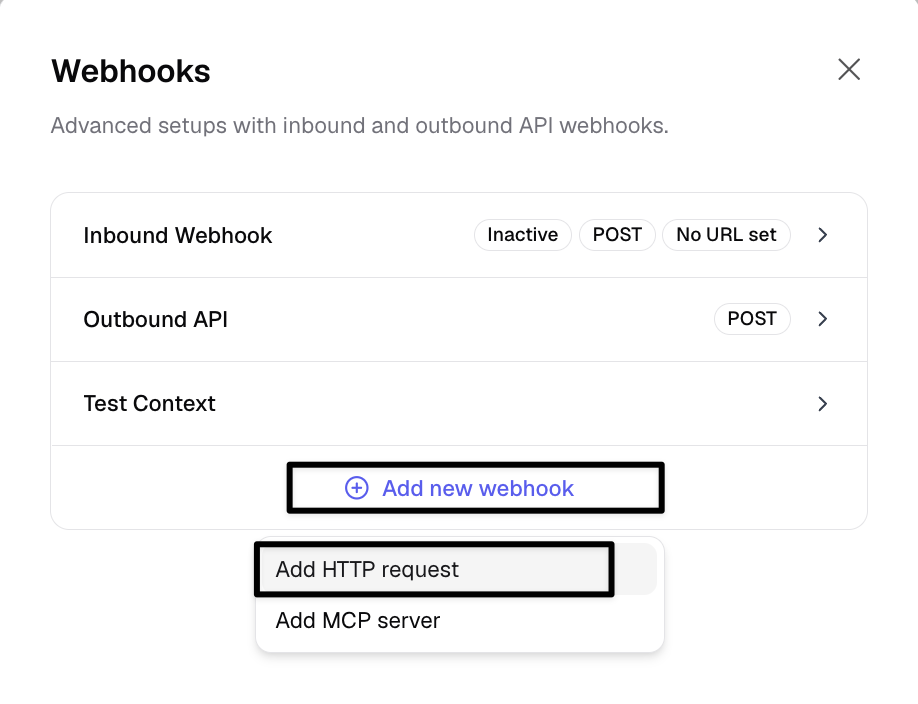
Then give the integration a unique name.
Set when it runs
In the General tab, use Run to set when the HTTP Request is executed.
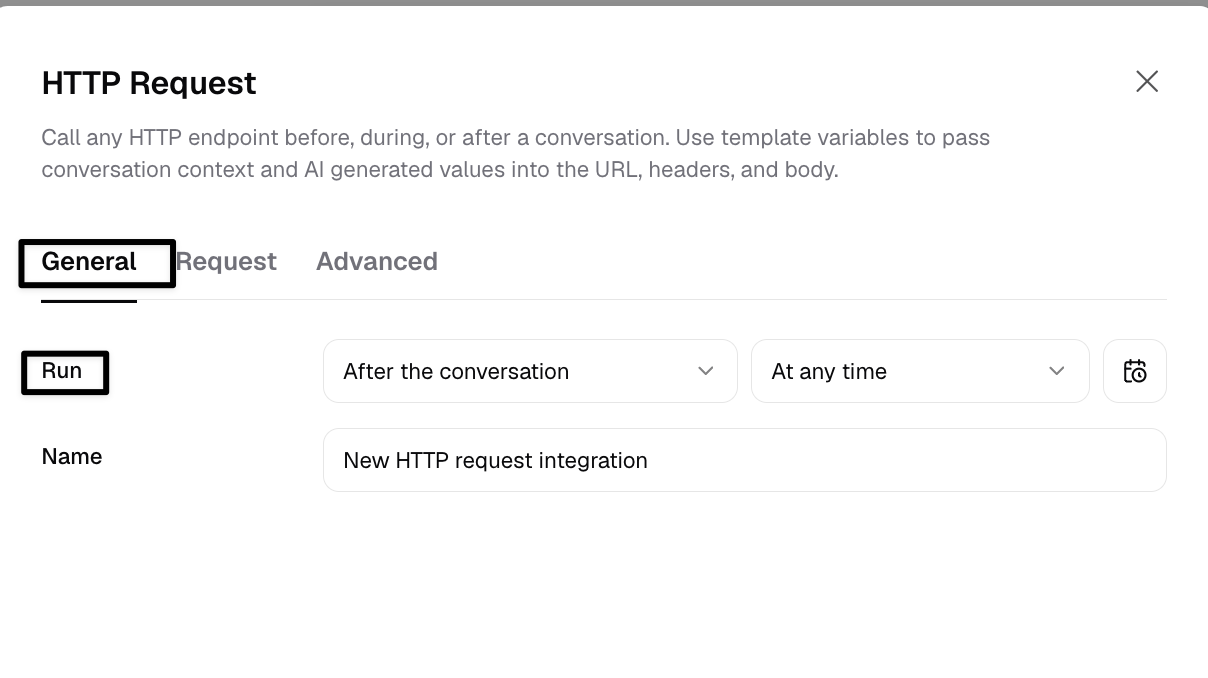
Before the conversation
The request is executed before the conversation begins.
At this point, only information that is already known before the conversation is available. This includes, for example, the caller's phone number, the called number and values from an existing context.
A condition based on the conversation content is not possible here.
During the conversation
The request can be executed during the conversation.
In the field When should the AI use this?, describe when your assistant should use the integration.
After the conversation
The request is executed after the conversation has ended.
You can define a condition to run on in the Advanced tab in the settings. If the field is left empty, the request is executed after every matching conversation.
Choose availability
In addition to when it runs, you set which calls the integration should be active for:
- Always
- Within opening hours
- Outside opening hours
This setting applies regardless of whether the request runs before, during or after the conversation.
Enter the URL
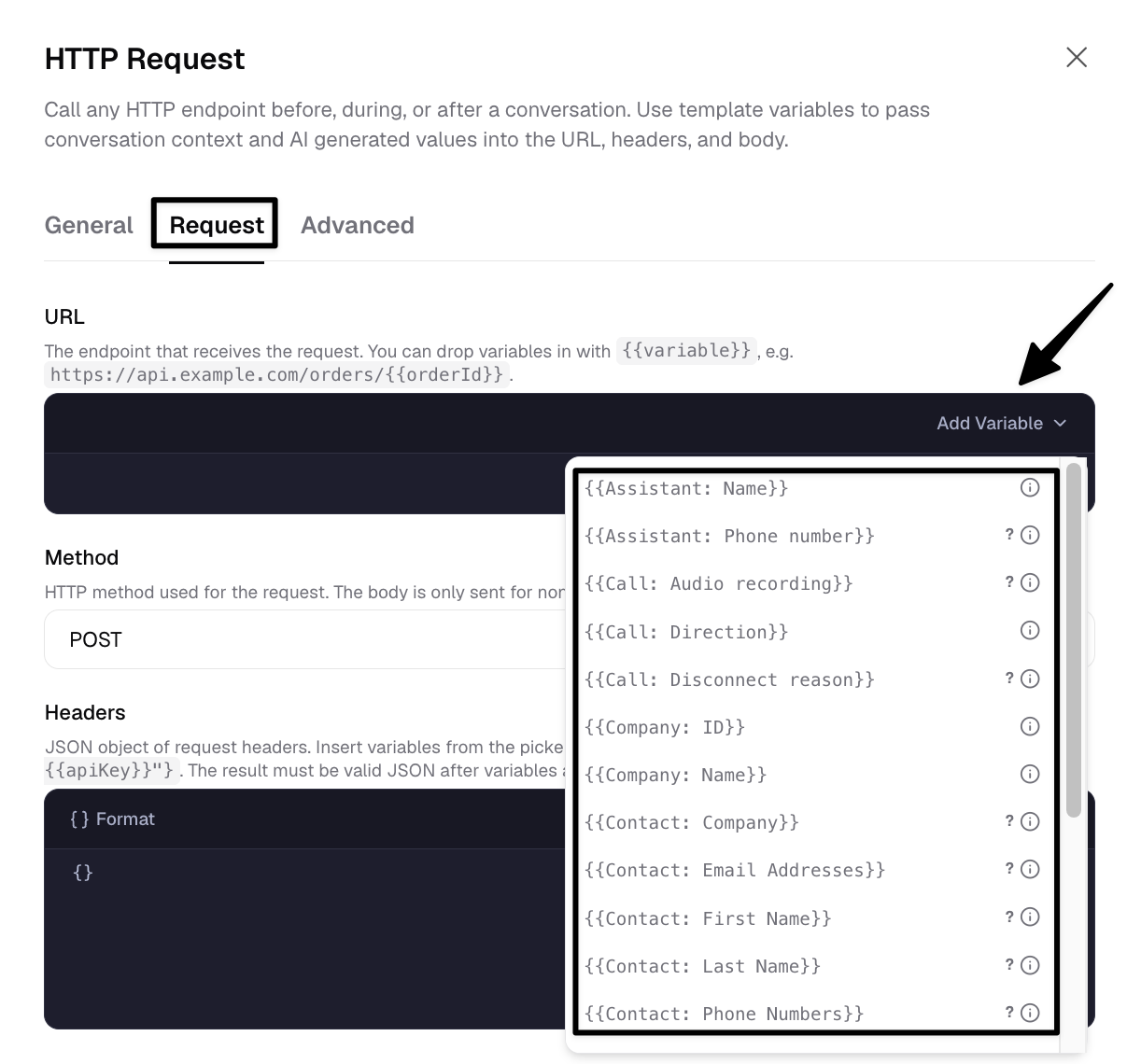
Switch to the Request tab and enter the URL of your endpoint.
https://api.example.com/orders
You can use variables directly in the URL:
https://api.example.com/orders/{{orderId}}
It is best to insert variables using Add Variable.
Choose the HTTP method
The following methods are available:
- GET
- POST
- PUT
- PATCH
- DELETE
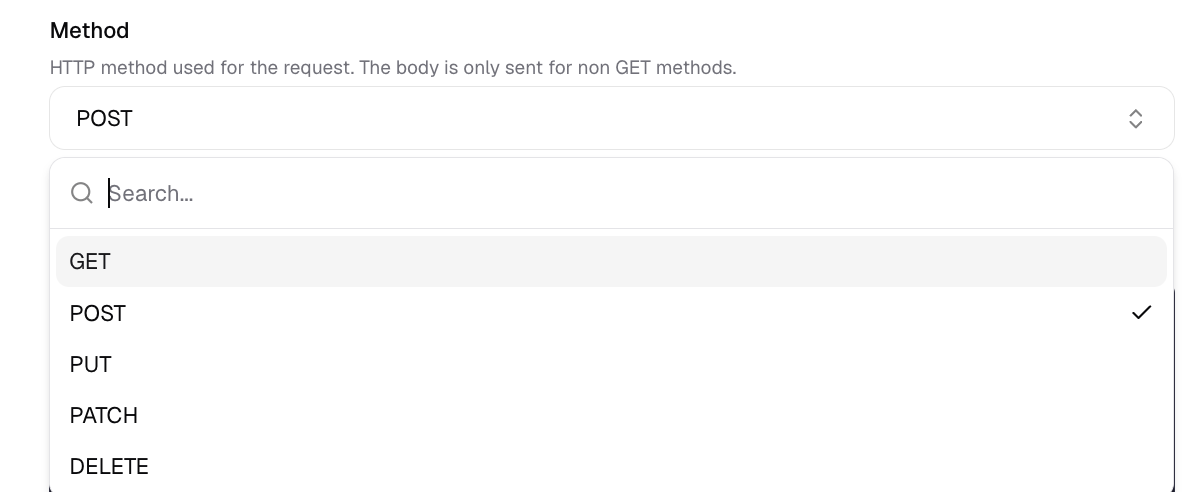
GET requests do not send a body. In this case, use the URL and, if needed, query parameters.
Set headers
Under Headers, you add the request headers as JSON.
{
  "Authorization": "Bearer YOUR_API_KEY",
  "Content-Type": "application/json"
}
You can also insert variables here using the picker.
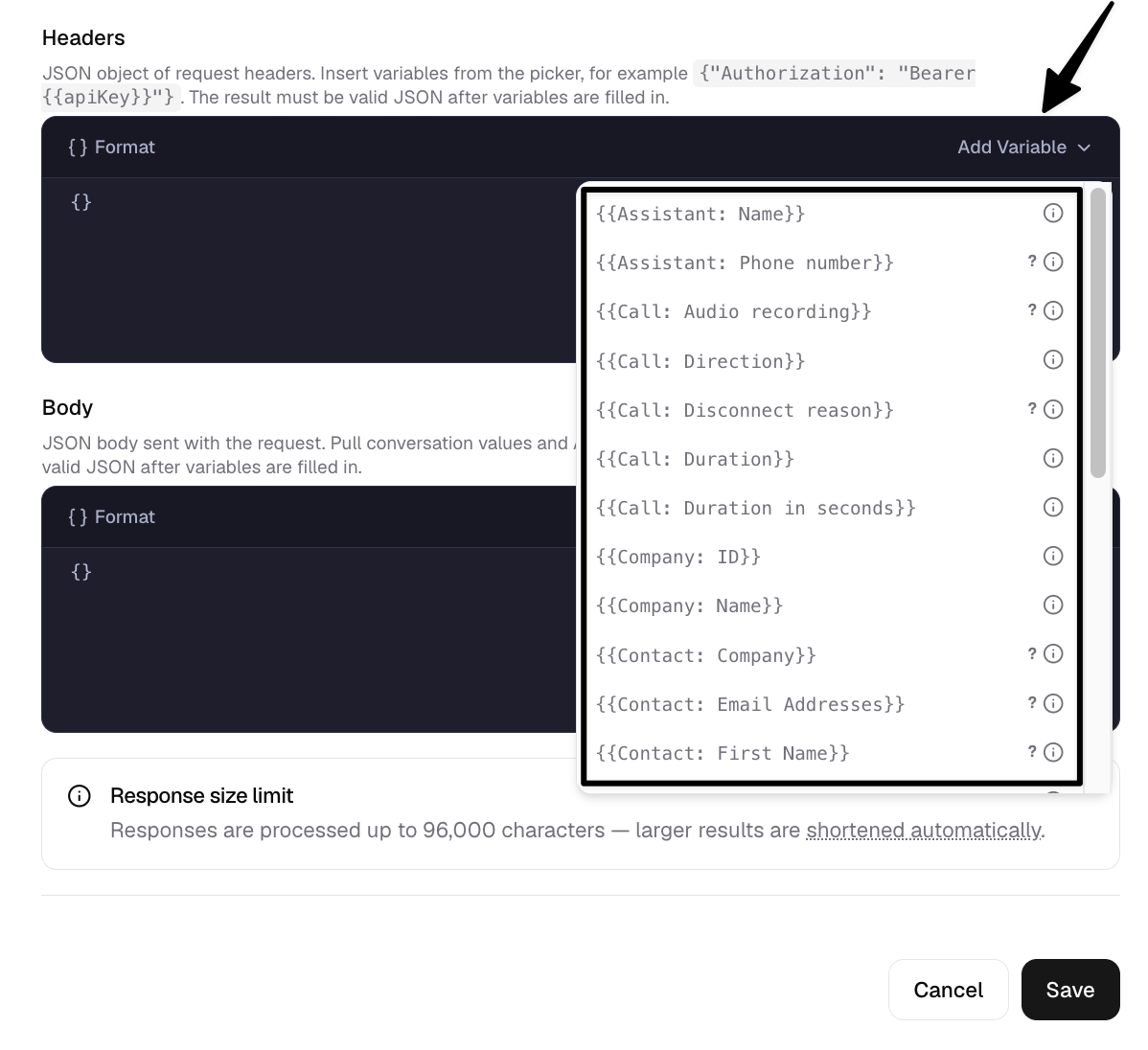
The result must be valid JSON after all variables have been inserted.
Create the body
With POST, PUT, PATCH and DELETE, you can send a JSON body.
{
  "orderId": "{{order_id}}",
  "callerNumber": "{{personNumber}}",
  "conversationLink": "{{conversationLink}}"
}
You should insert known system values such as {{personNumber}} and {{conversationLink}} using Add Variable.
Add custom variables
If you write your own variable such as {{order_id}} in the URL, the header or the body, it appears under Custom Variables.
For each variable, you set:
- Name
- Type
- Description
The following types are available:
- String
- Number
- Boolean
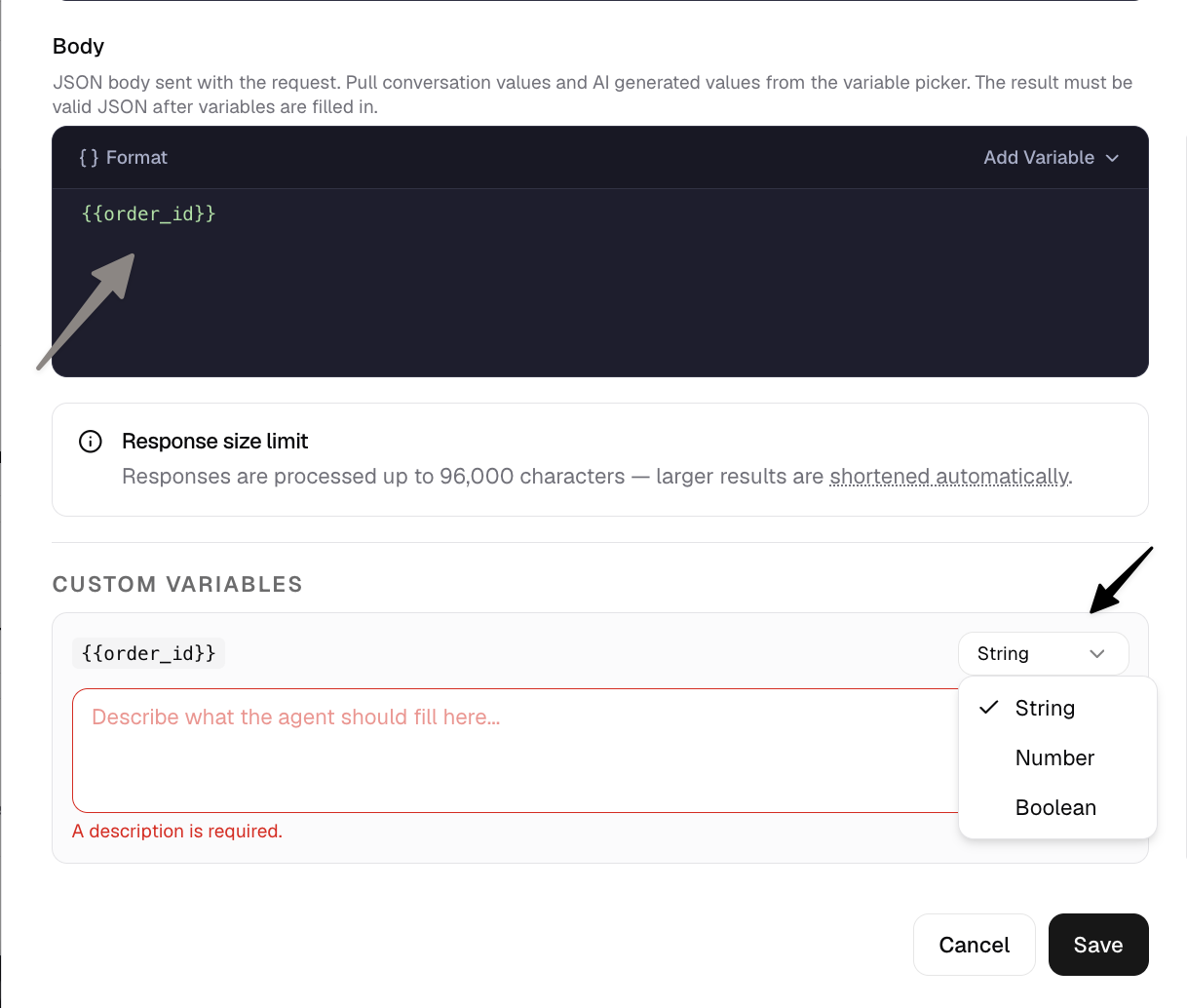
Describe exactly which information your assistant should capture.
Too vague:
Order number
Better:
The order number the caller mentions in the conversation. It starts with BP followed by eight digits.
Description required
Without a description, your assistant does not know which value to insert. As long as a description is missing, you cannot save the integration.
Set the execution sentence
For a request during the conversation, you can set under Advanced what your assistant should say while the request is being processed.
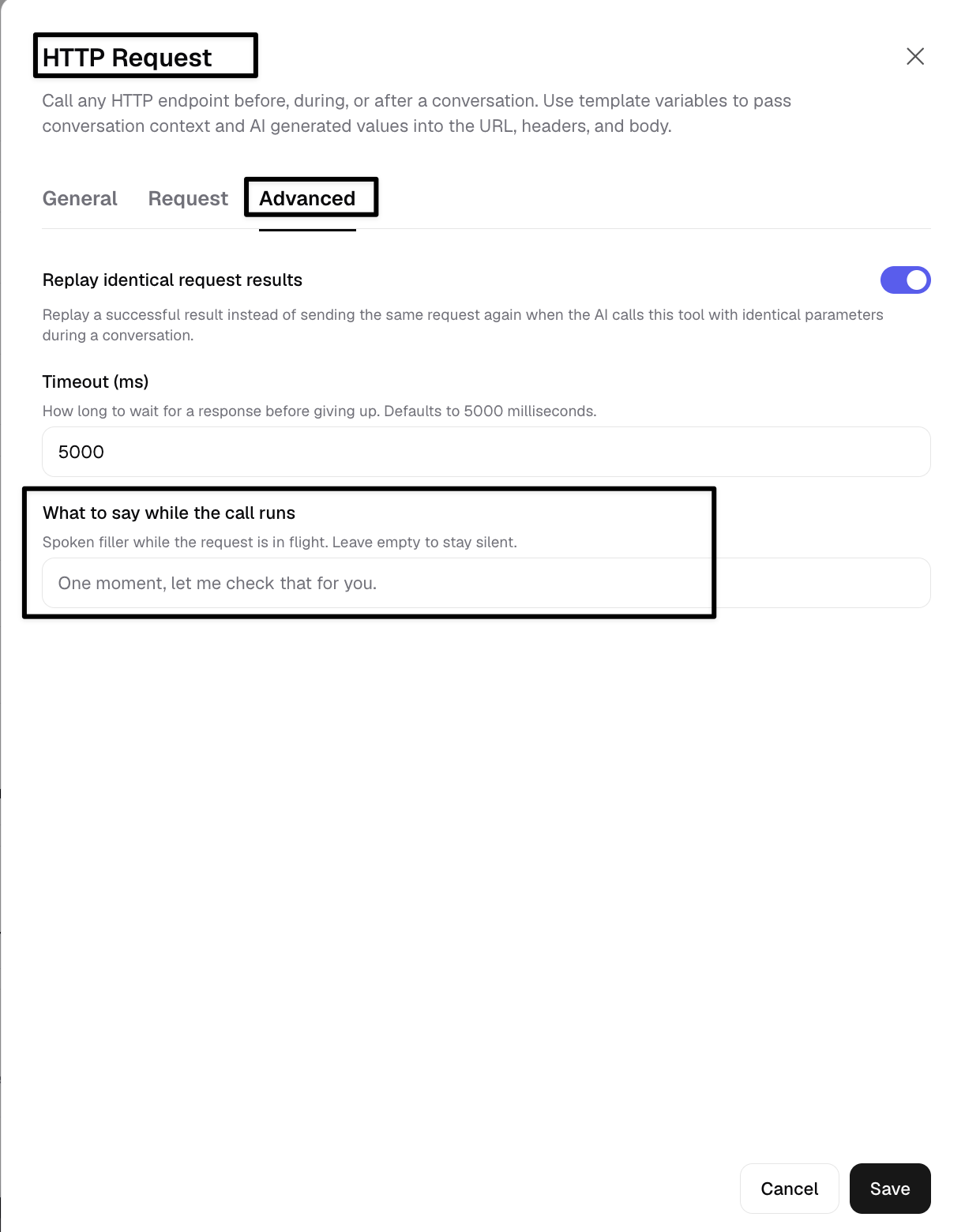
One moment please, let me quickly check that for you.
This avoids a longer silence during the request.
A request before the conversation does not need an execution sentence. For a request after the conversation, the call has already ended.
Use the endpoint's response
If the request is executed during the conversation, your assistant can use the endpoint's response and tell the caller the result.
A typical flow looks like this:
- The caller asks about their order.
- Your assistant asks for the order number.
- The HTTP Request sends the order number to your system.
- Your system returns the status and delivery date.
- Your assistant reads out the information.
Responses are processed up to a size of 96,000 characters. Larger responses are truncated automatically.
Tip
Only return the information your assistant really needs. Small, clearly structured JSON responses are processed faster and more reliably.
Pass on values from the Inbound Webhook
If you loaded information before the conversation via the Inbound Webhook, you can reuse it later in an HTTP Request.
{
  "customerId": "{{inboundContext.customerId}}",
  "conversationLink": "{{conversationLink}}"
}
The value from inboundContext comes directly from your system and is not changed by the assistant.
This is especially useful for:
- Customer IDs
- Contract numbers
- CRM record IDs
- Exact status values
Example: Request during the conversation
Condition:
If the caller asks about the status of their order, first ask for the order number and then use this integration.
URL:
https://api.example.com/order-status
Method:
POST
Body:
{
  "orderNumber": "{{order_number}}"
}
Execution sentence:
One moment please, I'm retrieving the information about your order.
Example: Request after the conversation
Condition:
Run the request if a callback was agreed during the conversation.
Method:
POST
Body:
{
  "name": "{{caller_name}}",
  "phoneNumber": "{{personNumber}}",
  "topic": "{{topic}}",
  "conversationLink": "{{conversationLink}}"
}
If the condition is left empty, the request is executed after every conversation.
IP addresses for your allowlist
fonio calls your endpoints only from these IP addresses:
128.140.42.143128.140.34.113167.233.91.1167.233.75.149178.105.222.76
Test the HTTP Request
Check before first use:
- Is the endpoint publicly accessible?
- Was the correct HTTP method selected?
- Are the header and body valid JSON?
- Are all variables inserted correctly?
- Do custom variables have a type and a description?
- Is the request executed at the right time?
- Is the condition worded clearly and unambiguously?
- Does your endpoint return a short and valid response?
Common problems
| Problem | What you should check |
|---|---|
| The request is not executed | Is the execution time correct and is the condition met? |
| The endpoint rejects the request | Are the URL, method, headers and authentication correct? |
| The save button stays disabled | Is a custom variable missing its description? |
| A variable remains empty | Was the information mentioned in the conversation and described correctly? |
| The response is cut off | Does it exceed the limit of 96,000 characters? |
| The assistant says nothing during the request | Is an execution sentence missing under Advanced? |
| The request only runs on some calls | Is availability restricted by opening hours? |
| The firewall blocks the request | Are the fonio IP addresses included in your allowlist? |