
onOffice
Your assistant answers questions about your listings, books viewings in your brokers' calendars and logs every call in onOffice.
Once onOffice is connected to your assistant, it knows all your listings. It recognises existing contacts by their number and finds the right flat even when the caller only remembers the street. It books viewings straight into the responsible broker's calendar and registers new prospects itself. Every call is then logged in the agents log, so your team always knows what it was about.
Early access
onOffice isn't switched on for every account yet. If you don't see it under Integrations, write to support@fonio.ai and we'll gladly enable it for you.
Get your key from onOffice
fonio talks to onOffice enterprise through the onOffice API. It's a paid add-on. If you don't have it yet, ask onOffice to switch it on for you.
Then, under Extras » Settings » User, set up an API user for fonio and generate its token.
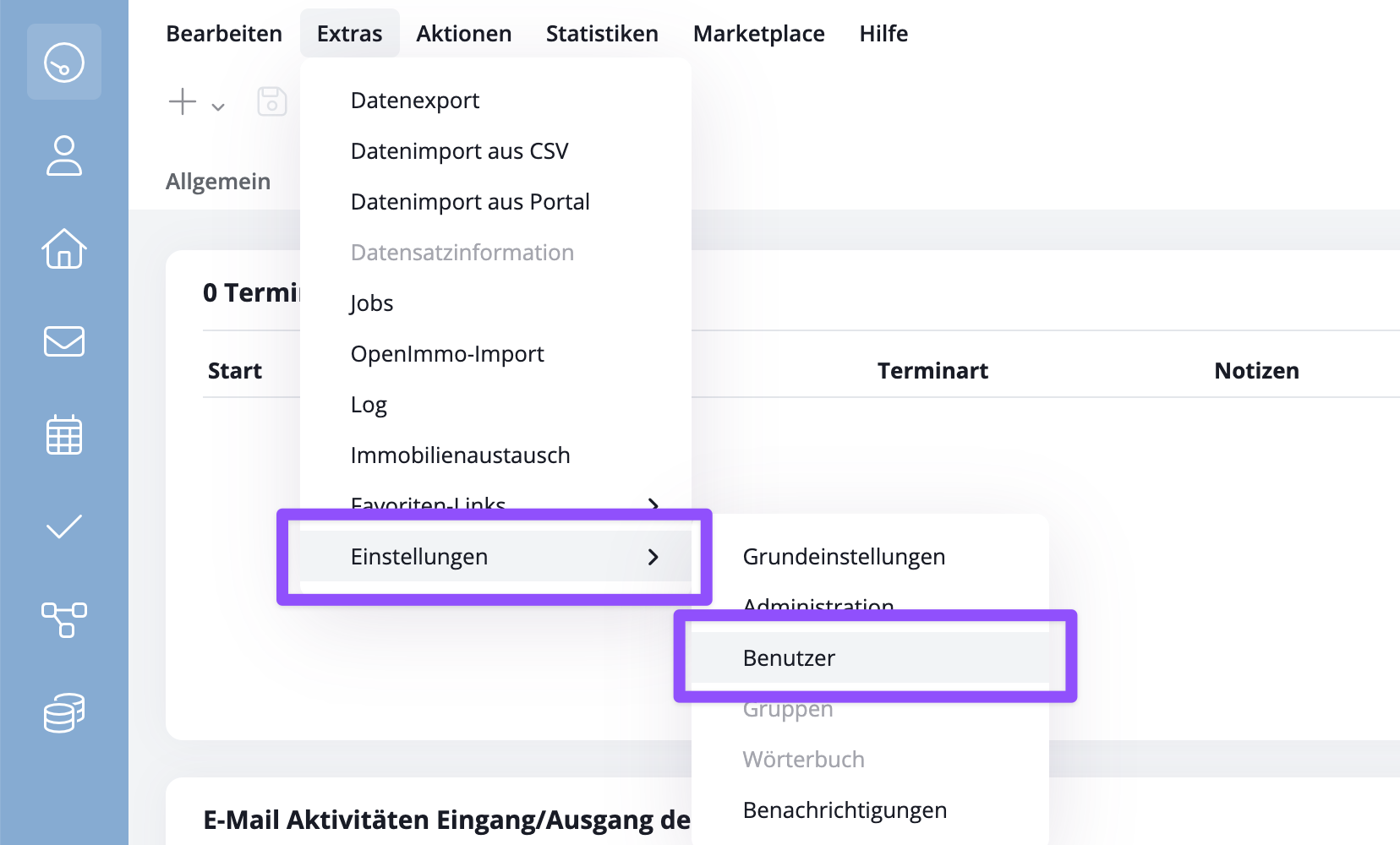
You get two things:
- The Secret, 64 characters long. onOffice shows it only once, so copy it right away.
- The API token, 32 characters long.
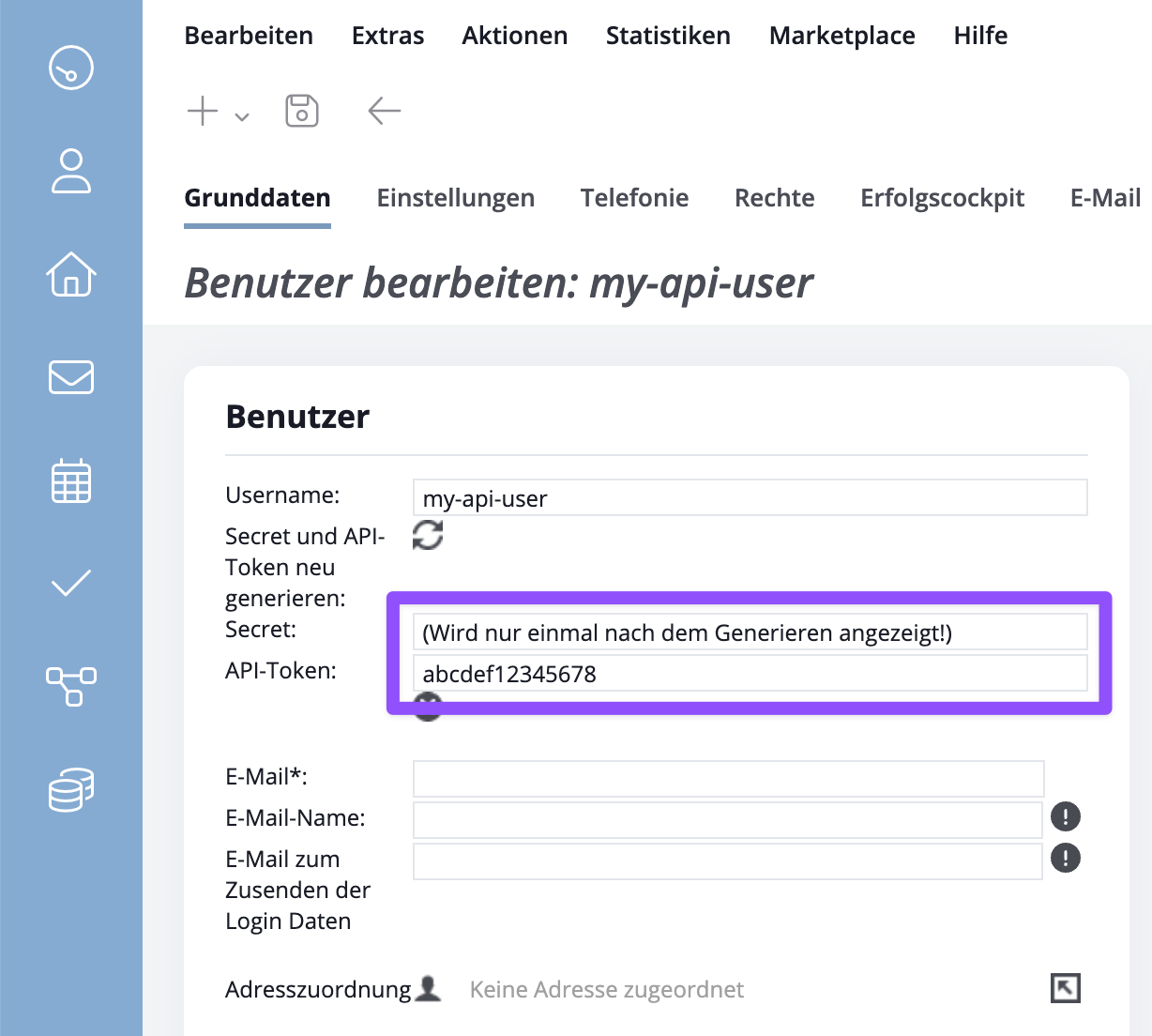
The API user needs:
- read access to addresses and listings,
- write access to addresses, the calendar and the agents log.
We recommend an API user just for fonio, rather than one you already use somewhere else. onOffice explains the details in its first steps with the API.
Connect onOffice to fonio
In your assistant, open Integrations, add onOffice and fill in the connection details.
-
API token: The 32-character token of your API user. It looks like this:
3f9c1e7a5b2d48e0a6c1d9f2b7e4c8a1 -
Secret: The 64-character secret onOffice showed you when you generated the token. It looks like this:
9d4b7c2e1f8a6053b7e2c9d1f4a8e6b3c5d7f1a2b4c6d8e0f2a4b6c8d0e2f4a6
When you save, we check the connection right away and tell you if anything is wrong.
Choose what your assistant may do
You can change these capabilities at any time.
-
Name
A short name for this connection, which you'll find again in your Call History. The default is onOffice.
-
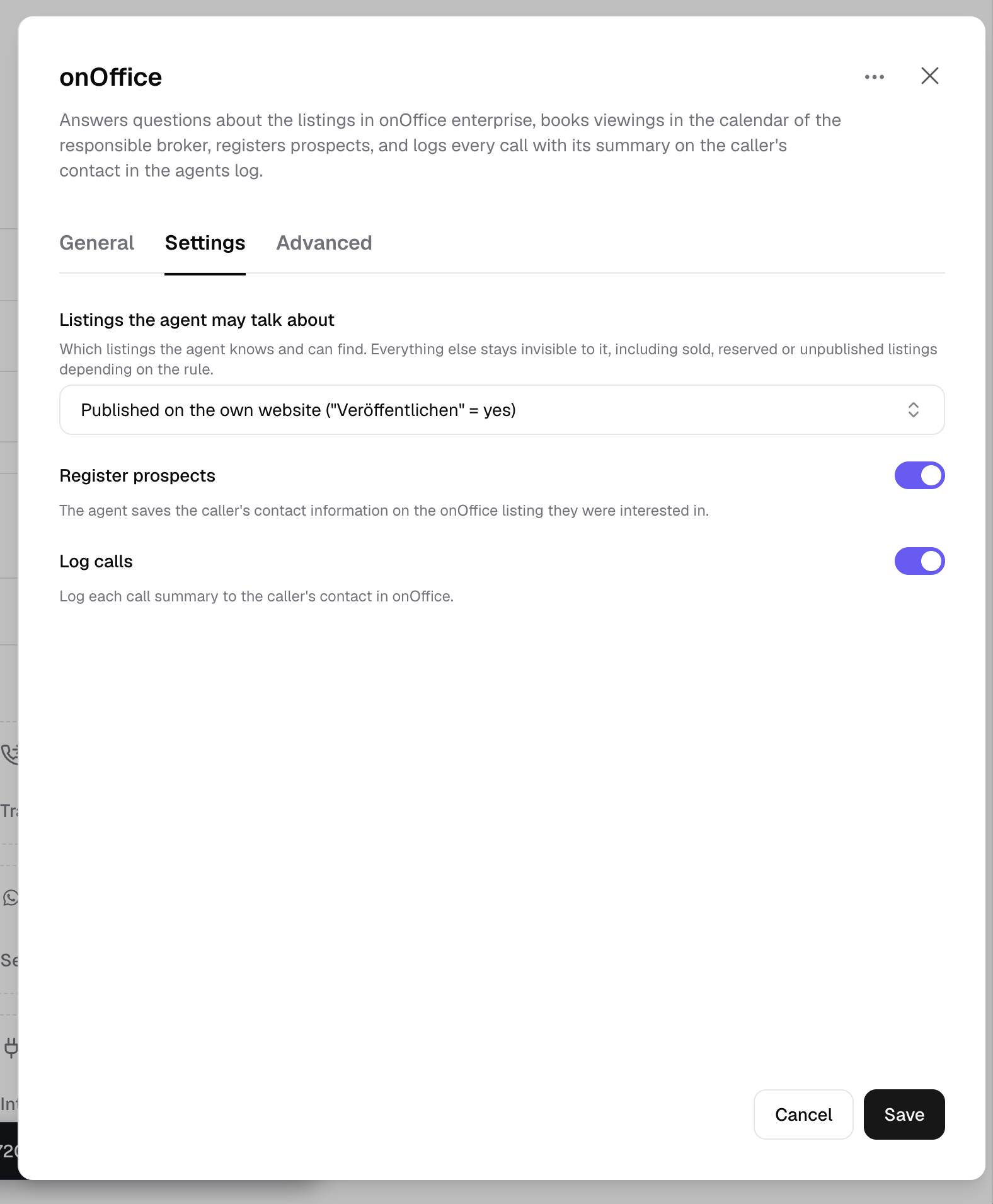
Listings the agent may talk about
Which of your listings your assistant knows and can find. Everything else stays invisible to it. Either way, only active listings count.
- Published on the own website ("Veröffentlichen" = yes) is the default. Your assistant knows exactly what's on your website. If a published listing is already reserved or sold, it says so honestly.
- Marketing status open (neither sold, rented nor reserved): your assistant knows everything that's still on the market, including listings you haven't published yet.
-
Register prospects
On by default. When a caller wants more information or wants to hear from you, your assistant registers them as a prospect in onOffice.
Switched off, your assistant only notes their name, number and request in the conversation. You'll find them in your Call History.
-
Log calls
On by default. Every call lands in the agents log on the caller's contact, with a short summary.
-
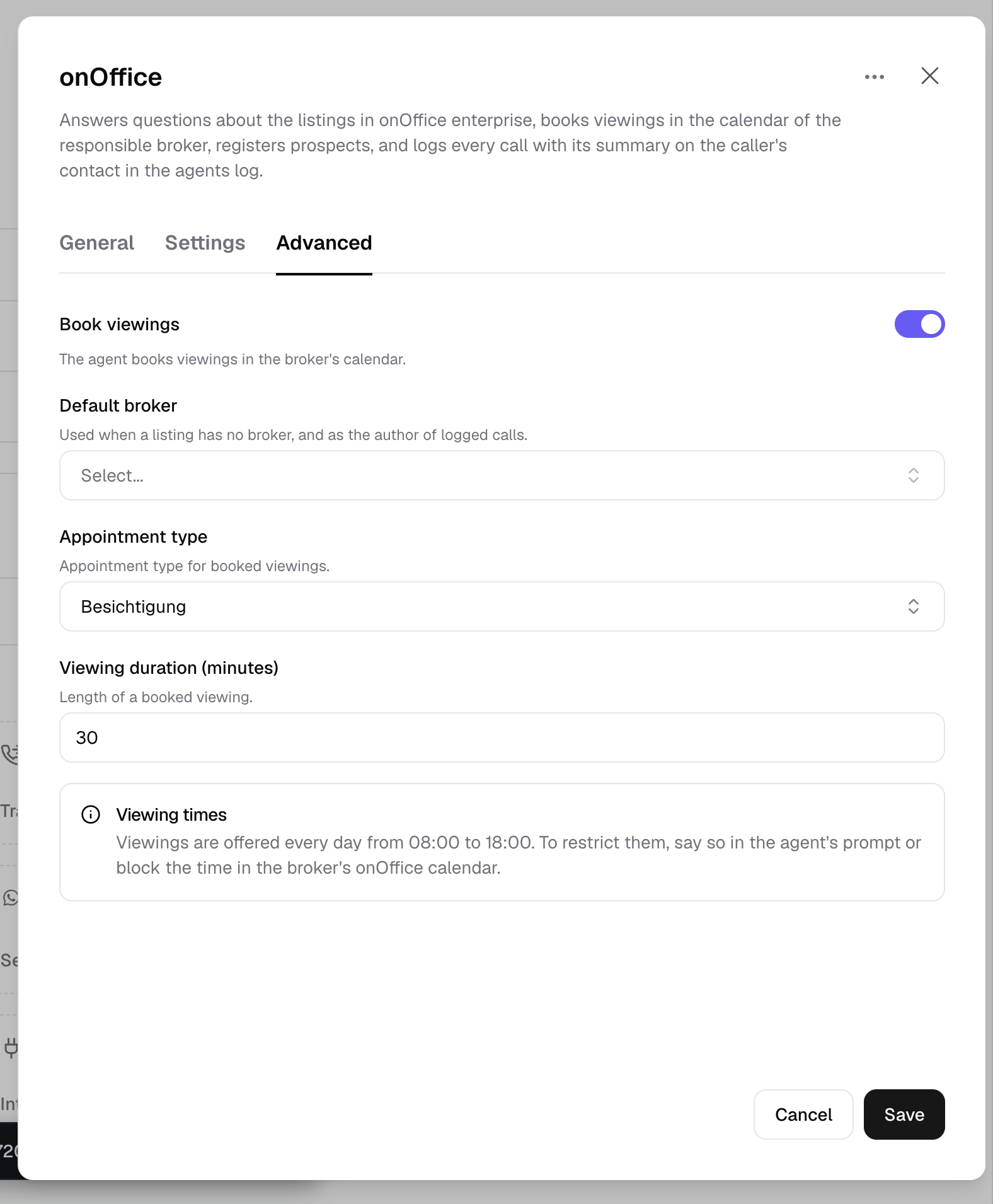
Book viewings
On by default. Your assistant books viewings in the calendar of the broker responsible for the listing.
Switched off, it tells callers that their request is noted and that someone from your team will get back to them about the viewing.
-
Default broker
Takes over viewings for listings that have no broker of their own, and is shown as the author of logged calls. Pick one of your onOffice users. By default, nobody is picked.
-
Appointment type
The appointment type your booked viewings get in onOffice. The default is Besichtigung.
-
Viewing duration (minutes)
How long a booked viewing lasts. The default is 30 minutes.
-
Viewing times
Not a setting, just a reminder: your assistant offers viewings every day from 08 to 18. To narrow that down, write it into your assistant's prompt, like "Viewings only Monday to Friday", or block the time in the broker's onOffice calendar.
Before the call
When the phone rings, your assistant looks up the caller's number in your onOffice contacts. It doesn't matter how the number is written there.
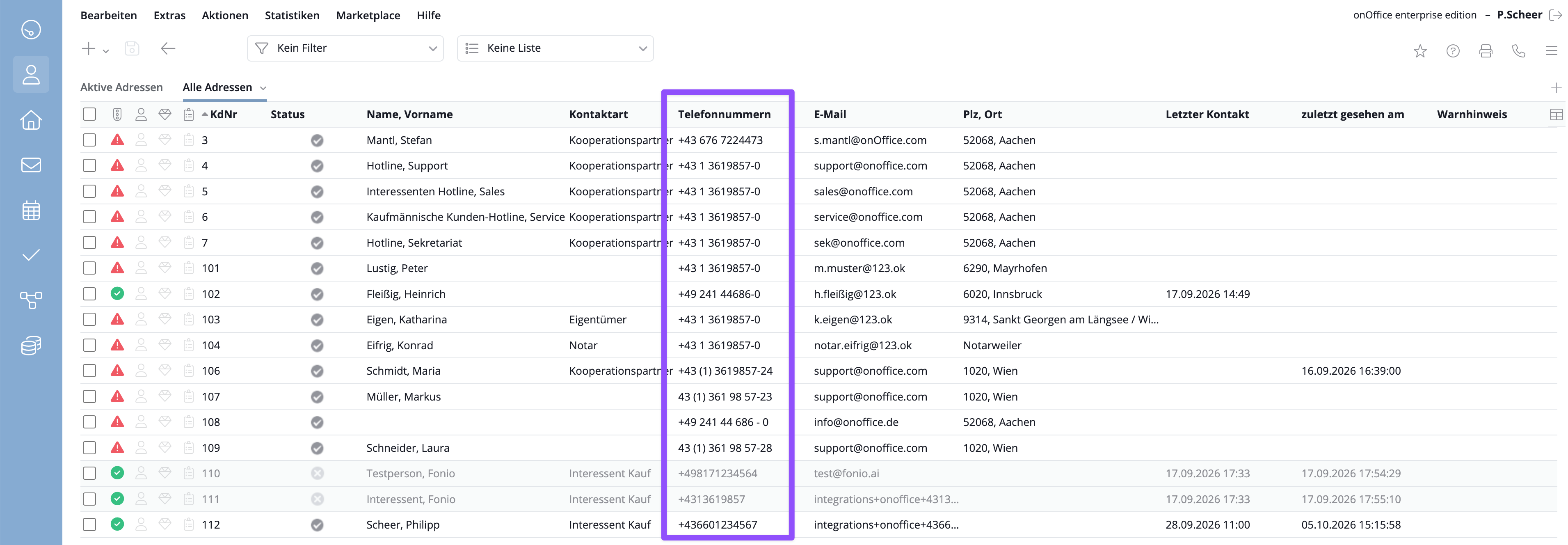
If it finds them, your assistant greets them by name. If several contacts share the number, it first asks for the last name.
At the same moment, your assistant picks the 20 listings most likely to matter to this caller. It goes by where their number is from and starts with your latest changes. So when Maria calls from a Vienna number, your Vienna listings are already at hand.
Callers it doesn't find, or who withhold their number, are treated as new. Your assistant asks for their name before it books or registers anything.
Stays between you and your assistant
Your assistant never reads out onOffice's internal record numbers. Listings outside your Listings the agent may talk about rule stay invisible to it, so it can't let anything slip about them.
During the call
-
Finding the right listing
Callers rarely know a property number. They say "the flat on Exelbergstraße" or "your house for 420,000 euros". Your assistant first looks among the listings it already has. If it isn't there, it searches onOffice right away, by street, area, buying or renting, type, rooms or budget. A property number from the advert works too.
If nothing matches exactly, your assistant suggests similar listings in the same place and checks with the caller.
-
Answering questions
Your assistant knows what's in the listing: price and costs, rooms, living area and plot, floor, year built, condition, heating, whether pets are allowed and your description texts. It also knows whether the listing is still available, reserved, sold or rented. It only tells the caller what they ask about.
-
Booking a viewing
The caller names a day. Your assistant checks the calendar of the broker responsible for the listing and only offers times that are free.
Then it asks for the caller's name, spells the last name back, repeats listing, day and time, and books once the caller says yes. It never confirms a viewing that isn't actually booked.
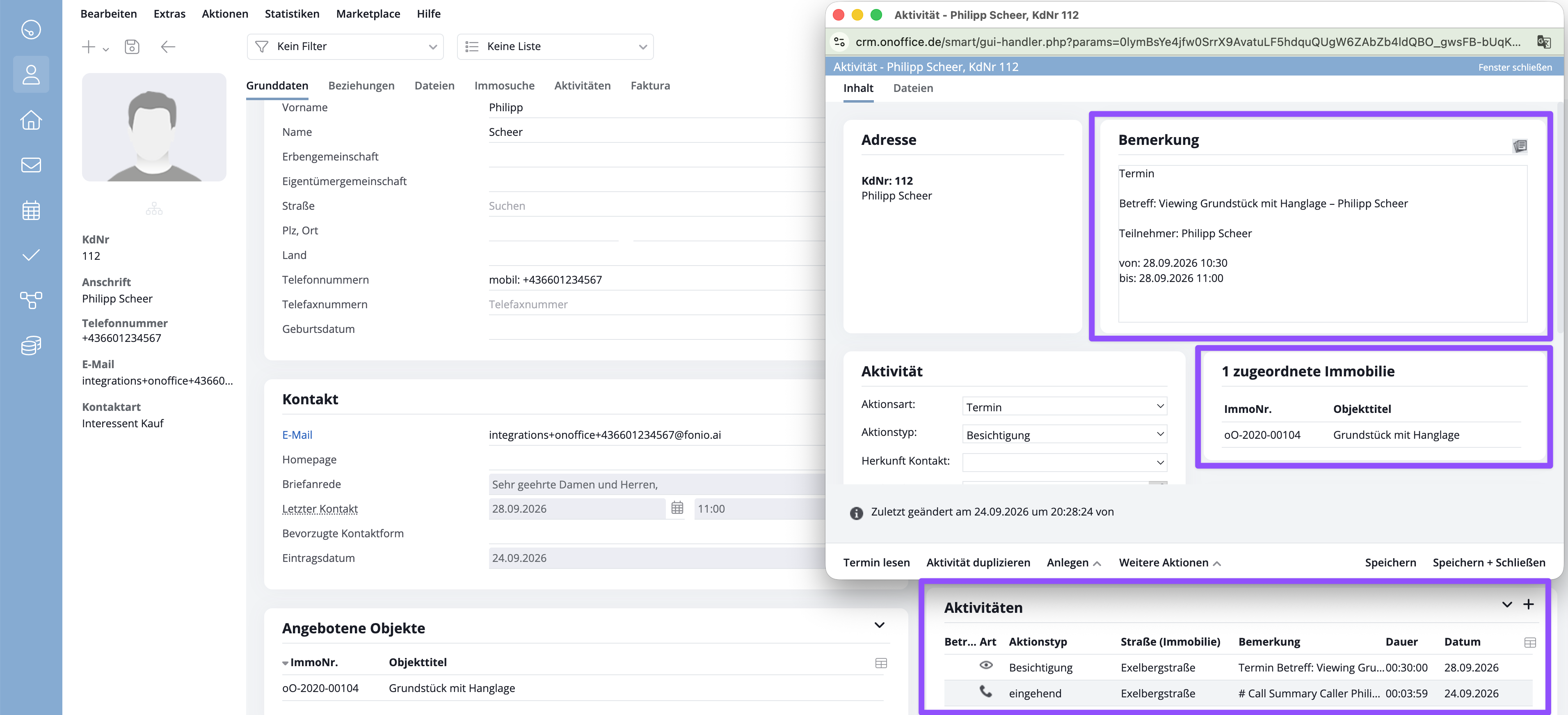
In onOffice you'll find the viewing in the broker's calendar, named after the listing and the caller and linked to both. Wishes like "coming with my partner" are in the note.
-
Registering a prospect
Some callers want more information, want to hear about new listings, or want a viewing that can't be booked on the phone. Your assistant takes their name and registers them as a prospect.
In onOffice they show up as a contact with their name and phone number, marked as a prospect for buying or renting. If they're already on file under that name, your assistant uses the existing contact. It tells the caller their request is noted and that someone from your team will get back to them.
After the call
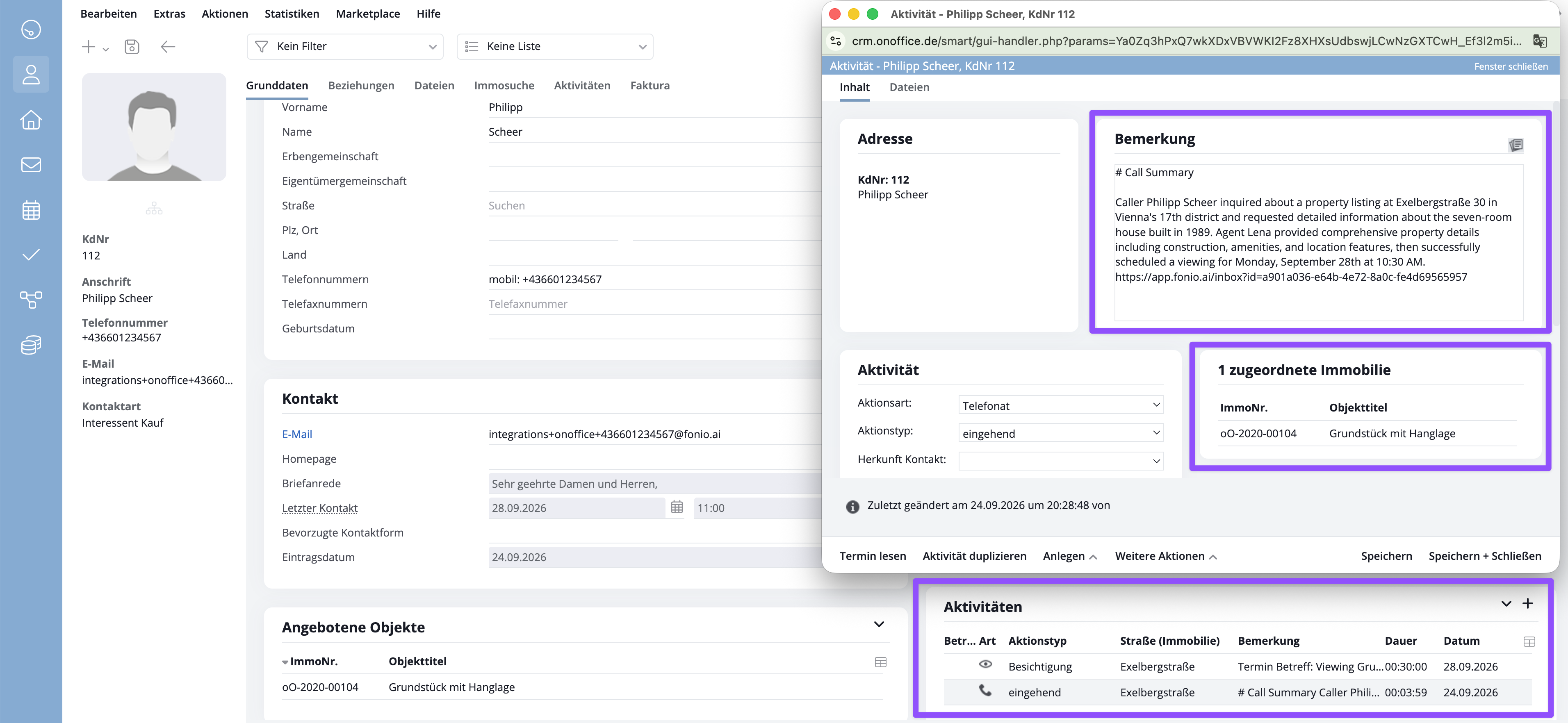
When the call ends, your assistant writes it into the agents log on the caller's contact. You'll find it there as an incoming phone call, with a short summary, a link to the conversation in fonio and how long it took.
If a viewing was booked, the entry is linked to the listing and the appointment as well. If several contacts share the number, the call goes onto each of them.
A new caller who didn't give their name still gets a contact with their phone number, so the call isn't lost. That only happens while Register prospects is on.
Good to know
- The onOffice API: it's a paid onOffice add-on, and without it the connection doesn't work.
- Viewing days: viewings can be booked from tomorrow on, every day including weekends, between 08 and 18. Every appointment in the broker's calendar counts as busy, and an all-day appointment blocks the whole day.
- Listings without a broker: your assistant books the viewing with the Default broker. Without one, it doesn't book and tells the caller your team will get back to them.
- Withheld numbers: your assistant can't recognise the caller, book a viewing or register them. It still notes name, number and request, and you'll find them in your Call History. The call doesn't show up in the agents log.
- Where callers are from: your assistant recognises the region for numbers from Austria, Germany and Switzerland, down to the larger cities. For everyone else, it starts with your most recently changed listings. Any other listing it finds by searching.
- Contacts your assistant creates: they get a placeholder e-mail address ending in @fonio.ai. Replace it with the real one once you have it.
- Viewings always come with a contact: when your assistant books a viewing for a new caller, it creates their contact, even if Register prospects is off.
- Register prospects switched off: new callers who don't book a viewing have no contact in onOffice, so their call doesn't land in the agents log. You'll still find it in your Call History.
If something isn't working
| Message | What to check |
|---|---|
| onOffice rejected this token and secret. | Copy the token and the secret again, without spaces. Is the API user still active, and is the API module booked? |
| Your assistant doesn't know a listing | Is the listing active? Does it fit your Listings the agent may talk about rule? Does the API user have read access to listings? |
| Your assistant doesn't recognise a caller | Is the number on the caller's contact in onOffice, and is the contact active? Did they withhold their number? |
| Your assistant doesn't book viewings | Is Book viewings on? Does the listing have a broker, or have you picked a Default broker? |
| Your assistant finds no free time | Is the broker's calendar full that day, or blocked by an all-day appointment? Viewings start tomorrow at the earliest, between 08 and 18. |
| Viewings or prospects don't show up in onOffice | Does the API user have write access to addresses and the calendar? |
| A call doesn't show up in the agents log | Is Log calls on? Does the API user have write access to the agents log? Did the caller withhold their number? |
Need help?
Just write us at support@fonio.ai, we're happy to help.