
IdoSell
Your assistant recognises your customers, tells them where their order is and helps with products, vouchers, returns and changes.
Once IdoSell is connected, your assistant knows your shop like a colleague in customer service who knows your regulars. It recognises customers by their phone number, tells them where their order is and answers questions about products, vouchers and returns.
And when you allow it, your assistant also cancels and changes orders, registers returns, manages subscriptions and takes orders by phone.
Early access
IdoSell isn't switched on for every account yet. If you don't see it under Integrations, write to support@fonio.ai and we'll enable it for you.
Get your key from IdoSell
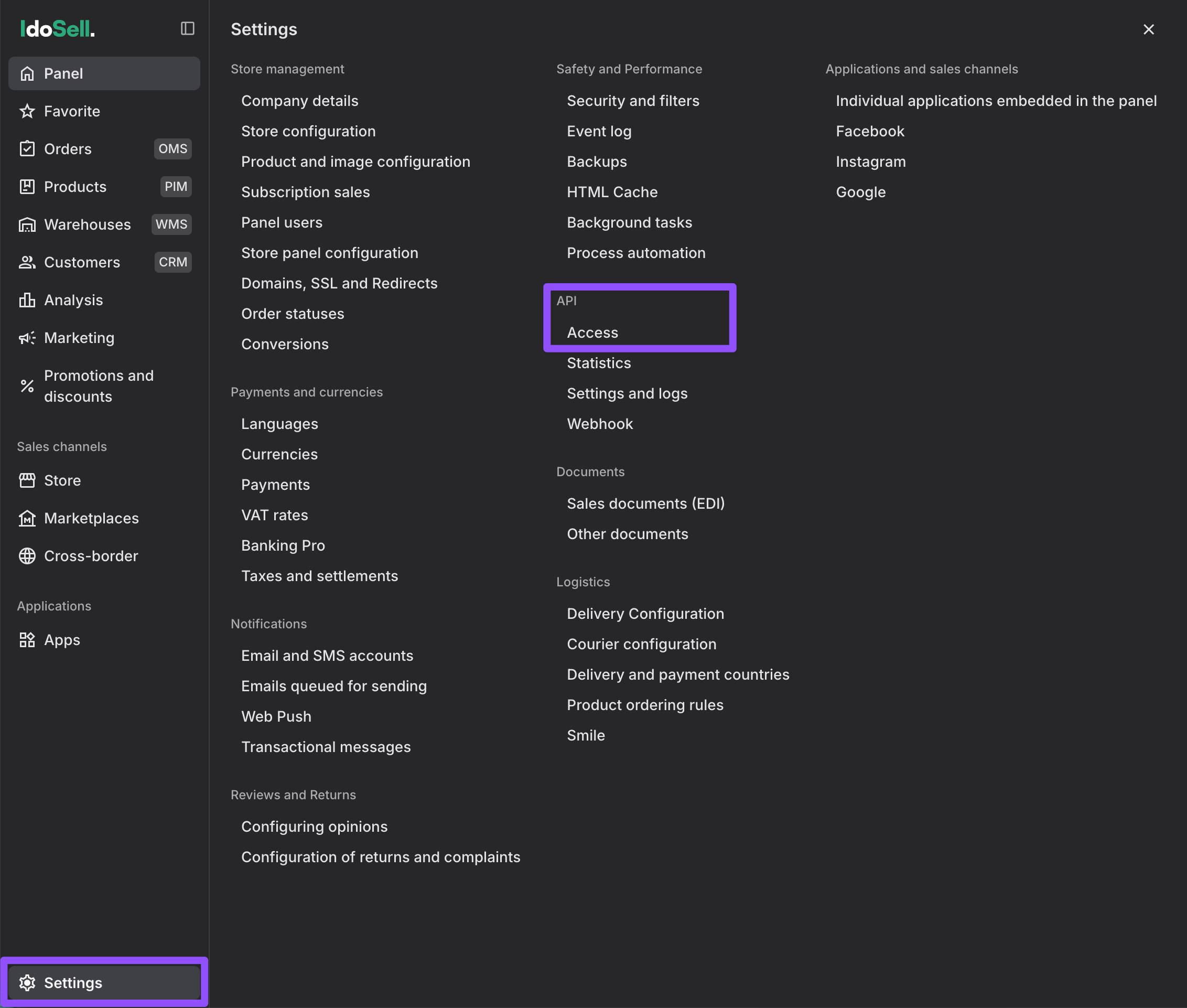
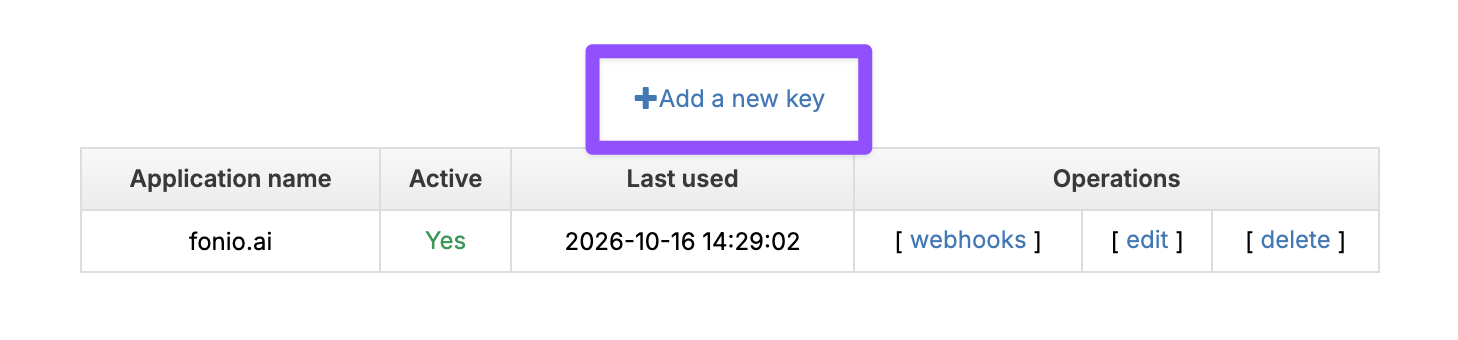
Sign in to your IdoSell panel, open Settings → API → Access and click Add a new key.
Under Login, set Authorization method to API key. Enter a name you'll recognise under Application name, for example fonio.ai, and set Active to Yes.
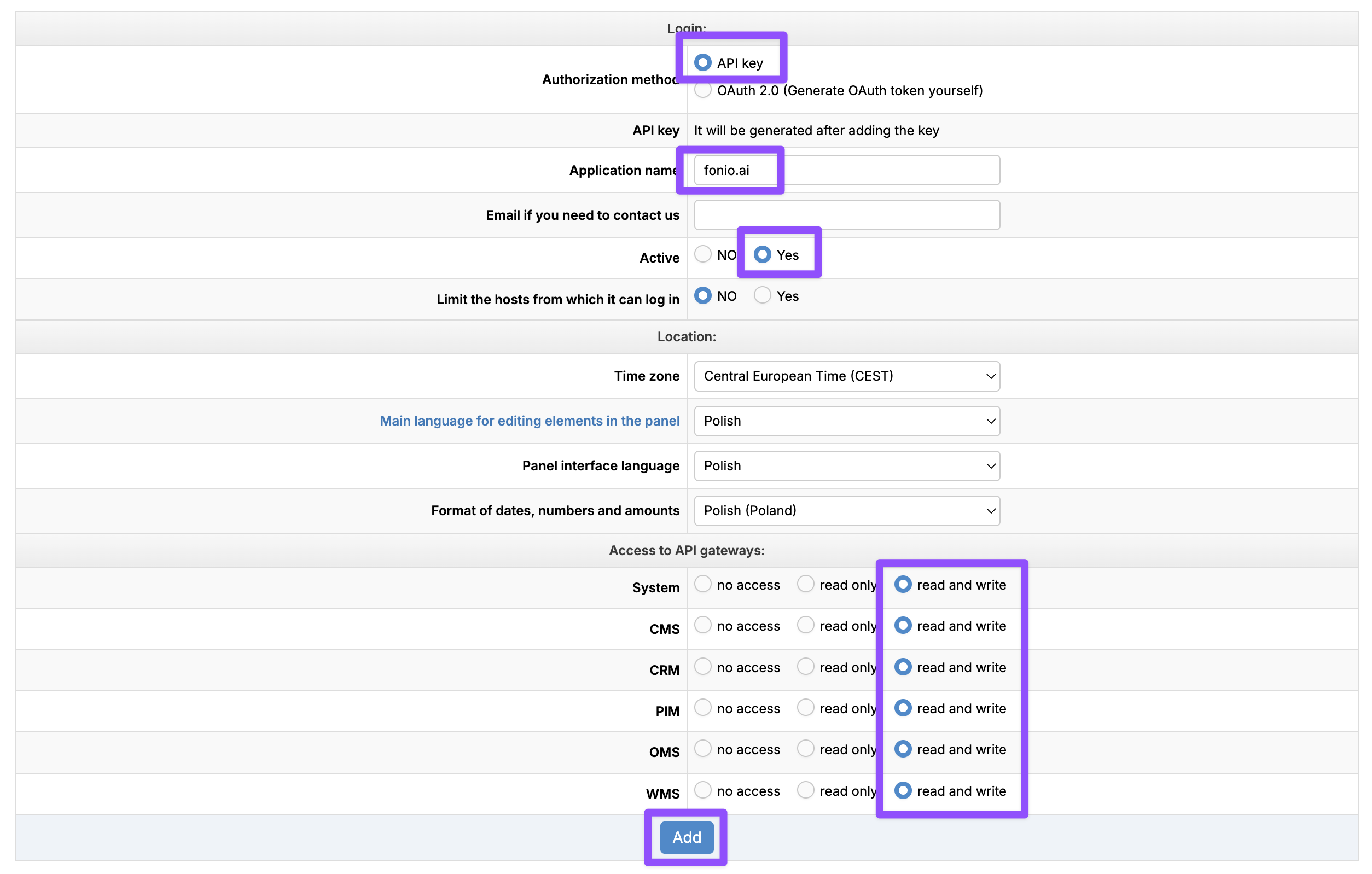
Then set Access to API gateways:
- CRM and OMS: read and write
- PIM and System: read only
- all others: no access
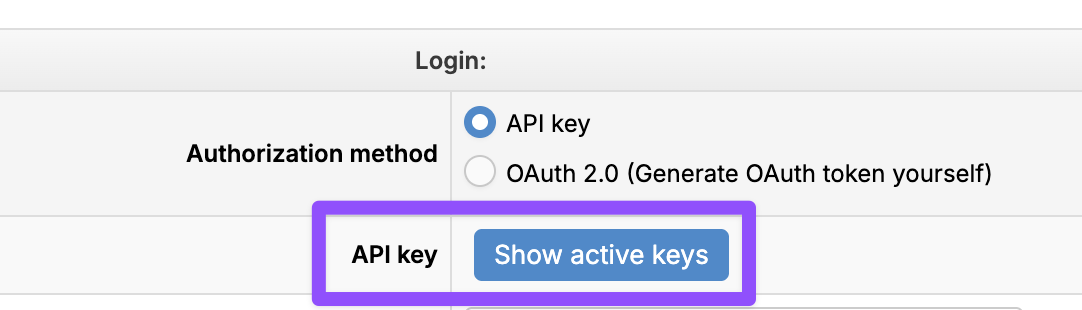
Click Add. Then click Show active keys next to API key and copy the key after API Key:.

Your assistant works with this key. It reads your customers, orders and products, and only changes something in IdoSell when you allow it in step 3.
A key just for fonio keeps your own login out of it, and you can switch it off at any time.
If you can't open these settings, ask the person who manages your IdoSell panel.
Connect IdoSell to fonio
In your assistant, open Integrations, add IdoSell and fill in the details under IdoSell API.
-
Panel address
The address of your IdoSell panel, as you see it in your browser. It usually looks like this:
client12345.idosell.comYou can also paste the whole address from your browser, we only keep this part.

-
API key
The key from the first step.
When you save, we check right away whether IdoSell accepts it.
Choose what your assistant may do
At first, your assistant only reads from IdoSell and texts tracking links. Everything that changes something in IdoSell stays off until you switch it on. You can change all of this at any time.
-
Name
A short name for this connection. The default is IdoSell.
-
Shop
The shop your assistant answers calls for. Leave it empty and it answers for all shops in your panel.
-
Send tracking links
On by default. Your assistant texts callers the tracking link of their order. Switched off, it reads out the tracking number instead.
-
Cancel orders
Off by default. Your assistant cancels orders that aren't packed yet when the caller asks for it.
-
Change deliveries
Off by default. Your assistant changes the delivery address, the parcel locker or pickup point and the note for the courier, as long as the order isn't packed yet.
-
Register returns
Off by default. Your assistant registers returns of shipped orders up to 30 days after shipping. If your return policy is stricter, write it into your assistant's prompt.
-
Change subscriptions
Off by default. Your assistant pauses, resumes or cancels subscriptions, or moves the next delivery to another date.
-
Take orders
Off by default. Your assistant takes orders by phone. They're created without shipping costs, so add those in IdoSell if needed. Switched off, it suggests ordering in your online shop.
-
Log calls
Off by default. After each call, a short summary is saved on the caller's customer account and on the orders discussed.
Whatever is switched off, your assistant tells callers plainly that it can't do that.
Before the call
When the phone rings, your assistant looks up the caller's number in your IdoSell customers. If it's saved on a customer account, your assistant knows who's calling and has their last five orders in front of it: the products, the status, payment, delivery and tracking number.
For a regular customer, it also knows their loyalty points and store credit. And it knows your delivery options, in case someone wants to order.
So when Anna calls and asks where her parcel is, your assistant can answer straight away, without asking for an order number.
If IdoSell can't be reached when the phone rings, your assistant doesn't guess. It tells callers plainly when it can't help with something right now.
Stays between you and your assistant
Your assistant never reads out internal IdoSell numbers. It only talks about an order when it recognises the caller by their phone number, or when the caller gives the order number together with the last name on it. Loyalty points and store credit are only shared with the customer they belong to.
During the call
Callers your assistant doesn't recognise give their order number and the last name on the order. Your assistant only finds the order when that name or the caller's phone number is on it. Otherwise it tells the caller it can't find an order with this number for them.
Your assistant tells callers in plain words where their order is: whether you've started on it, whether you're waiting for the payment or for goods from your supplier, whether it's being packed or already on its way, and when it's expected to ship.

If the parcel has a tracking number, your assistant offers to text the tracking link to the caller's phone. Nobody has to write down a long number.
Callers can ask about their returns and complaints and hear the status in their own language, even when IdoSell shows it in Polish. Your assistant can't file new complaints, and tells callers so.
Your assistant finds products by name or product code, with the price, the sizes in stock and how many days you need to ship them. It only names what the caller asks about and never reads out long lists.
Callers can also check what a voucher or gift card is worth and until when it's valid. For a gift card, your assistant also asks for the PIN and only shares the balance when it matches.
When you allow it, your assistant also takes care of changes:
- It cancels an order that isn't packed yet. First it tells the caller that a cancellation can't be undone and asks them to confirm.
- It moves the delivery to another parcel locker or pickup point of the same courier, changes the delivery address or adds a note for the courier, like where to leave the parcel.
- It registers a return of shipped items. The caller gets a return number and sends the parcel back themselves.
- It pauses, resumes or cancels a subscription, or moves the next delivery.
Before any change, your assistant repeats what it's about to do and waits for a clear yes.

So when Anna calls because she'd rather pick up her parcel at another parcel locker, your assistant finds her order, checks that it isn't packed yet and asks for the code of the new locker. IdoSell moves the delivery there within a few minutes.
And when you allow it, your assistant takes orders by phone. It finds the products, asks for size and quantity, how the caller wants the order delivered and whether they pay on delivery or in advance by bank transfer. New customers also give their name, e-mail address and a delivery address in Poland.
Your assistant spells every name, e-mail address and street back letter by letter until the caller confirms it, then repeats the whole order once more. Only after a clear yes does it place the order. The caller gets the order number and the total without shipping, and IdoSell sends them the order confirmation by e-mail.
Whenever your assistant can't do something, it tells the caller plainly.
After the call
With Log calls switched on, your assistant writes a short note in IdoSell: the date and time, a summary of the conversation and links to the call and its recording.
The note goes onto the caller's customer account, if there is one, and onto every order your assistant looked up by its number, changed or placed in the call. It's added below what's already there, so nothing you wrote gets overwritten.
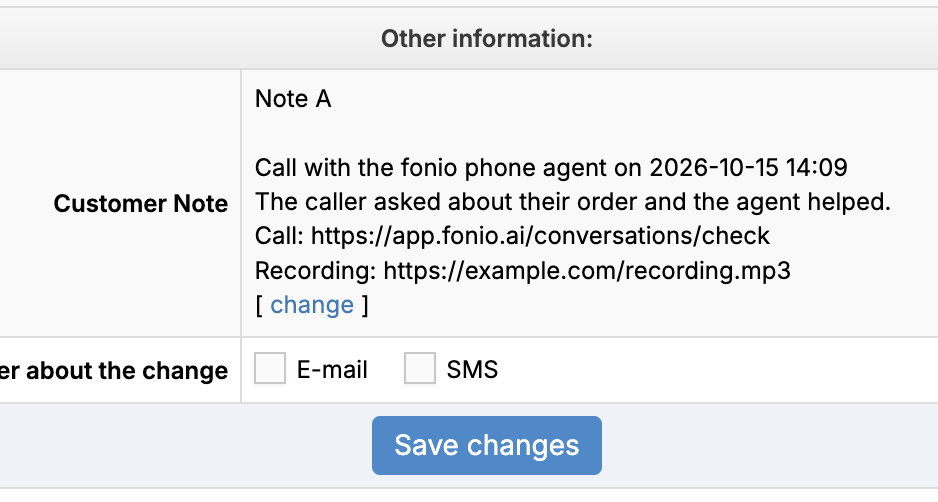
Calls without a customer account or order, like a quick product question from someone new, aren't logged. In your Call History, under Post-Call Actions, you can see whether the note was saved.
Good to know
- Phone numbers: your assistant recognises callers by the phone number on their customer account, with or without country code.
- Withheld numbers: without the caller's number, your assistant can't recognise them, look up their subscriptions or text them a tracking link. They can still give their order number and last name.
- Not packed yet: cancellations and delivery changes only work while an order is new, waits for payment or goods, or is being prepared. Once it's packed, your assistant tells the caller it can't be changed by phone anymore.
- Refunds: when a paid order is cancelled, your assistant tells the caller you'll refund what they paid. The refund itself stays with you in IdoSell, as with any cancelled order.
- Orders by phone: they're created without shipping costs. Callers without a customer account get one, with their name, e-mail address, phone number and address.
- E-mails to customers: the order confirmation and the e-mails for status changes, like a cancellation, are sent by IdoSell, following your shop settings.
- Limits: your assistant knows a customer's last five orders and finds older ones by their order number. A product search names up to ten products. If more match, your assistant asks the caller to narrow it down.
- Several shops: one key covers every shop in your panel. If your shops need different settings, add IdoSell once per shop and choose a different Shop each time.
- Your key: your assistant only works with the key you created. If you stop using the integration, deactivate or delete that key under Settings → API → Access.
If something isn't working
| Message | What to check |
|---|---|
| Enter the address of your panel, e.g. client12345.idosell.com. | Enter the address of your IdoSell panel as it appears in your browser. |
| IdoSell rejected this API key. | Did you copy the whole key? Is Active set to Yes for the key under Settings → API → Access? |
| This API key lacks rights. Give it read and write rights for CRM and OMS and read rights for PIM and SYSTEM. | Open the key under Settings → API → Access and check its Access to API gateways. |
| IdoSell could not be reached. Check the panel address and try again. | Does the panel address open your IdoSell panel in the browser? |
| The caller and shop data could not be loaded from IdoSell (under Pre-Call Actions in your call history) | Is the key still active? If it only happens now and then, IdoSell was briefly unreachable. |
| The call summary could not be saved in IdoSell (under Post-Call Actions in your call history) | Does the key still have read and write access to CRM and OMS? If it only happens now and then, IdoSell was briefly unreachable. |
| Your assistant doesn't recognise a regular customer | Is the caller's phone number saved on their customer account? Did they call with a withheld number? |
| Your assistant doesn't find an order | Is the caller's phone number or the last name they gave on the order? If you chose a Shop, is the order from that shop? |
| Your assistant doesn't find a product | Is the product called the same in your shop? Searching by product code works too. |
| Your assistant doesn't cancel or change an order | Is the order still not packed? Is Cancel orders or Change deliveries switched on? |
| Your assistant doesn't register a return | Was the order shipped less than 30 days ago? Is Register returns switched on? |
| Your assistant doesn't send a tracking link | Does the order have a tracking number yet? Did the caller call with a withheld number? Is Send tracking links switched on? |
Need help?
Just write us at support@fonio.ai, we're happy to help.