
Outbound API
Start outbound calls directly from your CRM, your application or your own workflow.
With the Outbound API, you can start outbound calls from your own system.
This works well for callbacks, appointment reminders or individual calls triggered by an event in your CRM, for example.
For larger contact lists, you can create an outbound campaign in the fonio dashboard instead.
You can find our full API documentation at app.fonio.ai/api/docs.
Requirements
Before you can start an outbound call, you need:
- A configured assistant
- A phone number that supports outbound calls
- A successfully completed KYC verification
- A valid API key
- The ID of the assistant you want to use
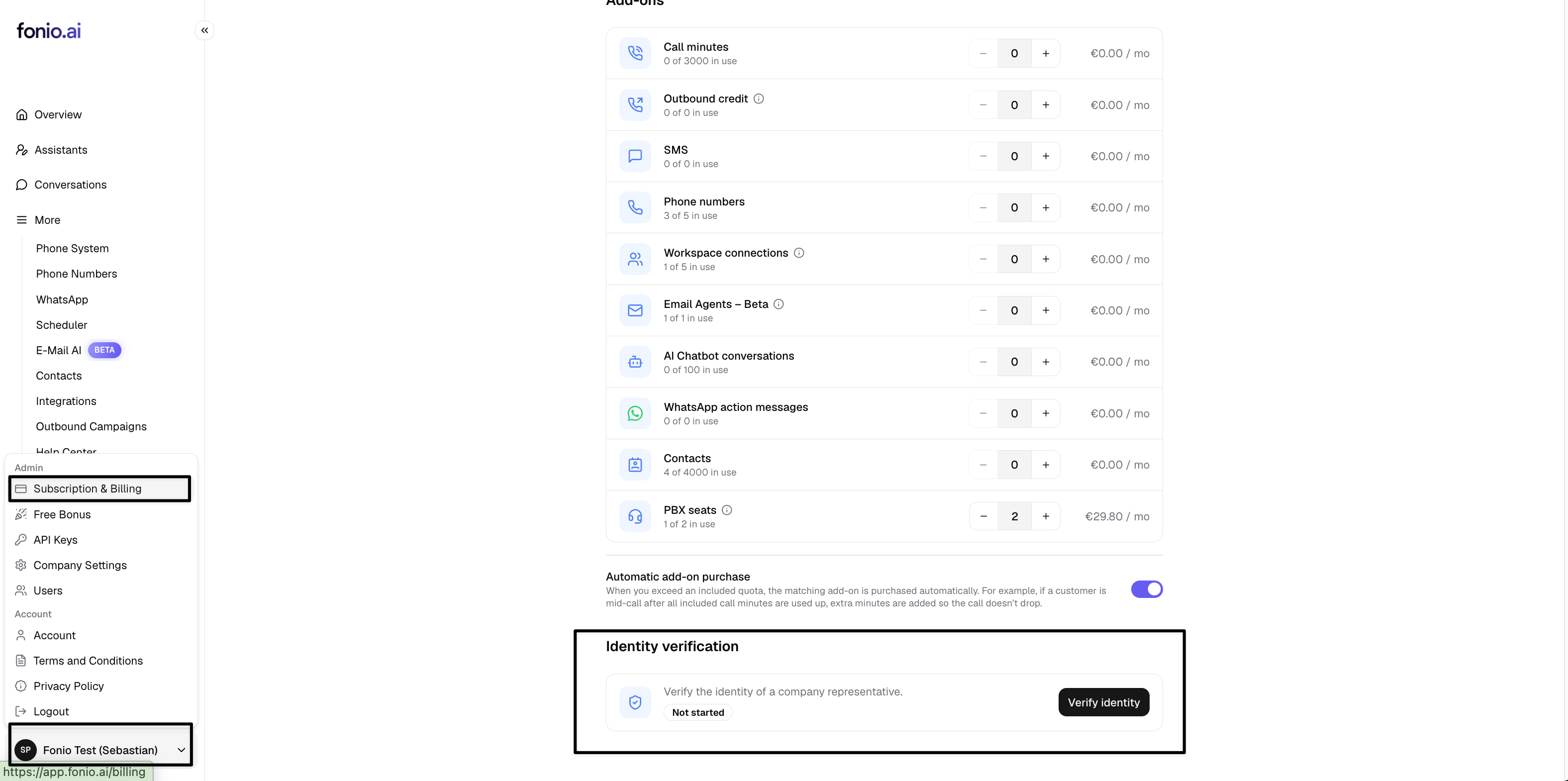
You can find the KYC verification under Subscription & Billing.
Outbound calls incur additional carrier costs. You can find an estimate in our outbound call cost calculator.
Check your phone number
For outbound calls, you need an imported phone number or a suitable SIP number.
Open your phone number settings and check whether outbound calls are supported.
Always use phone numbers in international format:
+43123456789
Use the endpoint
The Outbound API uses a POST request to this endpoint:
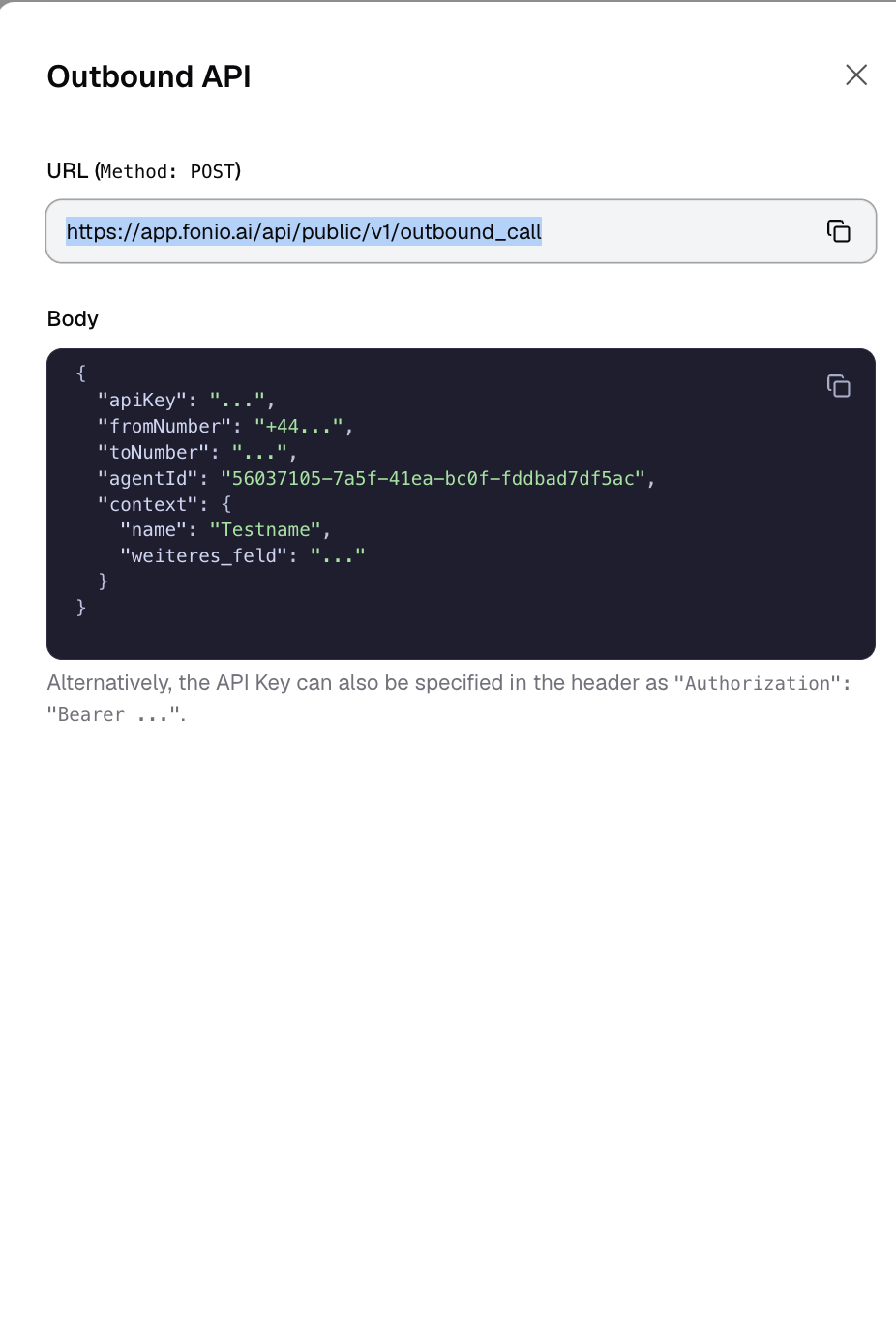
https://app.fonio.ai/api/public/v1/outbound_call
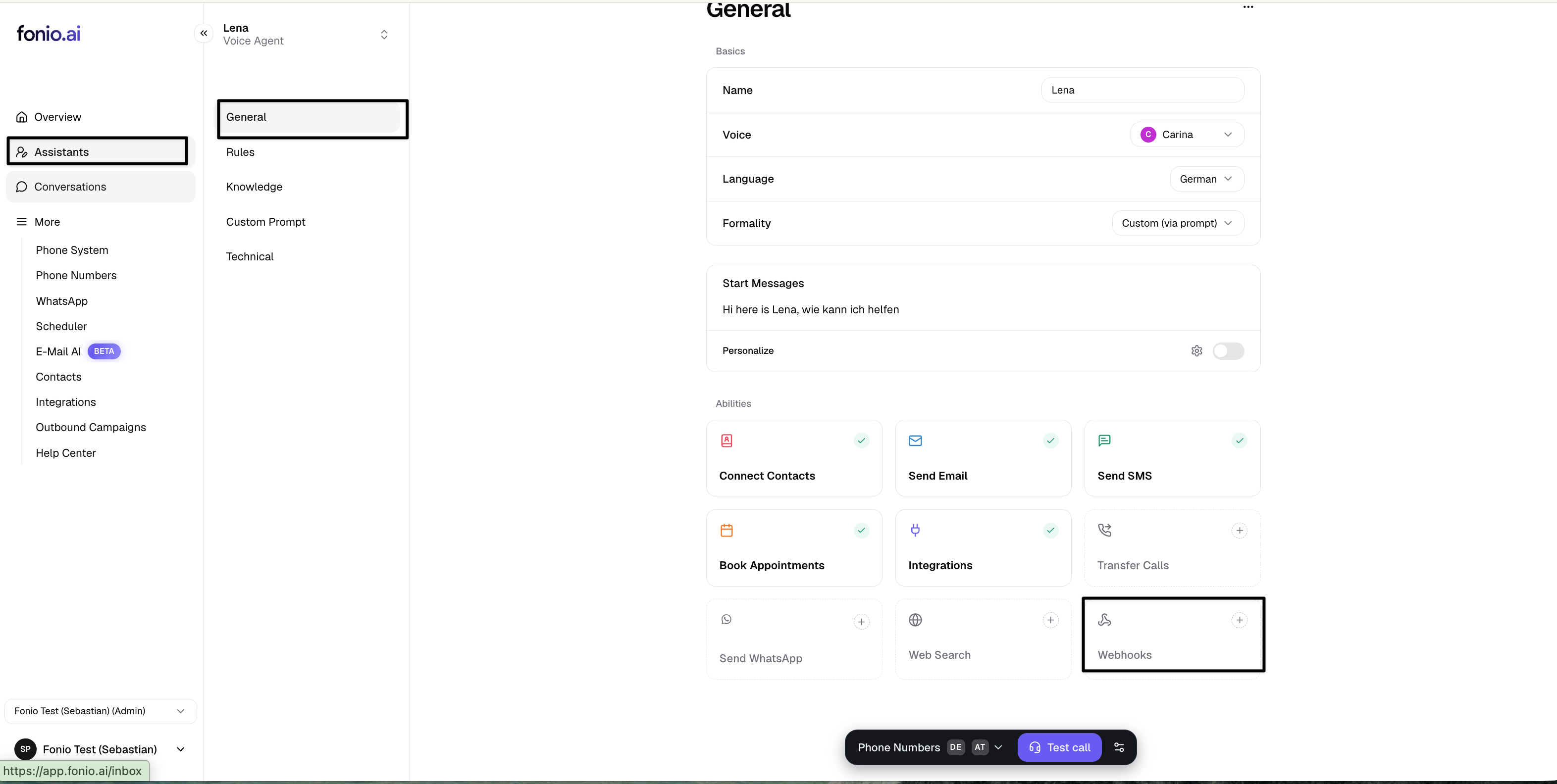
You can also find the endpoint in the dashboard. Open Assistants, select your assistant and click Webhooks under Abilities in the General tab.
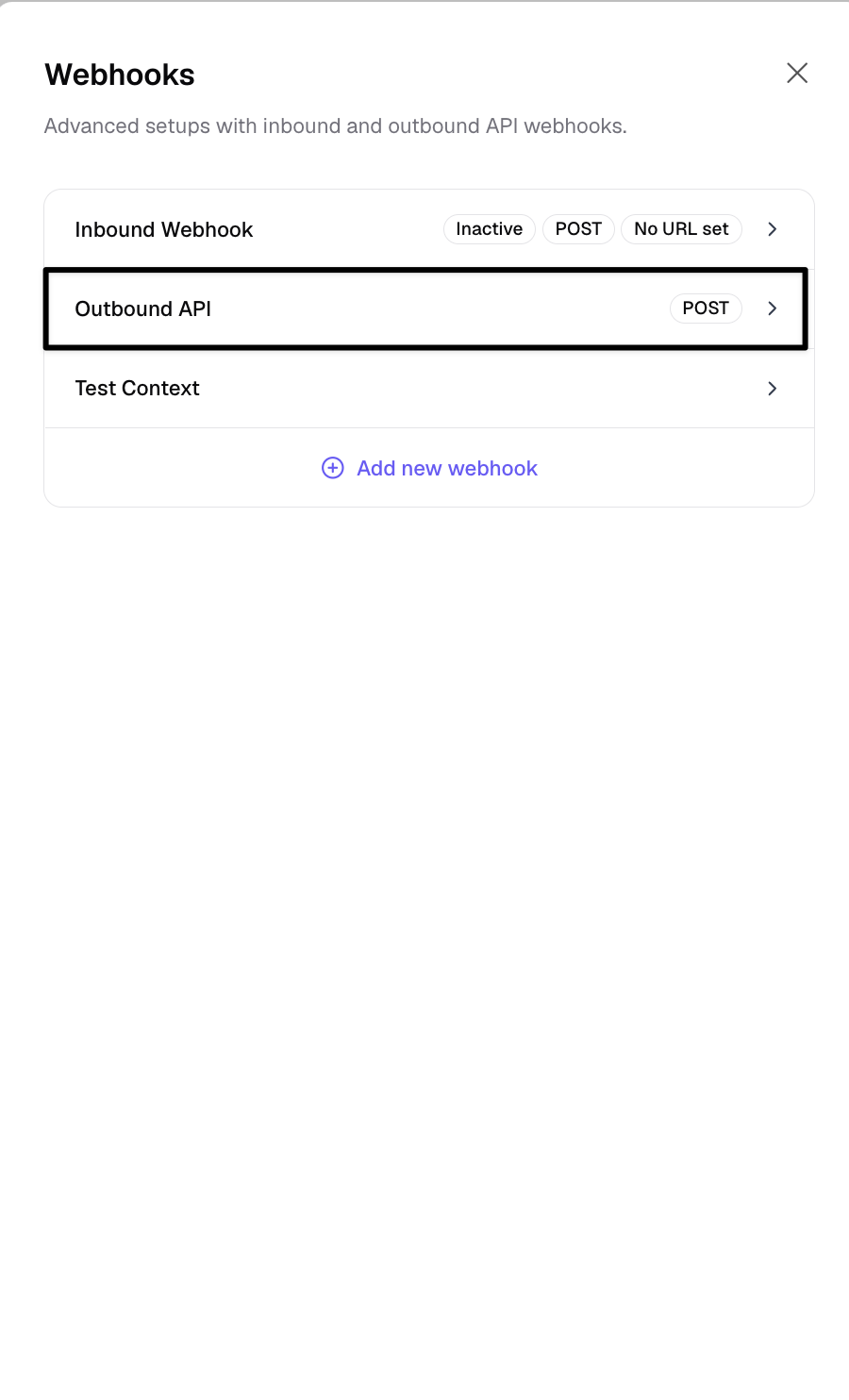
Then select Outbound API.
The dialog shows the URL and an example body. The agentId of the selected assistant is already filled in.
Create the request body
The body is sent as JSON.
{
  "apiKey": "YOUR_API_KEY",
  "fromNumber": "+43123456789",
  "toNumber": "+436601234567",
  "agentId": "dc0ac561-5980-466a-b44f-058ea50f9bee",
  "context": {
    "name": "John Smith",
    "appointmentDate": "30 September 2026"
  }
}
Request fields
| Field | Description |
|---|---|
apiKey | Your API key, if you do not pass it in the header |
fromNumber | The fonio phone number the call is made from |
toNumber | The phone number to be called |
agentId | The ID of the assistant that handles the conversation |
context | Optional information available to the assistant for this call |
Pass the API key securely
You can send the API key in the body. However, we recommend passing it in the Authorization header:
{
  "Authorization": "Bearer YOUR_API_KEY",
  "Content-Type": "application/json"
}
In this case, you can remove apiKey from the body.
Protect your API key
Only use the Outbound API from a protected backend or automation workflow. Do not build your API key directly into a publicly accessible website or app.
Use context
With context, you can pass information to the assistant that only applies to this call.
{
  "context": {
    "name": "John Smith",
    "appointmentDate": "30 September 2026",
    "customerId": "K-1042"
  }
}
You can use these values as variables in the prompt:
Greet the person using the name from {{name}}.

Remind them of the appointment on {{appointmentDate}}.

Use {{customerId}} for internal reference only.
Tip
Use context for IDs, appointments and other known values. Your assistant then does not need to ask for this information again or derive it from the conversation.
Example request
curl -X POST "https://app.fonio.ai/api/public/v1/outbound_call" \
  -H "Authorization: Bearer YOUR_API_KEY" \
  -H "Content-Type: application/json" \
  -d '{
    "fromNumber": "+43123456789",
    "toNumber": "+436601234567",
    "agentId": "dc0ac561-5980-466a-b44f-058ea50f9bee",
    "context": {
      "name": "John Smith",
      "appointmentDate": "30 September 2026"
    }
  }'
Good use cases
Start a callback from your CRM
An employee clicks "Start callback" in the CRM. Your system sends the customer data to the Outbound API and fonio starts the call.
Send an appointment reminder
Your calendar or automation workflow triggers a call the day before. Date, time and name are passed via context.
Communicate a status change
When the status of an order or a case changes, your system can automatically start a matching call.
Contact individual leads
A new lead is created in your system and handed over directly to a fonio assistant.
Test the Outbound API
Before your first live use, check:
- Is the KYC verification completed?
- Does the selected phone number support outbound calls?
- Are
fromNumberandtoNumberin international format? - Is the correct
agentIdentered? - Is the API key valid?
- Are the context variables used correctly in the prompt?
Common issues
| Problem | What you should check |
|---|---|
| The call does not start | Does the phone number you are using support outbound calls? |
| The request is rejected | Are the API key and KYC verification valid? |
| The wrong person is called | Is toNumber in international format? |
| The wrong assistant handles the conversation | Is the agentId correct? |
| Context variables stay empty | Do the field names in the body and in the prompt match exactly? |