
Telnyx: Set up a SIP connection
Connect a Telnyx SIP trunk to your fonio assistant via FQDN routing.
With this setup, you forward incoming calls from a Telnyx phone number to fonio. Optionally, you can use the same connection for outbound calls as well.
| Direction | Setup |
|---|---|
| Inbound | Telnyx sends calls to fonio via an FQDN connection |
| Outbound | fonio authenticates with Telnyx using credentials |
Requirements
For the setup you need:
- An active Telnyx account
- A purchased Telnyx phone number
- A configured fonio assistant
- Access to SIP Connections in the Telnyx portal
- For outbound calls, an Outbound Voice Profile and credentials
Telnyx describes this combination as FQDN for inbound calls and Credentials for outbound calls. You can find more information in the official Telnyx guide for SIP trunks.
Create a SIP Connection in Telnyx
In the Telnyx Mission Control Portal, open Voice → SIP Connections.
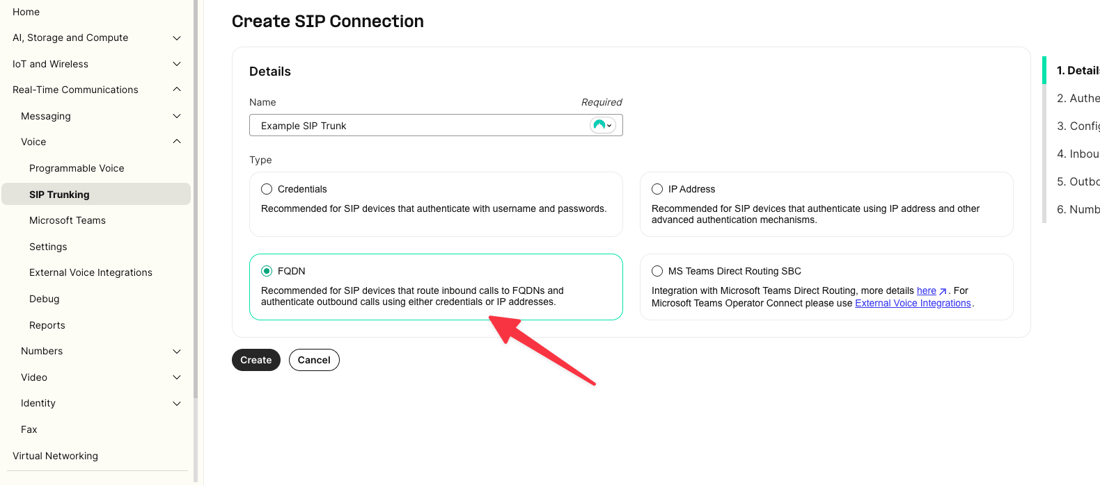
Click Add SIP Connection and give it a unique name, for example:
fonio
Select as connection type:
FQDN
Add the fonio domain
Under the FQDN settings, add this domain:
vojhwtf1hn6.eu.sip.livekit.cloud
Select as record type:
SRV
Do not enter a port.
Do not add a port
Telnyx only uses the SRV record if no port is specified in the SIP address. With a fixed port, Telnyx performs a normal A record lookup instead. You can find details in the Telnyx documentation on SRV records.
Correct:
vojhwtf1hn6.eu.sip.livekit.cloud
Wrong:
vojhwtf1hn6.eu.sip.livekit.cloud:5060
Configure inbound call settings
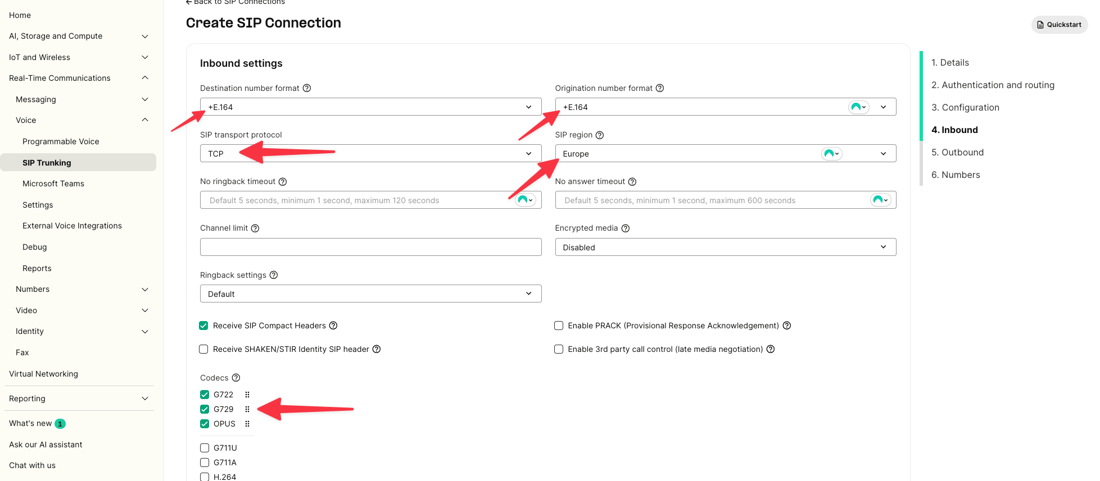
In the new SIP Connection, open the Inbound section.
Set the following:
- Number format:
+E.164 - Transport protocol:
TCP - SIP region:
Europe - Codecs: Limit to the codecs recommended in the Telnyx interface
Set the format for both called and calling numbers to +E.164 if Telnyx shows both fields.
Example:
+49301234567
Don't forget the plus sign
With +E.164, the phone number is transmitted with + and the country code. This is important so that fonio can reliably recognize it.
Telnyx explains the available formats in its documentation on SIP number formats. You can find the transport and SIP region settings in the overview of inbound and outbound SIP settings.
Create credentials for outbound calls
This step is only required if your fonio assistant should make outbound calls via Telnyx.
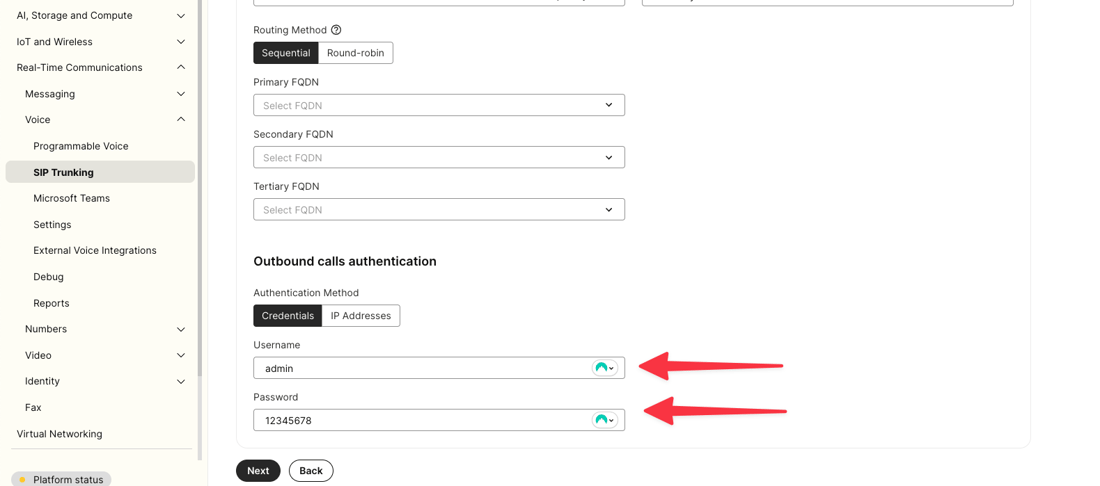
In the SIP Connection, open the outbound authentication settings and select:
Credentials
Choose a username and a secure password. You can freely choose both values.
Save the credentials. You will need them later in fonio.
Store credentials securely
The password may not be shown in full again. Save it directly in a password manager.
If you only want to forward inbound calls to fonio, you can skip this step.
Set up an Outbound Voice Profile
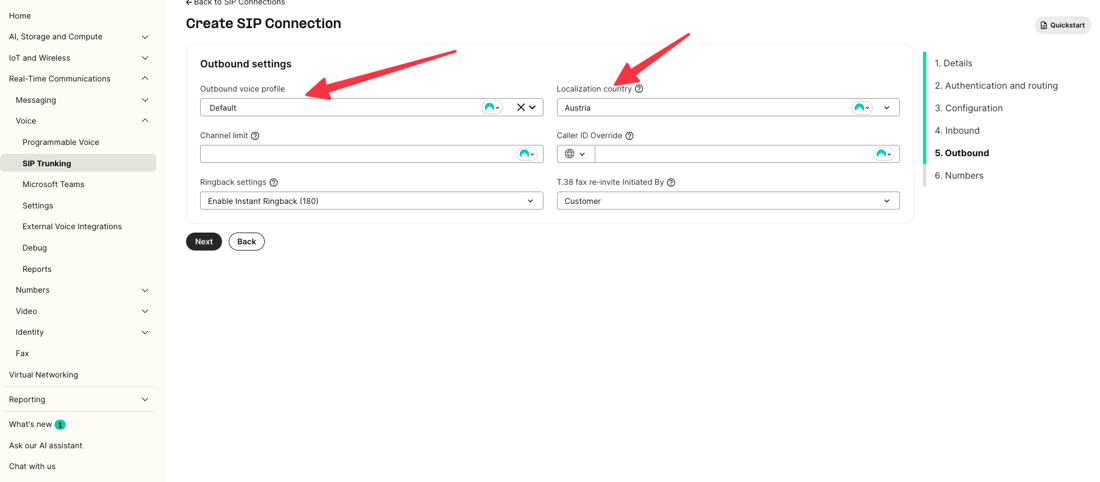
For outbound calls, Telnyx requires an Outbound Voice Profile.
Open Outbound Voice Profiles and select or create a suitable profile.
In the V2 settings, use:
- The default profile
- The country or countries that may be called
- The SIP Connection you created earlier
Also check whether your Telnyx account is enabled for outbound calls.
Link the Telnyx number to the connection
In the Telnyx portal, open Numbers or My Numbers.
Select the purchased phone number and connect it to the new fonio SIP Connection.
Without this assignment, Telnyx does not know which connection to use for delivering inbound calls.
Create a SIP number in fonio
In fonio, open:
Phone numbers → Add phone number → Create SIP number
Under Phone number or name, enter exactly the Telnyx phone number you assigned to the SIP Connection.
Use the international format:
+49301234567
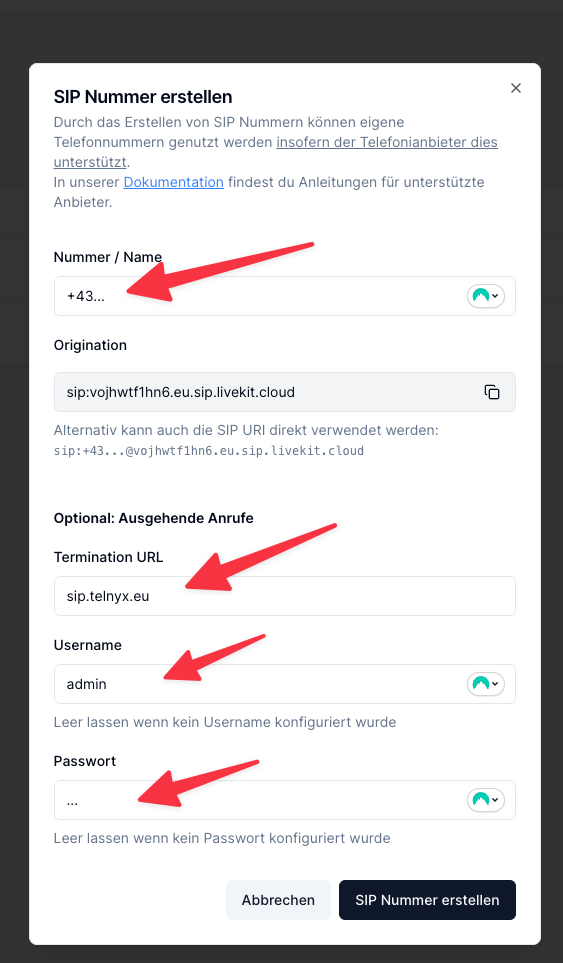
If you only want to use inbound calls, you can save the number now.
Configure outbound calls in fonio
If you want to make outbound calls via Telnyx, also enter the following values:
- Termination URL:
sip.telnyx.eu - Username: Username from the Telnyx SIP Connection
- Password: Password from the Telnyx SIP Connection
The domain sip.telnyx.eu is the Telnyx SIP endpoint for the European region. Telnyx lists the regional SIP endpoints in its documentation on SIP regions and IP addresses.
Then click Create SIP number.
Assign the number to an assistant
After creating it, open the Phone numbers section again.
For the Telnyx number, click Change assistant assignment and select the assistant you want.
Without this assignment, fonio cannot hand inbound calls over to an assistant.
Test inbound calls
Call your Telnyx number from another phone.
Check:
- Does the call reach fonio?
- Does the right assistant answer?
- Is the original caller number displayed?
- Does audio work in both directions?
- Does the conversation appear in the fonio call history?
Test outbound calls
Start a single test call with the assigned assistant.
Check:
- Is the call started via Telnyx?
- Is the intended phone number displayed to the recipient?
- Is the destination country allowed in the Outbound Voice Profile?
- Does audio work in both directions?
- Does the call appear in the fonio call history?
Inbound calls do not reach fonio
Check:
- Is the connection enabled in Telnyx?
- Is the connection type set to
FQDN? - Is
vojhwtf1hn6.eu.sip.livekit.cloudentered completely? - Is the record type
SRVselected? - Was no port added?
- Is
TCPselected as transport? - Is the SIP region set to Europe?
- Is the purchased phone number connected to this SIP Connection?
- Is the same phone number created in fonio and assigned to an assistant?
Phone numbers arrive in the wrong format
In the Telnyx inbound settings, check the format of DNIS and ANI.
Use:
+E.164
Correct:
+436641234567
Wrong:
436641234567
06641234567
Outbound calls do not work
Check:
- Is
sip.telnyx.euentered as the Termination URL? - Do the username and password match Telnyx?
- Is there an Outbound Voice Profile?
- Is the SIP Connection assigned to the profile?
- Is the destination country allowed in the profile?
- Is there enough balance in your Telnyx account?
- Is the destination number entered in international format?
If you change the credentials in Telnyx, you also need to update them in fonio.
There is no audio or only one-way audio
First check the selected codecs. Only use codecs that the Telnyx interface recommends for the connection.
Also check:
- Is
TCPselected as SIP transport? - Is the region set to Europe?
- Are Telnyx media connections being blocked?
- Does the problem occur on all calls or only on some?
If you need help
Write to us at support@fonio.ai and include the following information right away:
- Email address of your fonio account
- Name of the assistant
- Affected Telnyx phone number
- Name of the Telnyx SIP Connection
- Date and exact time of a test call
- Caller number and destination number
- Whether inbound or outbound calls are affected
- Screenshot of the FQDN and inbound settings
- Conversation link, if the call appears in the fonio call history
Protect your credentials
Remove usernames, passwords and other confidential credentials from screenshots.