
Yeastar: Set up a SIP connection
Connect your Yeastar P-Series to fonio and route calls between your phone system and your assistant.
You can connect your fonio assistant directly to a Yeastar P-Series. The assistant can take over incoming calls and transfer conversations back to internal destinations on your Yeastar system.
Supported editions:
- Yeastar P-Series Hardware Edition
- Yeastar P-Series Software Edition
- Yeastar P-Series Cloud Edition
Requirements
For the setup you need:
- Administrator access to your Yeastar system
- An active fonio account
- At least one assistant that is already set up
- A free value for the internal SIP number
- For on-premise systems, a reachable FQDN of your Yeastar system
Create a SIP number in fonio
In fonio, open:
Phone numbers → Add phone number → Create SIP number
In the new window, enter a free number, for example:
+999999
This number will later be used inside your Yeastar system as the destination for fonio.
Then copy the SIP URI shown under Origination. You need it in the next step for the Yeastar trunk.
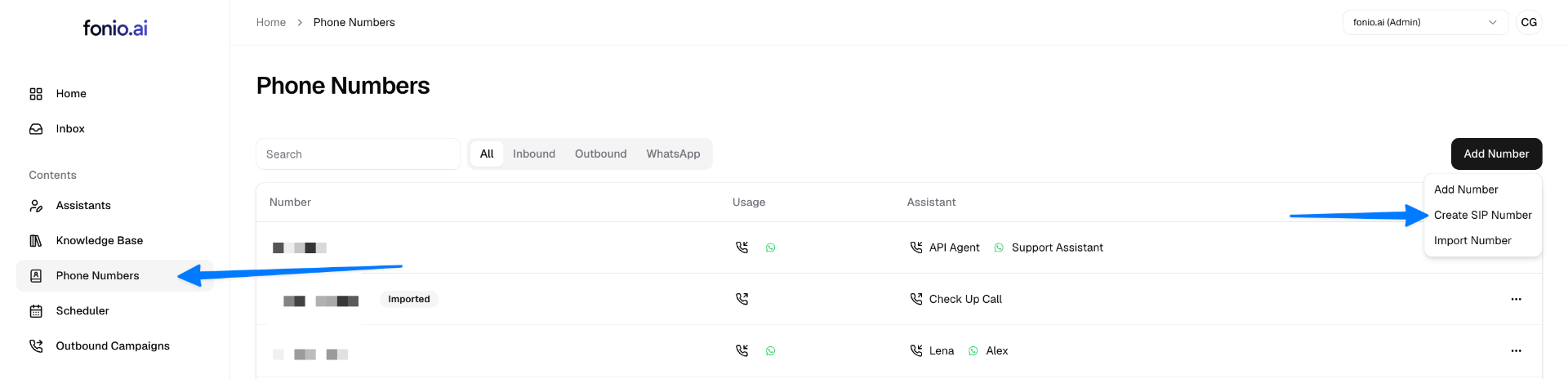
Click Create SIP number and then assign the number to the assistant you want.
Use the same number in both systems
Later, use exactly the same number in your Yeastar system that you entered in fonio.
Create a peer trunk in Yeastar
In your Yeastar system, open:
Extension and Trunk → Trunk
Click Add and select:
Peer Trunk (number based)
Enter the following values:
| Field | Value |
|---|---|
| Name | A unique name such as fonio |
| Transport | TCP |
| Hostname and domain | SIP URI from your fonio account |
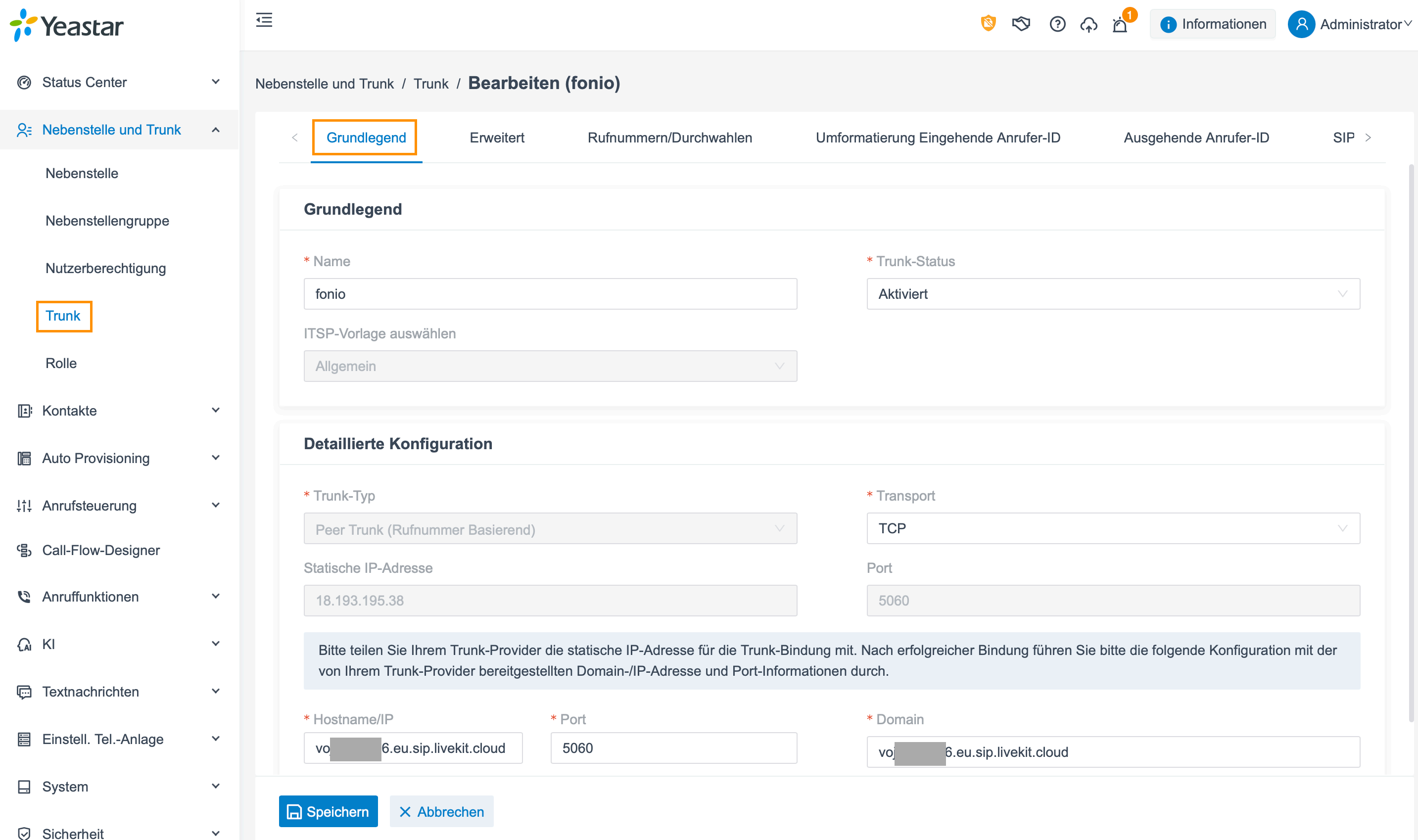
The resolved IP address can change. What matters is therefore the SIP URI or the hostname.
Configure the advanced trunk settings
On the new trunk, open the Advanced tab and go to the VoIP settings.
Enable:
- Qualify
- Support SIP REFER
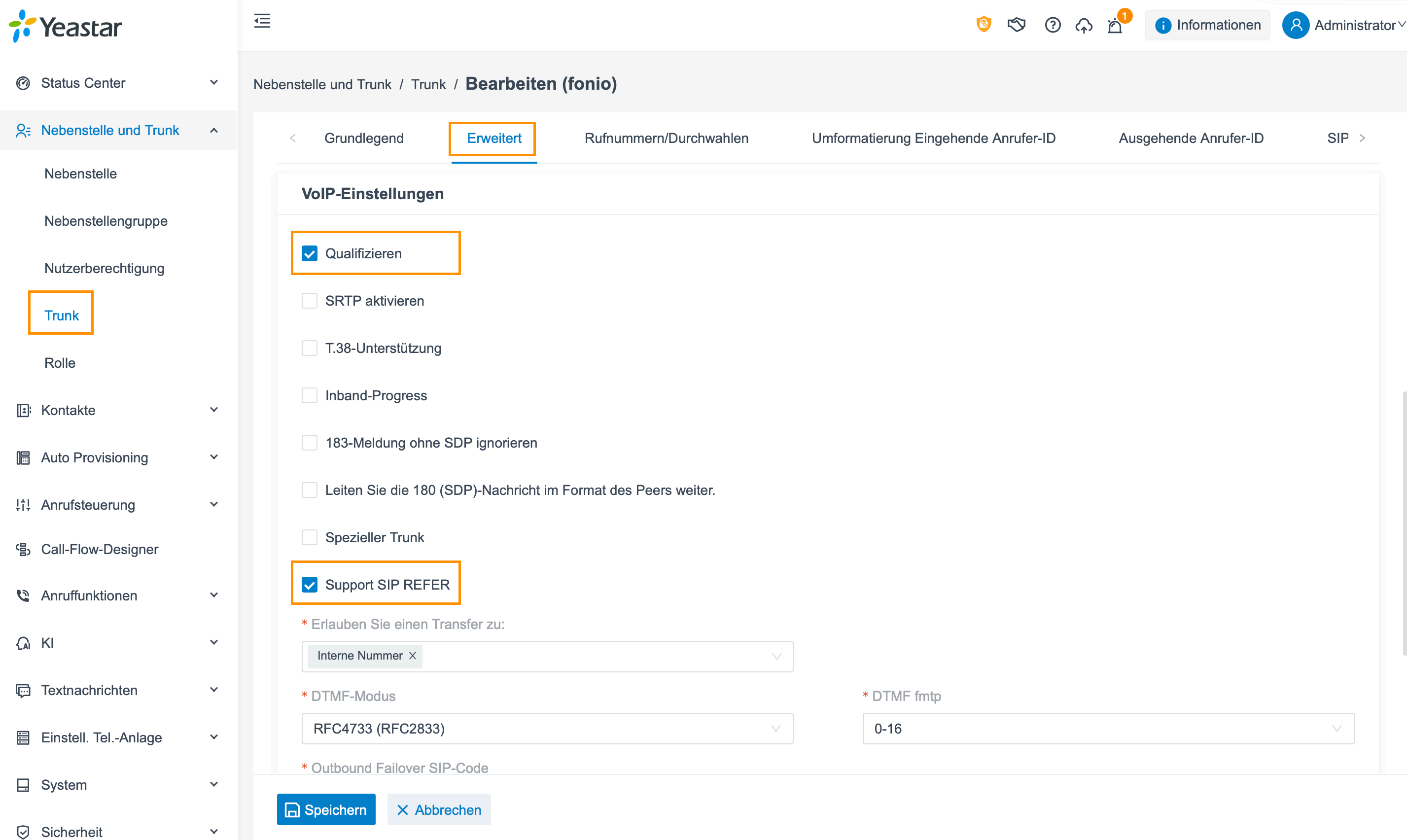
If Yeastar also asks which destinations are allowed via SIP REFER, enable at least:
- Internal Number
This allows your fonio assistant to hand over calls to internal destinations on your Yeastar system. Yeastar describes this feature in its official SIP trunk settings.

Click Save and then Apply at the top, if this button is shown.
After a short time, the trunk should be shown as reachable with a green status.
No classic SIP registration
The fonio trunk is a peer trunk. It does not register with a username and password. The green status shows that Yeastar can reach the destination via SIP OPTIONS.
Create an inbound route
To pass incoming calls to your fonio assistant, you create an inbound route.
Open:
Call Control → Inbound Route
Click Add.
Enter the following values:
| Field | Setting |
|---|---|
| Name | For example Calls to fonio |
| Trunk | Your incoming PSTN trunk |
| DID pattern | Phone number or extension on which the calls come in |
| Default destination | External Number |
| External number | The number you created in fonio, for example +999999 |
Select the right trunk
Select the PSTN trunk through which the original call reaches Yeastar. Do not select the fonio trunk you created earlier.
Yeastar supports External Number as the destination of an inbound route. You can find more information in the Yeastar documentation on inbound routes.
Click Save and then Apply.
Calls on the defined DID pattern are now passed to your fonio assistant.
Use fonio as an internal overflow destination
You can also let the assistant take over only when your team is not available.
Suitable use cases are:
- Overflow destination of a queue
- Destination of a ring group
- Destination on no answer
- Destination outside business hours
- Away destination of an extension
In the relevant Yeastar setting, select as the destination:
External Number
Then enter the number you created in fonio again:
+999999
Typical example
During business hours, your team rings first. If nobody answers, your fonio assistant takes over and records the request or a callback request.
Set up transfers back to Yeastar
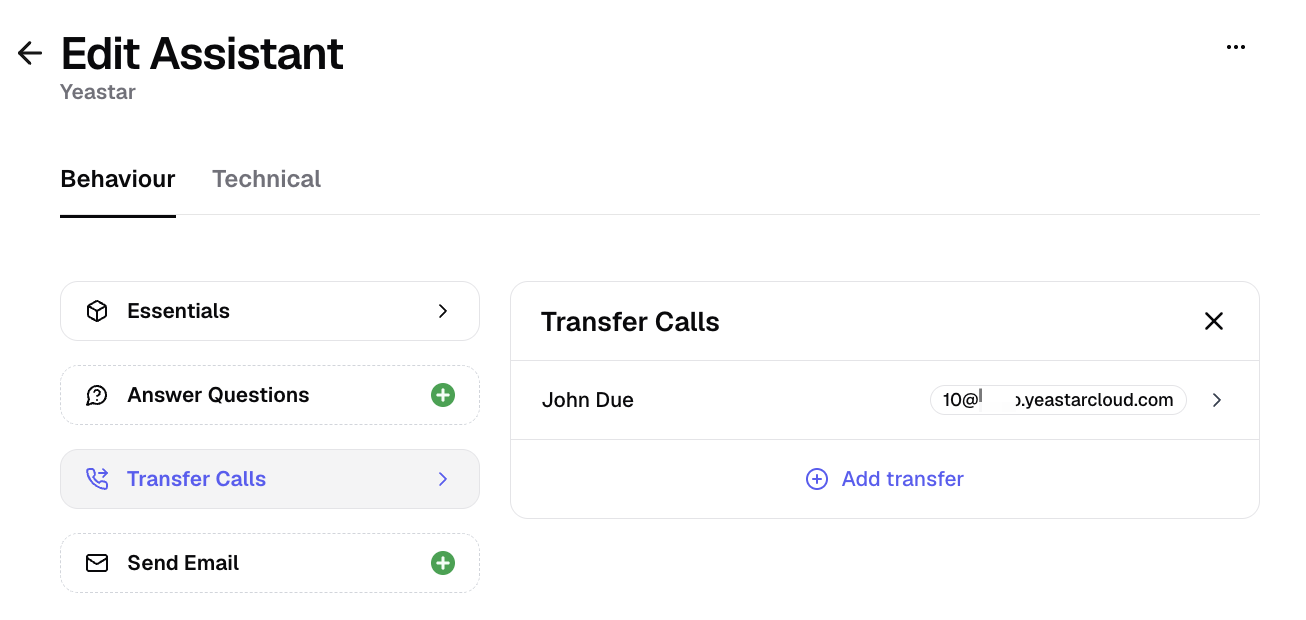
To let your assistant transfer calls to internal Yeastar destinations, you create these destinations in fonio.
On the assistant you want, open:
Edit → Transfer calls → Add transfer
Under Who does this number belong to?, enter a clear name, for example:
Sales
Select SIP as the destination type and enter the SIP URL:
INTERNAL_NUMBER@YOUR_YEASTAR_DOMAIN
Example:
200@company.ras.yeastar.com
As the domain, use:
- For the Cloud Edition, the domain of your Yeastar cloud system
- For hardware and software systems, the FQDN from Network → FQDN
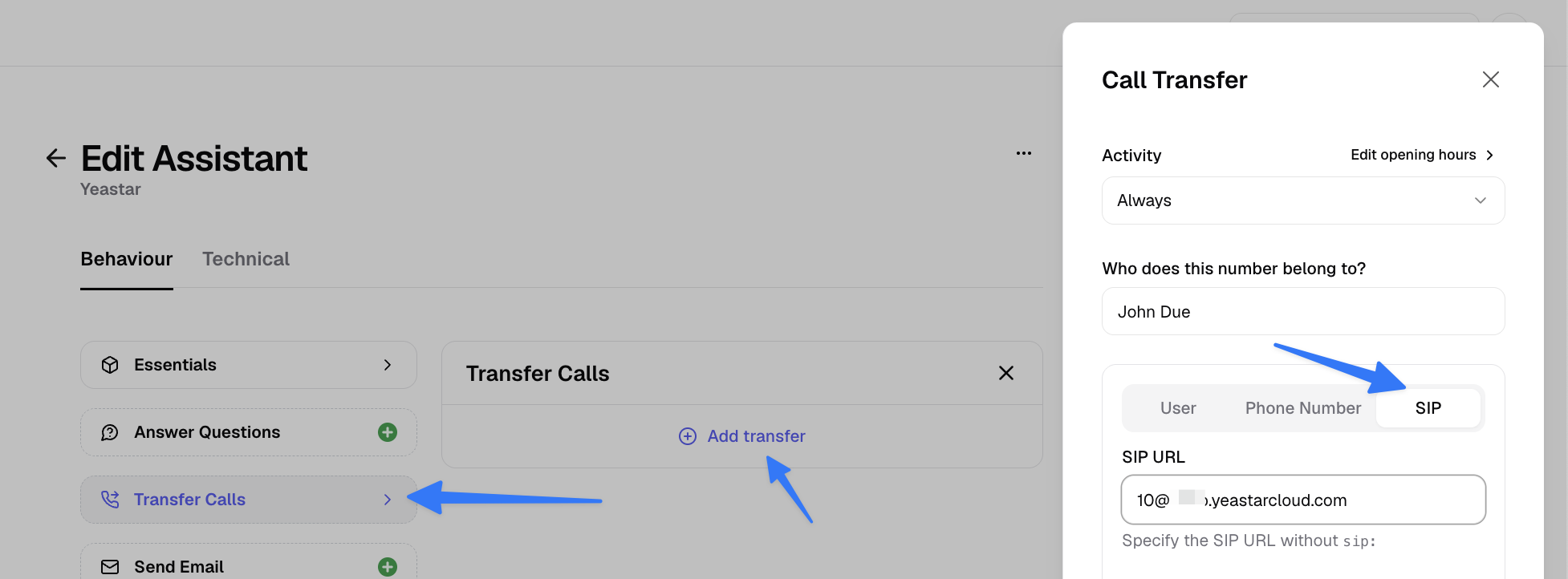
This way you can create different internal destinations:
- Users
- Extensions
- Queues
- Ring groups
- Conference rooms
- Other internal destinations of the phone system
Blind transfer
The transfer is done via SIP REFER as a blind transfer. The assistant does not check beforehand whether the internal destination is available.
Define transfer conditions
Define directly on the transfer destination when your assistant should hand over the call.
Example:
Transfer to Sales if the caller explicitly wants to speak with someone from the sales team.
Phrase the condition as specifically as possible. A rule that is too general can cause calls to be transferred too early.
Test the connection
After the setup, make several test calls.
Incoming call
- Call the phone number that reaches Yeastar via your PSTN trunk.
- Check whether the inbound route applies.
- Check whether the fonio assistant answers.
- Check the call in the fonio call history.
Overflow destination
- Let a queue or ring group ring.
- Do not answer the call.
- Check whether the assistant takes over after the ring time has expired.
Transfer back to Yeastar
- Ask the assistant for a transfer.
- Check whether the correct internal extension rings.
- Check whether the conversation works after the handover.
The trunk is not shown as green
Check:
- Is the trunk created as a peer trunk?
- Is TCP selected as the transport?
- Is the SIP URI from your fonio account correct?
- Is Qualify enabled?
- Were the changes saved and applied?
- Can your Yeastar system resolve the hostname via DNS?
- Is a firewall blocking the connection?
The IP address behind the fonio domain can change. Therefore enter the hostname and not a manually resolved single IP.
The assistant does not answer incoming calls
Check:
- Is the SIP number assigned to an assistant in fonio?
- Does the inbound route use the right PSTN trunk?
- Is the DID pattern correct?
- Is External Number selected as the default destination?
- Does the external number exactly match the fonio SIP number?
- Were the changes applied in Yeastar?
The transfer back to Yeastar does not work
Check:
- Is Support SIP REFER enabled on the fonio trunk?
- Are internal numbers allowed as a transfer destination?
- Does the internal extension exist in Yeastar?
- Is the SIP URL built correctly?
- Are you using the right Yeastar FQDN?
- Is the transfer destination created as SIP in fonio?
Example:
200@company.ras.yeastar.com
The wrong destination rings
Check:
- The internal number in the SIP URL
- The condition of the transfer destination
- The order and overlap of multiple transfer rules
- The assignment of extensions, ring groups and queues in Yeastar
Use a unique name and a clear condition for each destination.
If you need help
Write to us at support@fonio.ai and include the following details right away:
- Email address of your fonio account
- Name of the assistant
- Edition and version of your Yeastar P-Series
- Name of the fonio trunk you set up
- Date and exact time of a test call
- Caller number and destination number
- Screenshot of the trunk settings
- Screenshot of the inbound route
- SIP response code or Yeastar log, if available
Protect your credentials
Remove passwords and other confidential information from screenshots and logs.