
Twilio: Set up a SIP connection
Connect a Twilio Elastic SIP Trunk to fonio and use your Twilio phone number for incoming and outgoing calls.
With a Twilio Elastic SIP Trunk, you can pass incoming calls to your fonio assistant. Optionally, you can also use the Twilio connection for outgoing calls and transfers.
| Direction | Setup |
|---|---|
| Incoming | Twilio sends calls to fonio via the Origination SIP URI |
| Outgoing | fonio connects to Twilio via the Termination SIP URI |
| Transfer | Twilio processes your assistant's SIP REFER |
Requirements
For the setup you need:
- An active Twilio account
- A Twilio phone number with voice capability
- An Elastic SIP Trunk
- A fonio assistant that is already set up
- For outgoing calls, a Termination SIP URI and credentials
You can find a general overview in the Twilio documentation on Elastic SIP Trunking.
Create an Elastic SIP Trunk
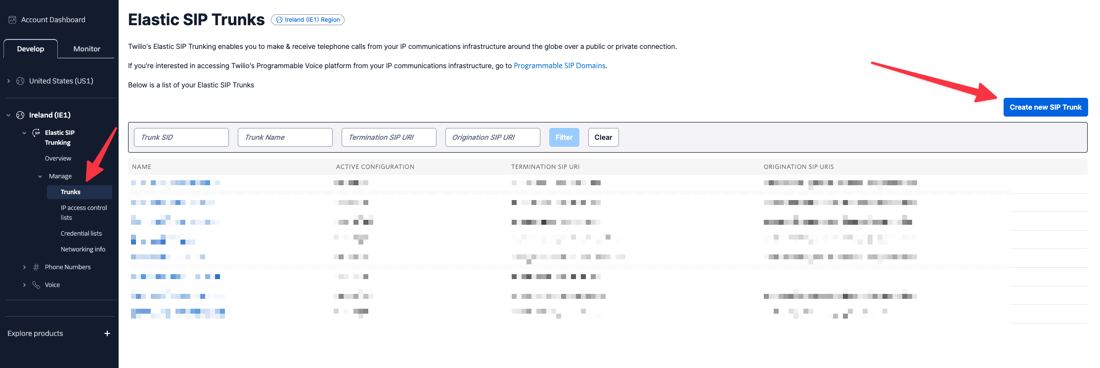
In the Twilio Console, open:
Communications → Elastic SIP Trunking → Trunks
Click Create New Trunk and enter a unique name, for example:
fonio
The Friendly Name is only for your internal overview.
Enable SIP REFER
On the new trunk, open the general settings.
Enable:
- Call Transfer (SIP REFER)
- PSTN Transfer, if the assistant should transfer calls to external phone numbers
Save the changes.
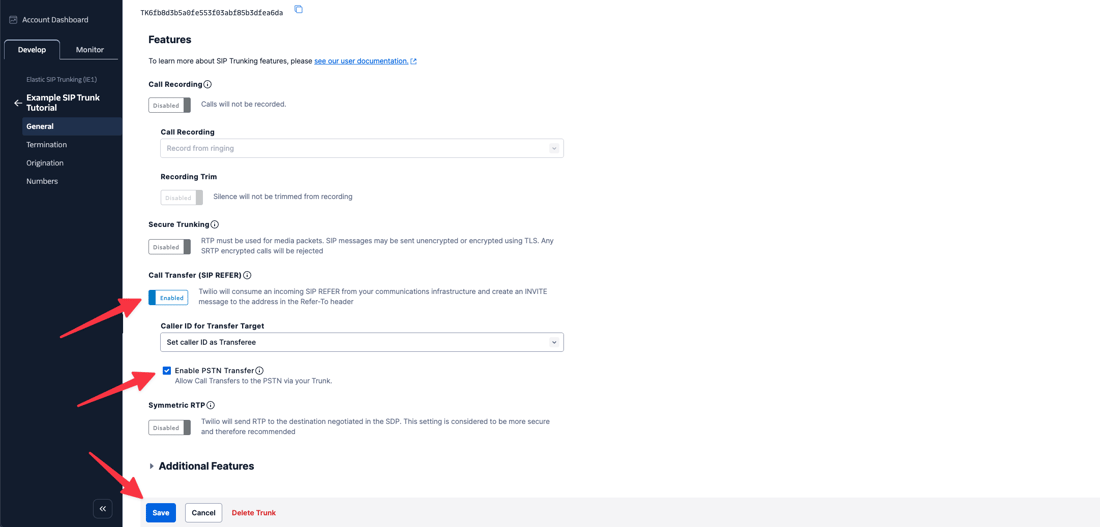
Via SIP REFER, Twilio supports blind transfers only. Consulting with the recipient before the transfer is not possible. You can find more information in the Twilio documentation on SIP REFER.
Costs for PSTN transfers
When transferring to an external phone number, the normal Twilio connection costs still apply.
Add the Origination SIP URI
On the trunk, open the Origination section and add the following URI:
sip:vojhwtf1hn6.eu.sip.livekit.cloud;edge=frankfurt;transport=tcp
This URI defines where Twilio should deliver incoming calls.
| Component | Meaning |
|---|---|
vojhwtf1hn6.eu.sip.livekit.cloud | fonio SIP destination |
edge=frankfurt | Twilio uses the Frankfurt edge |
transport=tcp | SIP signaling is sent over TCP |
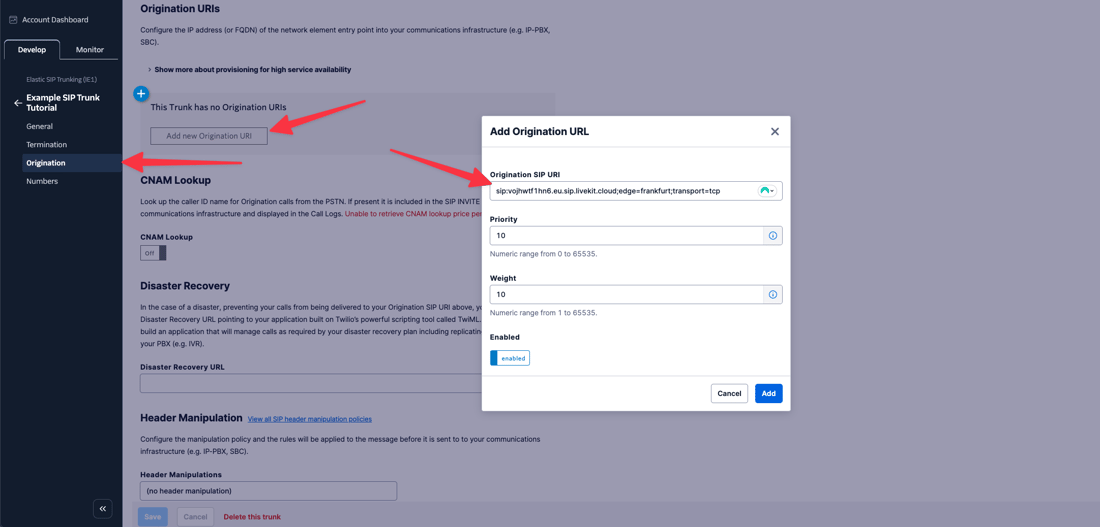
Twilio supports both the edge parameter and transport=tcp in the Origination SIP URI. How this works in detail is described in the Twilio origination settings.
Copy the URI completely
Pay particular attention to semicolons, spelling and order. Extra spaces can cause the URI not to be accepted.
Connect the Twilio phone number to the trunk
On the Elastic SIP Trunk, open the Numbers section.
Add the Twilio phone number that your fonio assistant should use.
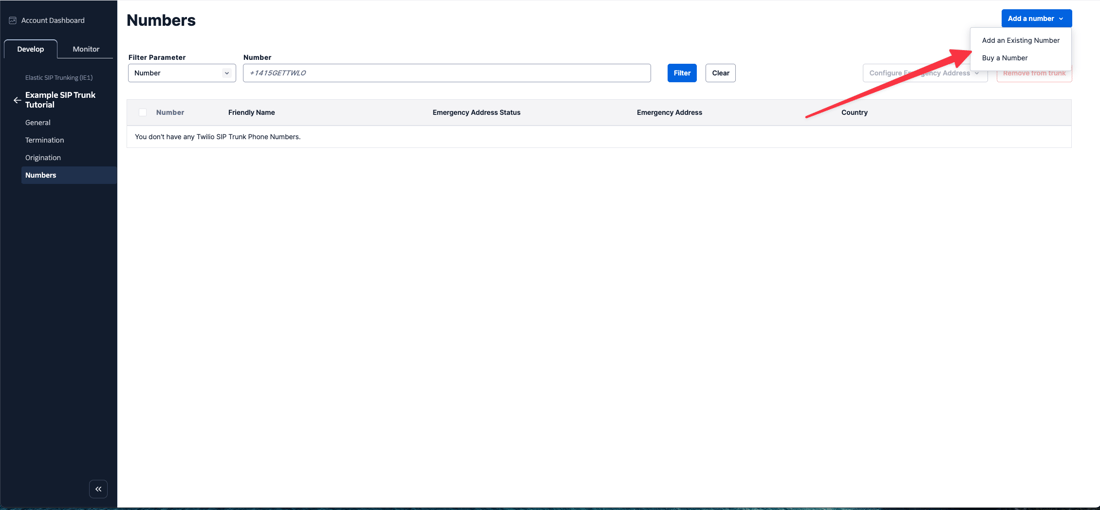
Without this assignment, incoming calls to the phone number are not sent to fonio via the new trunk.
Create a Termination SIP URI for outgoing calls
This step is only required if your fonio assistant should make outgoing calls via Twilio.
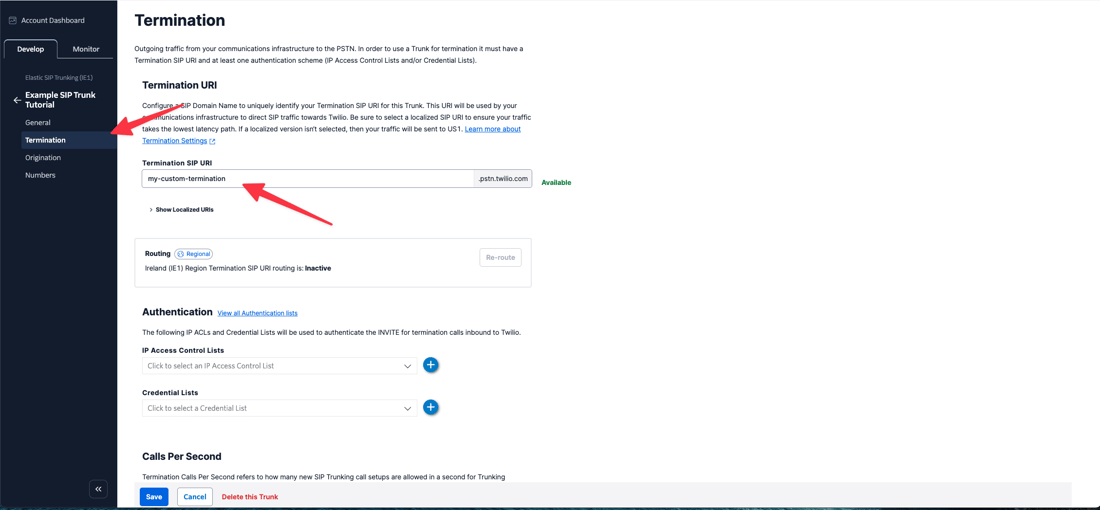
On the trunk, open the Termination section and set a unique name for the Termination SIP URI.
Twilio creates a domain from it in this format:
YOUR_NAME.pstn.twilio.com
Example:
my-fonio-connection.pstn.twilio.com
Distinguish Termination and Origination
The Origination SIP URI is used for incoming calls from Twilio to fonio. You need the Termination SIP URI for outgoing calls from fonio via Twilio.
Create credentials
In the Termination section, create a new Credential List.
Enter:
- A Friendly Name
- A username
- A secure password
You can choose the Friendly Name freely. For fonio, you will later need the actual username and password.
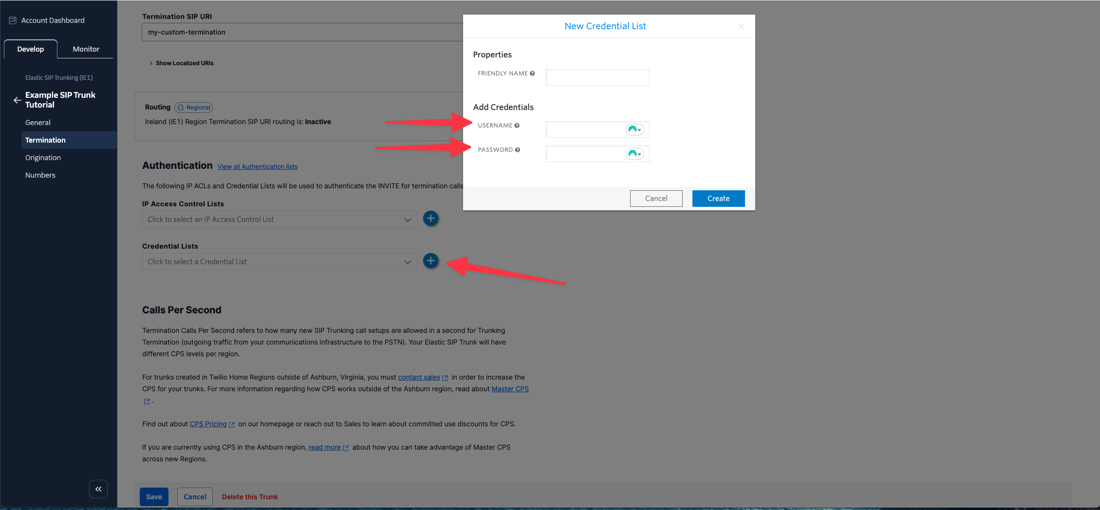
Twilio uses these credentials to authenticate outgoing SIP requests. You can find more information in the Twilio documentation on Credential Lists.
Store credentials securely
Save the username and password directly in a password manager. Never send this data by email or in a screenshot.
If you only want to forward incoming calls to fonio, you can skip steps 5 and 6.
Create a SIP number in fonio
In fonio, open:
Phone numbers → Add phone number → Create SIP number
Under Phone number or name, enter exactly the same phone number that you connected to the trunk in Twilio.
Use the international E.164 format:
+49301234567
If you only want to use incoming calls, you can create the SIP number now.
Configure outgoing calls in fonio
For outgoing calls, also enter the values from your Twilio configuration:
| Field in fonio | Value from Twilio |
|---|---|
| Termination URL | Your Termination SIP URI |
| Username | Username from the Credential List |
| Password | Password from the Credential List |
Example for the Termination URL:
my-fonio-connection.pstn.twilio.com
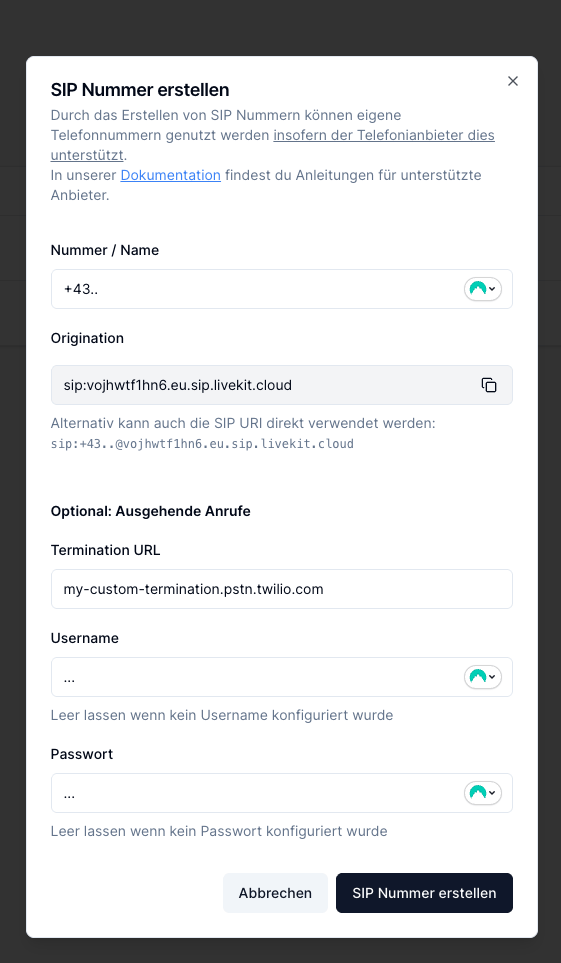
Then click Create SIP number.
Phone number format
Twilio expects destination numbers in E.164 format with a leading +. Without the plus sign, the call can be rejected with a SIP error.
Assign the phone number to an assistant
After creating it, open the Phone numbers section again.
On the Twilio number, click Change assistant assignment and select the assistant you want.
Without this assignment, fonio cannot answer incoming calls.
Test incoming calls
Call your Twilio phone number from another phone.
Check:
- Does the call reach fonio?
- Does the right assistant answer?
- Is the original caller number shown?
- Does the audio work in both directions?
- Does the conversation appear in the fonio call history?
Test outgoing calls
Start a single test call with the assigned assistant.
Check:
- Is the call started via Twilio?
- Is the destination number entered in E.164 format?
- Is the desired phone number shown to the recipient?
- Does the audio work in both directions?
- Does the call appear in the fonio call history?
Twilio trial account
With a Twilio trial account, outgoing calls may only be possible to phone numbers that were verified in Twilio beforehand.
Test transfers
During a test call, ask the assistant for a transfer.
Check:
- Is Call Transfer (SIP REFER) enabled?
- For external phone numbers, is PSTN Transfer enabled as well?
- Is the transfer destination in international format?
- Is the transferred call shown in the Twilio logs?
Incoming calls do not reach fonio
Check:
- Is the right Twilio phone number connected to the trunk?
- Is the Origination SIP URI enabled?
- Is the URI entered completely?
- Is
transport=tcpused? - Is
edge=frankfurtspelled correctly? - Is the same phone number created as a SIP number in fonio?
- Is the phone number assigned to an assistant?
The Origination SIP URI must look like this:
sip:vojhwtf1hn6.eu.sip.livekit.cloud;edge=frankfurt;transport=tcp
Outgoing calls do not work
Check:
- Is the Termination SIP URI entered completely?
- Are the username and password correct?
- Is the Credential List assigned to the right trunk?
- Is the destination number entered in E.164 format?
- Does the displayed Caller ID belong to your Twilio account, or was it verified there?
- Is there sufficient balance in your Twilio account?
As Caller ID, Twilio generally accepts a Twilio phone number from your account or a phone number verified there.
Transfers do not work
Check:
- Is Call Transfer (SIP REFER) enabled?
- For an external phone number, is PSTN Transfer switched on?
- Is the destination entered in international format?
- Does your Twilio account have the necessary permission for the destination country?
- Does a child call for the transfer appear in the Twilio Voice Logs?
Twilio reports 407 Proxy Authentication Required
A SIP 407 error means that Twilio is requesting credentials or does not accept the credentials that were sent.
Check:
- Is the username from the Credential List correct?
- Is the password correct?
- Is the Credential List assigned to the right trunk?
- Were the credentials changed in Twilio afterwards?
- Are old credentials still saved in fonio?
Twilio reports 400 Bad Request
First check the number format.
Correct:
+436641234567
Incorrect:
436641234567
06641234567
For Elastic SIP Trunking, Twilio requires phone numbers in E.164 format with a leading plus sign.
If you need help
First check failed calls in the Twilio Console under:
Monitor → Logs → Voice
Then write to us at support@fonio.ai and include the following details:
- Email address of your fonio account
- Name of the assistant
- Affected Twilio phone number
- Trunk SID or name of the trunk
- Date and exact time of the test call
- Caller number and destination number
- SIP response code
- Screenshot of the Origination or Termination settings
- Conversation link, if the call appears in the fonio call history
Protect your credentials
Remove usernames, passwords, Auth Tokens and Account SIDs from screenshots and logs.