
Zadarma: Set up a SIP connection
Connect Zadarma to fonio and set up inbound and outbound calls.
With the SIP connection, you can use your virtual Zadarma number for inbound and outbound calls with fonio.
| Direction | Setup |
|---|---|
| Outbound | fonio connects to your internal Zadarma PBX number |
| Inbound | Zadarma forwards calls to fonio via a SIP URI |
Requirements
For the setup you need:
- An active virtual number at Zadarma
- A configured Zadarma Cloud PBX
- An internal PBX number with SIP login and password
- Access to phone numbers and assistants in fonio
- Sufficient balance or a suitable plan at Zadarma
Prepare your Zadarma credentials
In Zadarma, open My PBX → Extensions.
Select an internal PBX number and note down:
- SIP login of the internal PBX number
- SIP password
- Virtual Zadarma number
Copy the login correctly
The SIP login can differ from the short internal extension. Use the full login shown in the settings of the internal PBX number.
The password you need is the SIP password of the internal number. Do not use the password of your Zadarma account.
Create a SIP number in fonio
In fonio, open:
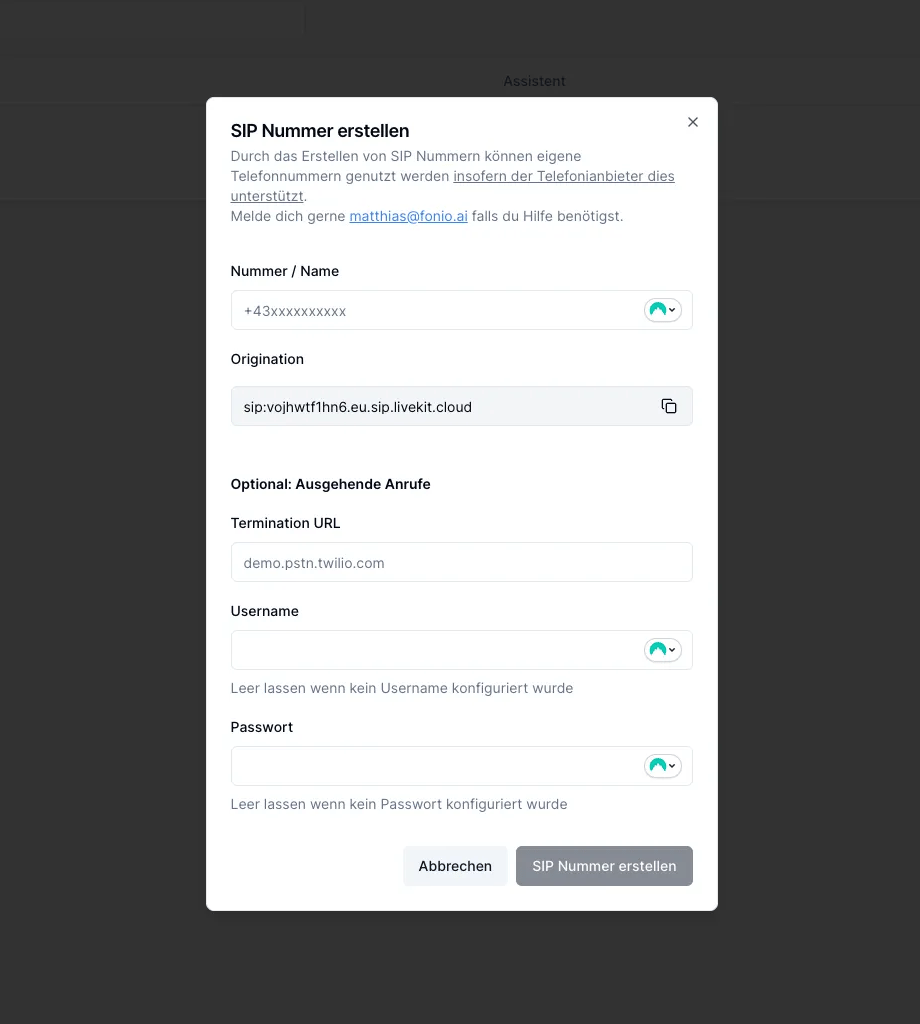
Phone Numbers → Add number → Create SIP number
Enter the following values:
- Number or name: Your virtual Zadarma number
- Termination URL:
pbx.zadarma.com - Username: Full login of your internal PBX number
- Password: SIP password of this internal PBX number
The server address pbx.zadarma.com and the credentials of the internal PBX number are also described in the official Zadarma documentation.
Then click Create SIP number.
Connect the number to an assistant
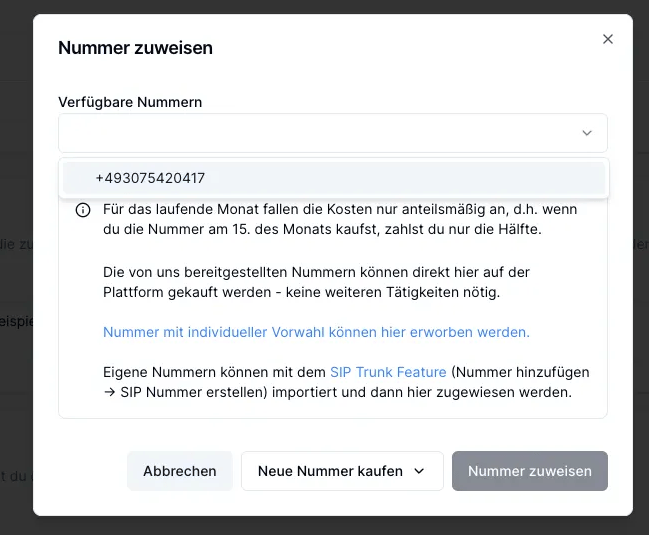
Open the assistant that should use the Zadarma number and click Assign number. Select the SIP number you just created from the list.
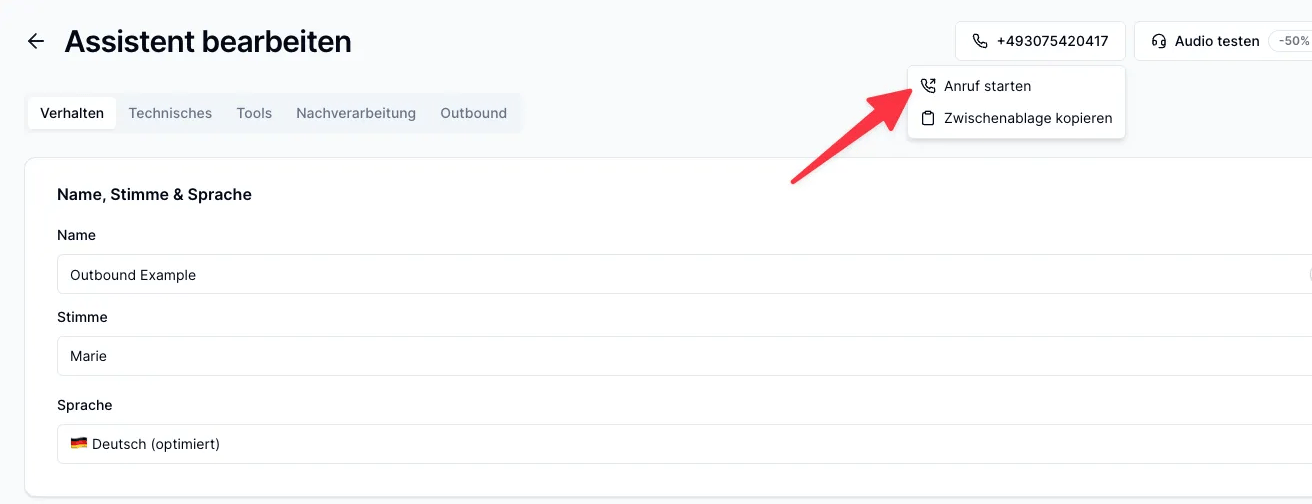
You can then start an outbound test call:
- Open the assigned number.
- Click Start call.
- Enter a destination number in international format.
- Start the call.
Example:
+436641234567
Set up inbound calls in Zadarma
So that your fonio assistant can answer inbound calls on your Zadarma number, set up forwarding to the fonio SIP URI in Zadarma.
Open:
My PBX → Extensions
Select the internal number on which your virtual Zadarma number arrives.
Open call forwarding
Next to Call forwarding and voicemail, click Set up or Enable.
Then choose the condition you want:
- Always: Every call goes directly to fonio
- No answer: fonio only takes over when nobody picks up or the extension is unreachable
Zadarma supports both permanent and conditional forwarding for internal PBX numbers.
Select external SIP server
Under Forward to, select:
External server (SIP URI)
Enter the SIP address in the following format:
YOUR_NUMBER@vojhwtf1hn6.eu.sip.livekit.cloud
Example:
+4311111@vojhwtf1hn6.eu.sip.livekit.cloud
Replace +4311111 with your virtual Zadarma number in international E.164 format.
Forwarding to an external server via SIP URI is also described in the official Zadarma guide.
Number in international format
The number before the @ must be entered with + and the country code. Remove the leading 0 of the national area code.
Correct:
+49301234567@vojhwtf1hn6.eu.sip.livekit.cloud
Wrong:
0301234567@vojhwtf1hn6.eu.sip.livekit.cloud
Then click Save.
Test inbound calls
Call your virtual Zadarma number from another phone.
Check:
- Is the call forwarded by Zadarma?
- Does the right fonio assistant answer?
- Is the actual caller number displayed?
- Does audio work in both directions?
- Does the call appear in the fonio call history?
If you selected No answer, do not pick up the call on the Zadarma extension during the test.
Troubleshooting
Outbound calls do not work
Check in fonio:
- Is the Termination URL exactly
pbx.zadarma.com? - Are you using the full SIP login?
- Is the SIP password of the internal number correct?
- Is the SIP number assigned to the right assistant?
- Is the destination number in international format?
Also check in Zadarma:
- Is the internal PBX number active?
- Are outbound calls allowed?
- Is there sufficient balance?
- Was the SIP password changed after setup?
If you generate a new password in Zadarma, you must also update it in fonio.
Inbound calls do not reach fonio
Check:
- Is forwarding enabled in Zadarma?
- Is the right internal number selected?
- Is forwarding set to Always or No answer?
- Is External server (SIP URI) selected?
- Is the fonio domain correct?
- Is the Zadarma number before the
@in E.164 format? - Is the SIP number assigned to an assistant in fonio?
The full destination address must look like this, for example:
+4311111@vojhwtf1hn6.eu.sip.livekit.cloud
The assistant takes over too early
If your team or a phone should ring first, choose a conditional forwarding in Zadarma such as No answer.
With Always, every inbound call is forwarded to fonio immediately.
The assistant does not take over when nobody answers
Check whether:
- The No answer condition is active
- The internal PBX number actually rings
- No Zadarma voicemail answers the call first
- The call is forwarded after the ring time expires
- The SIP URI is entered completely
If a voicemail answers the call, it counts as answered and can no longer be forwarded to fonio.
If you need help
Write to us at support@fonio.ai and include the following details right away:
- Email address of your fonio account
- Name of the assistant
- Affected Zadarma number
- Date and exact time of a test call
- Caller number and destination number
- Whether inbound or outbound calls are affected
- Screenshot of the forwarding or SIP configuration
- Conversation link, if the call appears in the fonio call history
Protect your credentials
Remove SIP passwords and other confidential credentials from screenshots. Never send us your full password.
Related articles
- SIP numbers
- SIP: Common errors
- Transfer call
- Zadarma: Set up internal PBX numbers
- Zadarma: Forward a number to a SIP server